If you normally Backup iPhone to computer, you might be interested in knowing the steps to Restore iPhone from a Backup File stored on the Local Storage Drive of your Windows computer.
Another Restore option that is available in iTunes is to wipe out all the data, software and firmware from iPhone and Restore iPhone as a New Device or by using an iCloud or iTunes Backup stored on the local storage of your computer.
The first option, which is labelled as “Restore Backup” in iTunes is used to recover lost Messages, Photos, Notes and Contacts and the second option (Restore iPhone) is used to Factory Reset iPhone, if it is going through problems.
Restore iPhone from Backup on Windows Computer
In order to Restore iPhone from backup, the latest version of iTunes needs to available on the computer. If it is not, you can download and install the latest version of iTunes on your computer from Microsoft’s online store.
Another requirement to Restore iPhone from a Local Backup, iCloud Backup or as a New Device is to Disable Find My iPhone.
1. Restore iPhone Using Local Backup Stored on Windows PC
If you had previously made a Backup of iPhone to computer, you can follow the steps below to Restore iPhone using the Local Backup File of iPhone as available on your computer.
1. Open iTunes on your computer and plug iPhone to Computer.
2. Click on the Phone icon as it appears in iTunes on the screen of your computer.
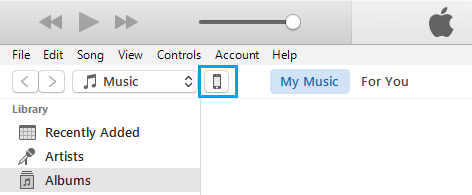
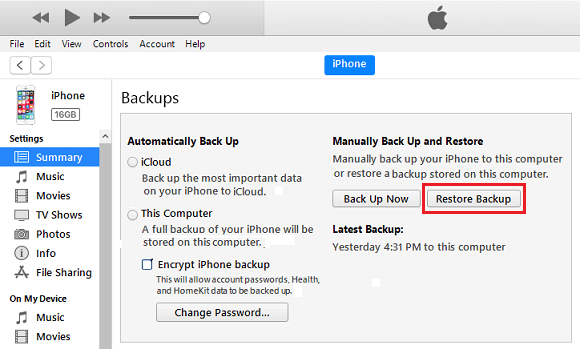
3. On the next screen, click on the Summary tab in left-pane. In the right pane, click on Restore Backup button, located under “Manually Backup and Restore” section.
4. On the pop-up, select the iTunes backup File located on your computer and click on the Restore button.
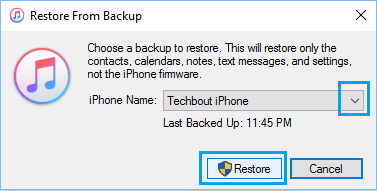
Note: If the iPhone Backup File on your computer is encrypted, you will be required to enter the password to access the encrypted file.
5. Wait for iTunes to complete the process of Restoring iPhone from the Backup File.
2. Restore iPhone As New Device or from iCloud and iTunes Backup
As mentioned above, the “Restore iPhone” option as available in iTunes is designed to wipe out all the data, software and firmware from iPhone and Restore iPhone as New Device or by using an iCloud or iTunes Backup.
1. Open iTunes > Plug iPhone to Computer using its supplied cable.
2. Click on the phone icon as it appears on your computer in iTunes.
3. On the next screen, click on the Summary tab (left-pane) and click on Restore iPhone button in the right-pane.
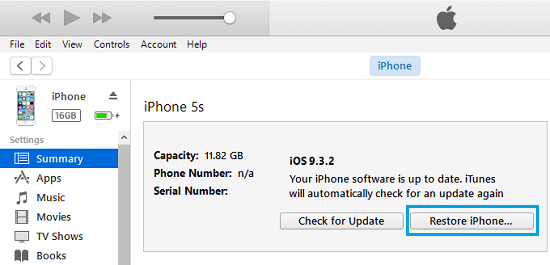
4. Once you click on Restore iPhone, you will see a pop-up providing you with the option to Backup Settings of your iPhone before restoring it.
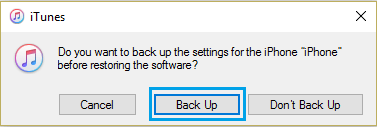
Click on the Back Up option to save the Settings of your iPhone and allow iTunes to Reset iPhone to Factory Default Settings.
5. After the Data on your iPhone is wiped out, you should find your device restarting with the “Hello” screen.

6. From the Hello screen, follow the onscreen instructions, until you reach “Apps & Data” screen.
7. On “Apps & Data” screen, you will find the option to Setup iPhone as New Device and also the options to Restore iPhone using iCloud and iTunes Backup.
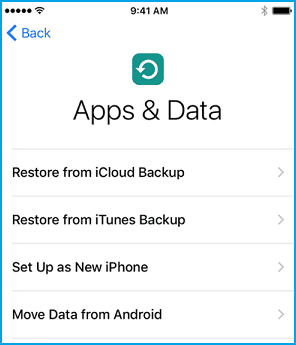
8. Select your desired option and follow the onscreen instructions to complete the Restore process.