Microsoft Word provides built-in support for PDF (Printable Document Format), which makes it really easy to Save and Print Word documents to PDF Format.
While you can use both “Print to PDF” and “Save As PDF” to convert any Word Document to PDF Format, there is a vital difference between the output produced by these two different methods.
When you use “Print to PDF”, the virtually printed PDF File will be stripped of all its Metadata/Links and when you use “Save As PDF”, the saved PDF file will contain all the Metadata, Links, Bookmarks and almost the same information as available in the original document.
Related: How to Change Default PDF Reader in Windows.
Save As PDF And Print to PDF in Microsoft Word
You can find below the steps to save Microsoft Word Document in PDF format using both Print to PDF and Save As PDF option as available on available on a Windows computer.
Whether you use “Save as PDF” or “Print to PDF”, the resulting document will retain Fonts, Formatting and Pagination across all devices and platforms.
1. Print to PDF in Microsoft Word
You can follow the steps below to Print to PDF in Microsoft Word.
1. Open the Word Document or File that you want to Print to PDF.
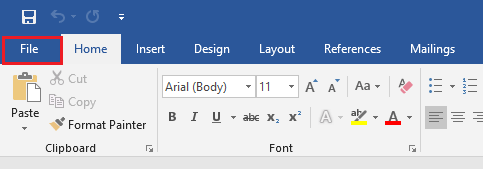
2. Once you are in the Word document, click on the File tab located in top-menu bar to access the File Menu.
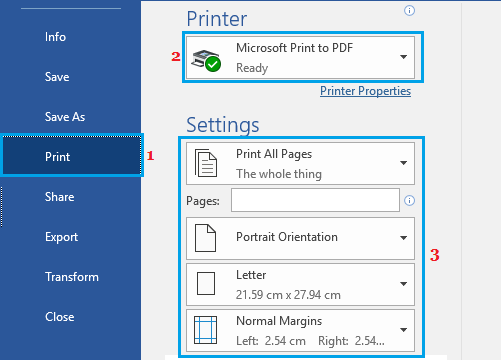
3. On the File Menu that appears, select Print in the left-pane. In the right-pane, make sure Microsoft Print to PDF option is available and select your desired Paper size, Orientation and other print settings.
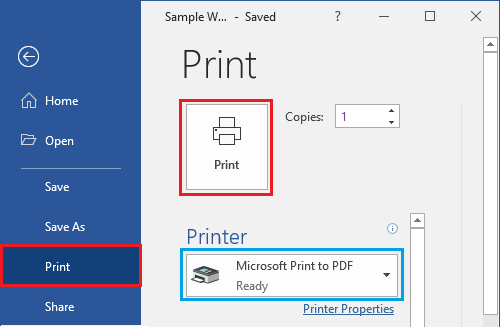
4. Once you are done with the printing adjustments, scroll up a bit and click on the Print box.
5. On the next screen, type a Name for your print file, select the Location where you want to save the PDF file and click on the Save button.
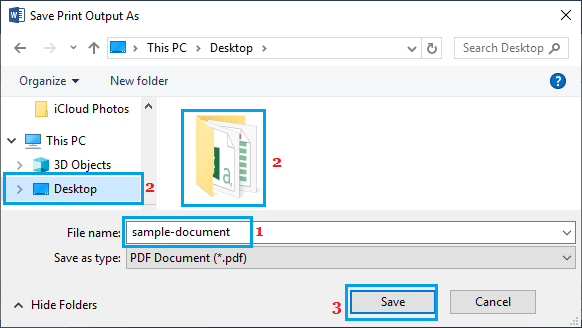
Note: Make sure “Save as type” is selected as .pdf before clicking on the Save button.
Once the PDF File is saved to computer, you will be able to send the document for actual printing or share it electronically with anyone.
2. Save As PDF in Microsoft Word
Another way of converting Word documents to PDF format is by using “Save As PDF” feature, as available in Microsoft Word.
1. Open the Word Document or File that you want to Print to PDF.
2. Once you are in the Word document, click on the File tab located in the top menu bar to open File menu.
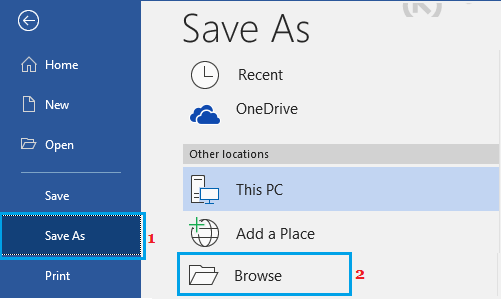
3. From the drop-down menu, click on Save As option in the left pane and click on Browse in the right pane.
4. On the next screen, use the default name or type a Name for your PDF File > select the Save Location for the PDF file and click on the Save button.
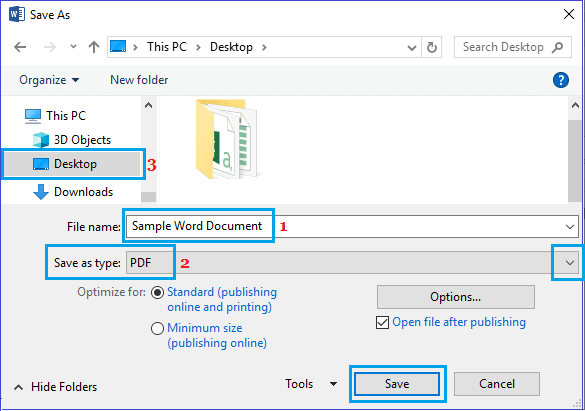
This will save the Microsoft Word Document in PDF Format that you can print, publish online or share with anyone.