When you send photos from iPhone using Email or Messages App, you can send them by inserting a Link to photos stored on iCloud; within the body of the message, instead of attaching actual photos to your message. This provides recipients with the option to view and download the photos by clicking on the iCloud Photo Link; within a period of 30 days, after which the link gets automatically disabled by iCloud.
However, you can also manually disable the iCloud Photo Link at any time, even if the iCloud Photo Link has already been sent to the recipients (via Email or iMessage) by using “Stop Sharing” option as available within the Photos App on iPhone; which can be useful in the following cases.
- Wrong Recipient: The iMessage containing iCloud Photo Link to family photos was accidentally sent to a wrong recipient. In such cases, you can prevent the possibility of family photos being viewed or downloaded by the wrong recipient by disabling the photo link.
- Prevent Forwarding: You want to prevent the possibility of iCloud Photo link being forwarded to others by revoking access to photos, after ensuring that the photos have been viewed by the recipients.
- Purpose Completed: The photos of an event or project were shared for a limited period of time.
- Personal Photos: You had accidentally shared personal or confidential photos and you do not want the link to work.
Note: Disabling iCloud Photo Link only revokes access to photos stored on iCloud, it cannot erase photos that have been already downloaded or captured in a screenshot by the recipients.
Stop Sharing iCloud Photo Link on iPhone
As mentioned above, the easiest way to disable or invalidate an iCloud Photos Link; which has already been sent to the recipients using Email, iMessage or WhatsApp is by making use of the Photos App. In addition to this, you can disable or invalidate an iCloud Photo link by logging into your iCloud Account on a Windows PC or MacBook.
You can also find below the steps to prevent the possibility of your iPhone automatically converting photos attached to an iMessage or Email into an iCloud Photo link.
Related: How to Download All Photos From iCloud to Mac.
1. Stop Sharing iCloud Photo Link Using Photos App
1. Open the Photos App on your iPhone.
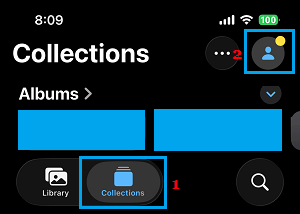
2. Make sure you are on Collections tab and tap on Profile located at top-right corner of the screen.
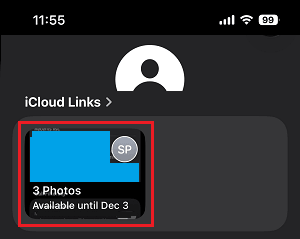
3. On the next screen, tap on the iCloud Photo Link that you want to revoke.
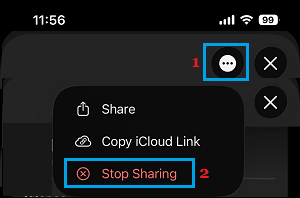
4. On the next screen, tap on 3-dots icon and select Stop Sharing Option.
5. On the confirmation pop-up, select the Stop Sharing option to confirm.
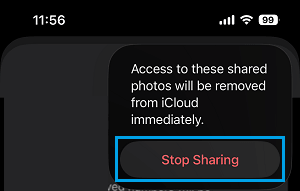
The shared Photo Link will be immediately revoked by iCloud, which makes the shared content unavailable to anyone that clicks on the link.
2. Revoke iCloud Photo Link Using iCloud
You can also disable the iCloud Photo Link by logging into your iCloud Account on a Windows computer or MacBook.
1. Open the web browser on your computer and go to icloud.com.
2. Login to your iCloud Account by using your Apple ID & Password.
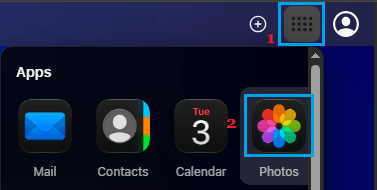
3. After you are logged-in, click on All Apps Icon and select the Photos Icon.
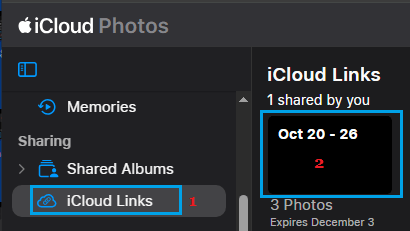
4. On the next screen, select iCloud Links tab (left sidebar) and click on the iCloud Link that you want to terminate.
5. On the next screen, click on 3-dots icon and select Stop Sharing option.
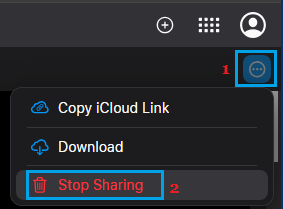
The shared photo link will be immediately terminated by iCloud, which prevents access to shared photos; even if someone click on the Shared Photo Link.
3. Prevent iPhone from Creating iCloud Photo Link
When you send photos from iPhone, there is always the possibility of iPhone automatically converting the photos that you attach to an iMessage into an iCloud Link, in order to save the bandwidth. However, you can easily prevent this from happening by using the following steps.
1. Open Photos app on your iPhone and select the Photos that you want to share using iMessage.
2. After the photos are selected, tap on Option; located below the number of photos selectd.
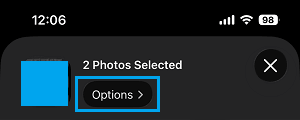
3. On the next screen, scroll down to “Send As” section and select the Individual Photos option.
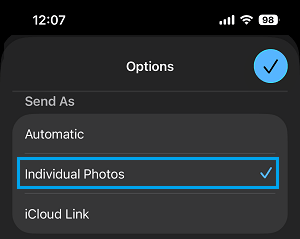
This will prevent the possibility of the attached photos being converted into an iCloud Photo link.