The natural way to read Messages in WhatsApp without notifying senders or preventing your Contacts from knowing whether or not you have been reading their messages is by switching-off the “Read Receipts” feature in your WhatsApp Account.
However, the disadvantage of this method is that it disables Read Receipts for all Contacts and also prevents you from knowing whether or not your Contacts have been reading your Messages. This happens, due to the “Read Receipts” feature in WhatsApp being designed to work in a reciprocal way; which makes it fair for everyone on WhatsApp.
Hence, we are providing below alternate ways to Read Messages of a particular Contact; without the other person knowing and without disabling the “Read Receipts” for everyone else in your WhatsApp Account.
Read WhatsApp Messages Without Sender Knowing
If you do not mind losing the ability to see whether or not the other person and all your other Contacts have been reading your messages, you can go for the official way (Disable Read Receipts) to read WhatsApp messages, without notifying the Sender.
If you do not want to switch off Read Receipts feature in WhatsApp, you can make use of other methods as provided below to read WhatsApp Messages without opening or notifying the Sender.
1. Enable Airplane Mode and Read Messages
The simplest way to read WhatsApp Messages without sending Read Receipts is by enabling Airplane Mode on your phone and then reading the messages.
1. Go to Settings > enable Airplane Mode by moving the slider to ON position.
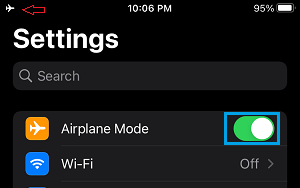
2. After enabling Airplane Mode, open WhatsApp > open the Message that wanted to read without notifying the Sender.
3. After reading the Message, close WhatsApp while Airplane Mode is still switched ON.
While this method is really simple to use, it prevents you from using WhatsApp, until you are ready to reply to the message or convey to your Contact that you have read his/her message.
As soon as you disable Airplane Mode and open WhatsApp, the two blue ticks will appear beside the sent message on the Senders device, which provides an indication to the Sender that his/her message has been opened and read by you.
2. Disable Read Receipts in WhatsApp
As mentioned above, the official way to Read WhatsApp Messages without notifying the Sender is to disable read receipts in your WhatsApp Account and then read the messages.
1. Open WhatsApp and tap on your Profile tab in the bottom-menu.
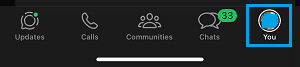
2. From the Settings screen, go to Privacy > scroll down and uncheck Read Receipts option.
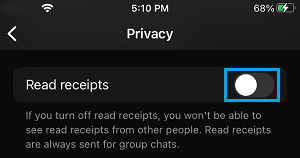
After disabling “Read Receipts”, you can open and read the WhatsApp Message that you wanted to read without notifying the Sender.
Since, you had disabled “Read Receipts” before opening the message, the Sender of the message won’t be able to see whether or not you have read the message.
3. Use Notification Previews
You can make use of the “Notification Preview” feature to read WhatsApp Messages without opening the actual message in WhatsApp.
Important: Do not tap on the Notification preview and open the message thread, as this will end up notifying the Sender.
1. Open WhatsApp, tap on your Profile Icon in the bottom menu (top-menu on Android phone).
2. Tap on Notifications > On the next screen, enable Show Previews option.
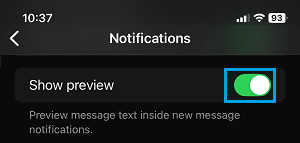
3. After this, open the Settings App on your iPhone.
4. From iPhone Settings screen, go to Notifications > Show Previews > Select Always or When Unlocked option.
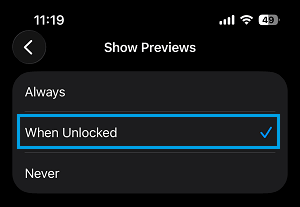
Note: Enabling “Always” allows you to read the message preview without unlocking your device. However, this can allow others to see your messages.
After this, any Message that you receive from any of your Contacts in WhatsApp will also appear on the Notification Panel and you will be able to read them by swiping down on the Notification panel.
As it must have already occurred to you, this method is suitable for short messages and does not work when photos and videos are sent.
Note: If you are using an Android phone, you can actually read long WhatsApp Messages by tapping on the Down-Arrow button that appears next to the Message preview.
4. Read the Message on WhatsApp Web
Another way to read WhatsApp Messages without generating those two blue ticks on the Senders device is by making use of WhatsApp Web.
1. Access your WhatsApp Account on a MacBook or Windows computer by using steps as provided in this guide: How to Use WhatsApp Web on PC & Mac.
2. Disconnect the computer from Internet and read the message while you are offline and make sure that you close the browser tab before reconnecting the computer to Internet.
Another way to read a good part of the message without clicking on the message is by taking a look at the list of messages in the view panel.
5. Use Third-Party Apps
If you are not happy with the limitations of above methods, you can make use of third-party apps like “Unseen” and “Blue tick, last seen hider” to read WhatsApp Messages without notifying the Senders.
1. Open the App Store on your iPhone & Google Play Store on Android Phone.
2. Search for Unseen and download the App on your mobile device.
3. After the App is downloaded, open the Downloaded App and follow the prompts to provide the app with access to Notifications on your iPhone or Android phone.
From now on, any new WhatsApp Message that you receive on your phone will show up in the Unseen App, which allows you to read the Message without notifying the Sender.