There are certain settings on iPhone that can make it potentially capable of recording your voice and the voice of people around you, while your are busy texting.
This can happen, if “Raise to Listen” feature gets triggered while you are using the Messages app to read/type text messages and your device is raised up almost to the shoulder level.
Another way that iPhone can end up recording your voice is when the Dictation Mode gets triggered due to accidental or unintentional tap on the Microphone Icon located on the keyboard of your iPhone.
Prevent Voice Recording While Texting on iPhone
Luckily, you can totally prevent the possibility of iPhone recording your voice while texting by disabling the “Raise to Listen” feature and also the “Dictation Mode” for added assurance.
In case you are wondering, the “Raise to Listen” feature is designed to allow users to quickly reply to incoming audio messages by raising the phone to ear level.
If you are not using it, you can prevent the potential possibility of your voice being accidentally recorded by iPhone by disabling the “Raise to Listen” feature.
1. Prevent Voice Recording While Texting by Disabling Raise to Listen
You can follow the steps below to disable the “Raise to Listen” feature on your iPhone.
1. Open Settings > scroll down and tap on Messages.
2. On the Messages screen, scroll down to “Audio Messages” section and disable Raise to Listen option.
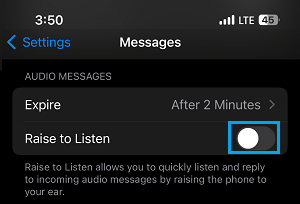
After this, your iPhone won’t be able to automatically switch to recording mode, when it is lifted up, carried at shoulder level or brought near the ear.
The good news! – Disabling “Raise to Listen” does not prevent you from recording and sending Audio Messages. You can still send Audio Messages by tapping on the Sound Wave Icon that appears in the text box.
After disabling “Raise to Listen” you won’t be able to listen to incoming audio messages by raising iPhone. However, you will always be able to manually play the Audio Messages and listen to them.
2. Prevent Voice Recording While Texting by Disabling Dictation Mode
As you must have noticed, there is a dedicated Microphone key on the virtual keyboard of iPhone. Any accidental tap on this key can end up activating Dictation Mode, which allows iPhone to record your voice.
For added assurance, you can consider disabling “Dictation Mode”, in order to prevent the possibility of your voice being recoded due to accidental tap on the “Microphone key” while you are busy typing.
1. Go to Settings > General > tap on Keyboard.
2. On the next screen, scroll down and disable Dictation Mode by moving the slider OFF position.
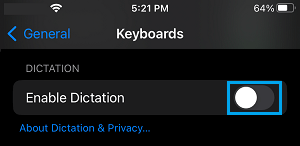
3. On the confirmation pop-up, tap on Turn Off Dictation option to confirm.
This will remove the Microphone Icon from the keyboard, which totally prevents the possibility of your voice being recorded, while using the keyboard of your iPhone.