Since, the option to create Guest User Account has been removed by Microsoft, an alternate way to Create Guest User Account on a Windows computer is by creating a Limited Privileges Account.
This should serve the purpose, because the overall purpose of a Guest User Account is to provide open access to the computer via a Limited Privileges Account, which effectively rules out the possibility of anyone else being able to make changes on the computer.
Create Guest User Account in Windows 11/10
While the lack of option to create a Guest User Account in Windows can be circumvented or worked around by creating a Limited Previleges Account, there is another problem that needs to be dealt with.
For quite some reason, the term “Guest” is reserved for Windows operating system, which totally prevents you from using the term “Guest” in any User Account on the computer.
The workaround for this issue is to name the Guest User Account as “Visitor Account” or name it using a term from your native language, which clearly indicates it as being a Guest User Account.
1. Steps to Create Guest User Account in Windows 11/10
Follow the steps below to create a Limited Privileges account on your Windows computer.
1. Right-click on Start button > click on Command Prompt (Admin).
2. On the Command Prompt screen, type net user Visitor /add /active:yes and press the Enter key on the keyboard of your computer.
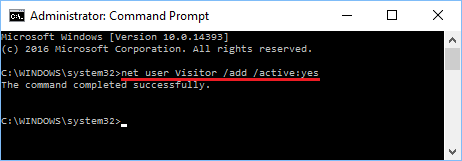
Note: The word Visitor is the Name of the Guest User Account, you can use any other User Name for your Guest Account, except “Guest” which is reserved by Windows OS.
3. Next, type net user Visitor * on the Command prompt screen and press the Enter key > skip Type Password and Retype Password prompts by pressing the Enter key twice.
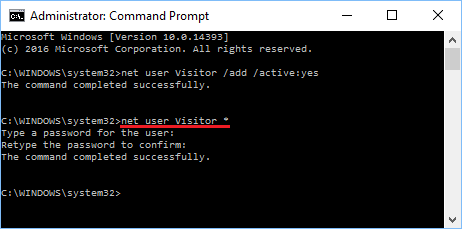
4. The next step is to delete the newly created Guest Account from Users Group and add it to Guests Group.
Type net localgroup users Visitor /delete and press the Enter key > Next, type net localgroup guests Visitor /add and press the Enter Key.
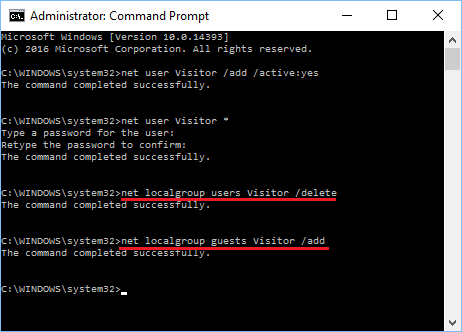
This completes the creation of Guest User Account on your Computer and you can trust this User Account to remain at Guest Level (Limited Privileges).
The Guest User Account that you created, allows Users to browse the Internet, Watch Videos, Play Music and use almost all the Apps and programs on the computer.
However, Guest Account cannot be used to Change system settings, install new programs/apps, delete or remove programs and perform other action that require Admin Privileges.
2. Login or Switch to Guest User Account
Once the Guest User Account is available on the computer, you can switch or login to Guest User Account at any time by selecting the Guest Account in the Start Menu.
Simply, click on the Start button and select the Guest User Account (Visitor in this case).
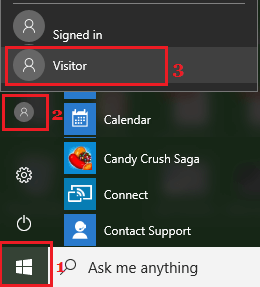
This will immediately log you into the Guest User Account, without any need to enter any login password.