While Windows operating system comes with certain built-in keyboard shortcuts, it also provides the option to assign keyboard shortcut to any app or desktop program, located anywhere on the computer.
For example, you can use the built-in Windows + I keyboard shortcut to quickly gain access to Windows Settings on your computer, instead of clicking on the Start button and then locating and clicking on the gear-shaped Settings Icon in the start menu.
In addition to built-in keyboard shortcuts like Windows + E (Open File Explorer), Windows + R (open Run Command) and others, Windows provides the option to create keyboard shortcuts using Ctrl, Alt & Shift keys to launch other apps, desktop programs and even files & folders located on your computer.
Create Keyboard Shortcuts in Windows 11/10
An easy way to create shortcuts on a Windows computer is by dragging apps located on the desktop to the Takbar; which results in a pinned shortcut to that particular app being automatically created by Windows.
While pinning Apps to the Taskbar is different from manually creating shortcuts by using Ctrl, Alt keys, this method can be incuded as a way to automatically create shortcuts to the most frequently used applications on a Windows computer.
1. Automatically Create Shortcut in Windows 11/10
As mentioned above, Windows automatically creates a Shortcut to any app or program that gets pinned to the Taskbar on your computer.
For example, let us assume that you pin iTunes to the Taskbar and it occupies the 3rd position on the Taskbar.
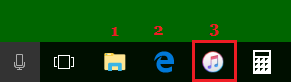
In this case, you can open iTunes by pressing Windows + 3 keyboard Shortcut. Similarly, any program that is on the second position on the Taskbar can be opened by pressing Windows + 2 keyboard shortcut.
2. Create Keyboard Shortcut to App Located on Desktop
You can manually create a shortcut to any app or program located on the Desktop by using the following steps.
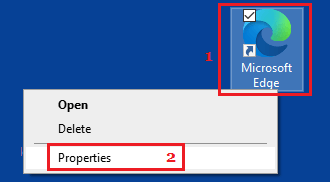
1. Right-click on the Icon of the app or program located on the desktop of your computer and click on Properties.
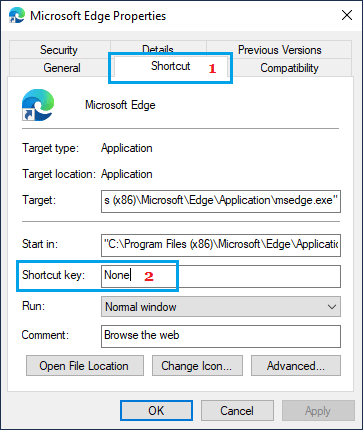
2. On the Properties screen, go to Shortcut tab, click in the Shortcut key box (where it says “None”) and press any Key that you want to use as part of keyboard shortcut on your computer.
In this case, we pressed the letter “E” on the keyboard and Windows created a keyboard shortcut (Ctrl + Alt + E) to open the Microsoft Edge browser on the computer.
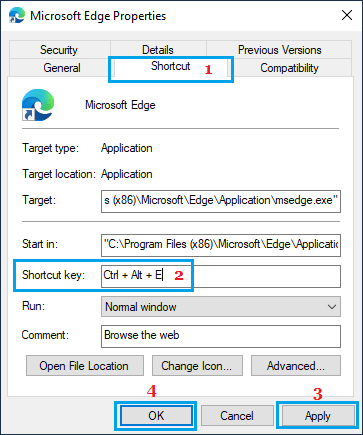
3. Make sure you click on Apply & OK to save this keyboard shortcut on your computer.
Once the shortcut is created, you can open or launch the Microsoft Edge browser on your computer by using Ctrl + Alt + E shortcut.
3. Create Keyboard Shortcut from Start Menu
If an app or desktop program Icon is not available on the desktop, you can locate that app or program from the start menu and create a Shortcut to launch that particular app on your computer.
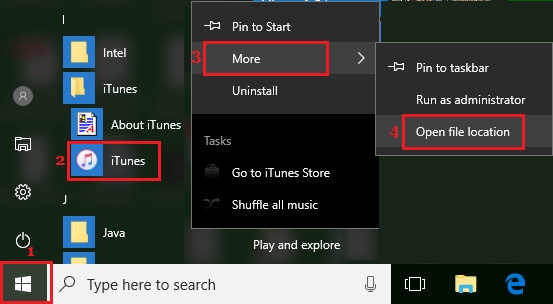
1. Click on the Start button > right-click on the Program > Hoover mouse over More and click on Open File Location option in the side menu.
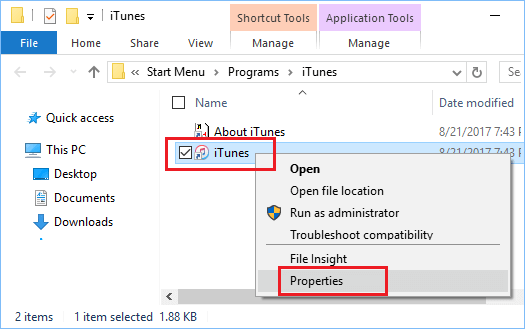
2. On the next screen, right-click on the Program icon and select Properties in the menu that appears.
3. On the properties screen, switch to Shortcut tab and click in the Shortcut key box where it says “None.”
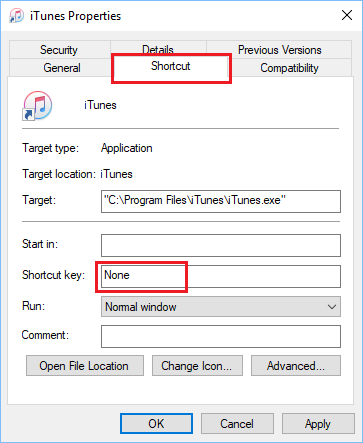
4. Once you click in Shortcut Key box, Windows creates Ctrl + Alt combination. All that you need to do is press any Key on the keyboard of your computer that you want to use as the Keyboard shortcut.
In this case, we pressed the letter “I” on the keyboard and Windows created a keyboard shortcut (Ctrl + Alt + I) to open iTunes.
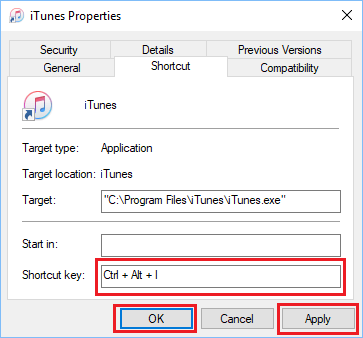
5. Click on Apply and OK to close the properties window.
After this you can open iTunes on your computer by pressing Ctrl + Alt + I keyboard combination. Similarly, you can create Keyboard Shortcuts for any other program on your computer.