In general, a Windows computer is known to come up with “File in Use” or “File is Locked for Editing” error, if any User tries to delete a Shared File that is being used by another User.
This feature in Windows operating is useful, as it has been specifically designed to prevent the possibility of a shared File/Folder on the network being mistakenly deleted.
However, it is not uncommon to find Windows preventing a File/Folder from being deleted, even if the File/Folder is not actually being shared or a User with permission to View, Edit and Delete a Shared File is trying to Delete the File.
Delete Locked File Using Command Prompt
If you are unable to delete a File/Folder on your computer, which you know for sure is not being used by another User; the first step is to find the Path to where this File/Folder is located on the computer.
Once the Location of the File/Folder is determined, it can be deleted by running Del/FilePath\FileName.extension command in the Command Prompt window.
1. Delete Locked File Using Command Prompt
You can follow the steps below to find the Location of the Locked File on your computer and delete the File using Command Prompt.
1. Right-click on the Locked File that you want to delete and select Properties in the drop-down menu.
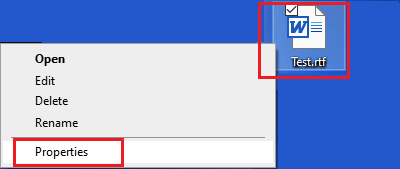
2. On the Properties screen, switch to Details tab and note down the Path to the Locked File.
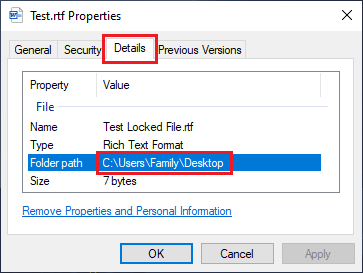
In this case, the Locked File Test.rtf is located at Path C:\Users\Username\Desktop.
3. Next, right-click on the Start button and select Command Prompt (Admin).
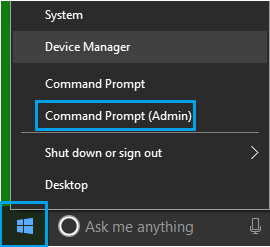
Note: You can also type CMD in Search bar > right-click on Command Prompt and select Run as Administrator option.
4. On the Command Prompt screen, type del FolderPath\FileName.extension and press the Enter key.
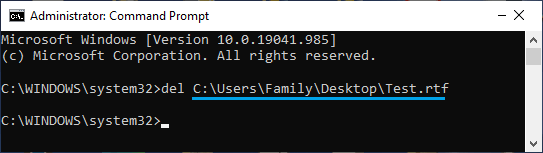
Once the Command is executed properly, the File should be Force Deleted and removed from the computer.
2. Delete Locked Folder Using Command Prompt
Similarly, any Folder located anywhere on the computer can be deleted by running rmdir /s /q FolderPath\FolderName Command.
1. Right-click on the Locked Folder that you want to delete and select Properties option in the drop-down menu.
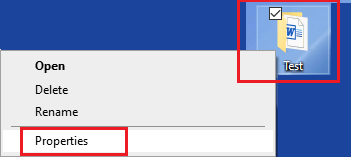
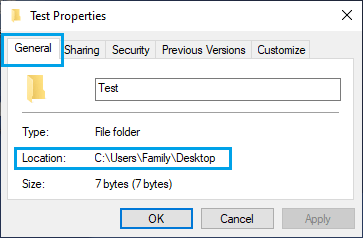
2. On Properties screen, you will find the Folder path listed next to the Location Entry.
3. Next, open Command Prompt as Admin > type rmdir /s /q FolderPath\FolderName and press the Enter Key.
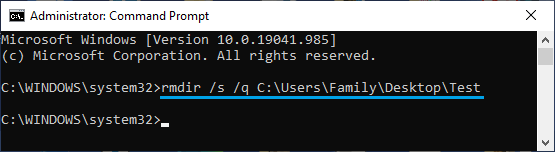
Once the Command is executed, the Folder should be Force Deleted and removed from the computer.