If you are looking for a way to delete User Account on your computer, it is likely that you are either trying get rid of unwanted or unused User Accounts or dealing with the issue of a corrupted User Account.
In the later case, you can try to repair the corrupted User Profile and if that does not work; you can transfer files located in the corrupted user account to a New User Account and delete the corrupted User Account.
Delete User Accounts In Windows 11/10
The act of adding and deleting User Accounts on a Windows computer can only be performed by an Admin. Hence, make sure that you are logged-in to an Admin Account or a Local User Account with Admin privileges.
Also, you need to be aware that deleting a User Account on a Windows computer results in deletion of all the Files that are located in that particular User Account. Hence, make sure that important files from the User Account are transferred to a USB Drive.
Note: The last method as provided below in this guide, provides the option to save files located in the User Account to Desktop; before deleing the User Account.
1. Use Settings to Delete User Account
The easiest way to delete any Local User Account on a Windows computer is by using the Settings App.
1. Press Win + I keys to open the Settings App on your computer.
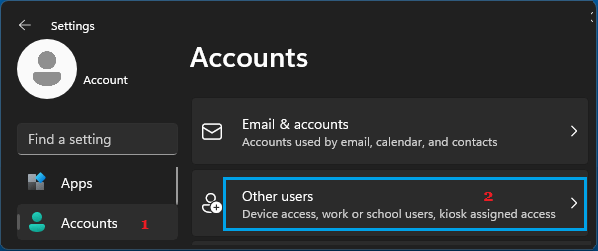
2. On the Settings screen, select Accounts in the left-pane and click on Other Users in the right-pane.
3. On “Other Users” screen, select the User Account that you want to delete and click on the Remove button.
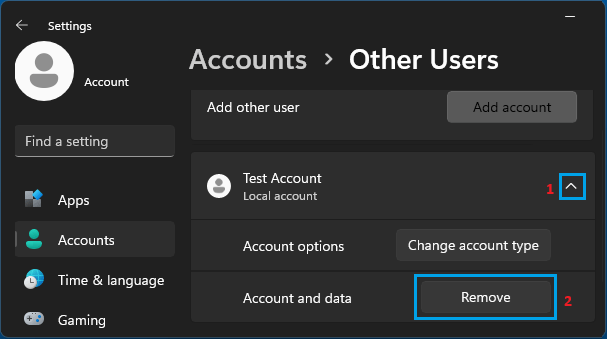
Windows 10: Go to Settings > Accounts > Family and other users > select the User account that you want to delete and click on Remove.
4. On the confirmation pop-up, click on Delete Account and data button to confirm.
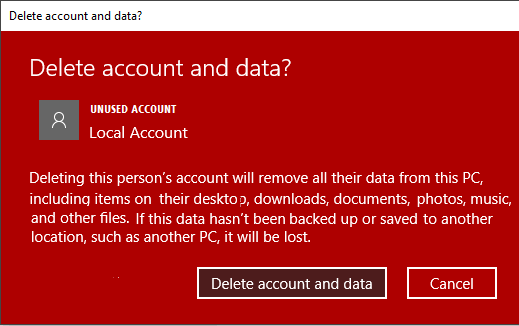
As mentioned above, the User Account will be permanently deleted from the computer, along with all the Files linked to that particular User Account.
2. Delete User Account Using Command Prompt
A quick way to delete User Accounts on a Windows computer is by using Command Prompt.
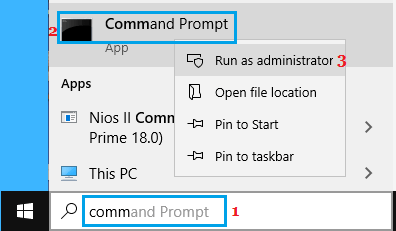
1. Type CMD in the search bar > right-click on Command Prompt in the search results and select Run as administrator option.
2. On the Command prompt screen, type net user (User Name) /delete and press the Enter key on the keyboard of your computer.
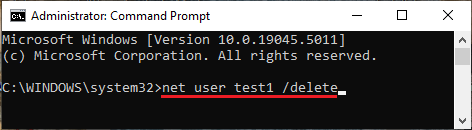
Note: Replace the User Name by the actual name of the User Account that you want to delete.
3. Delete User Account Using Control Panel
When you delete a User Account from the Control Panel, it provides you with the option to save User Account Files to Desktop.
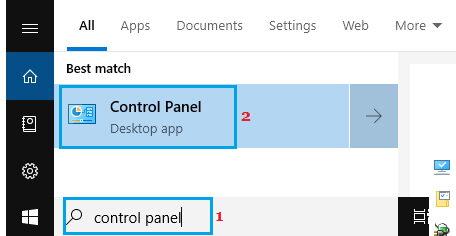
1. Type Control Panel in the Search bar and click on Control Panel Desktop App in the search results.
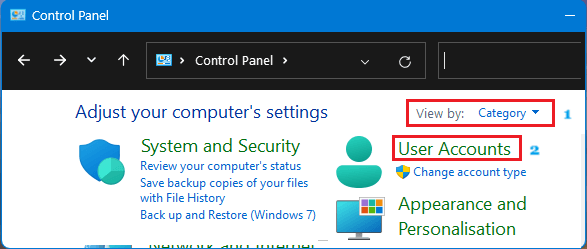
2. On the Control Panel screen, switch to Category view and click on User Accounts.
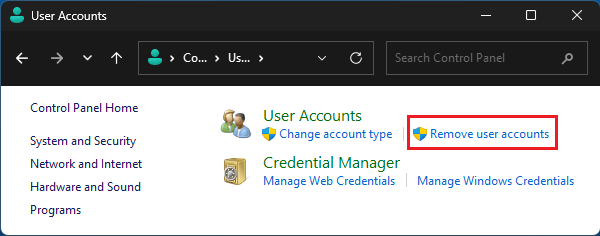
3. On the User Accounts screen, click on Remove User Accounts link.
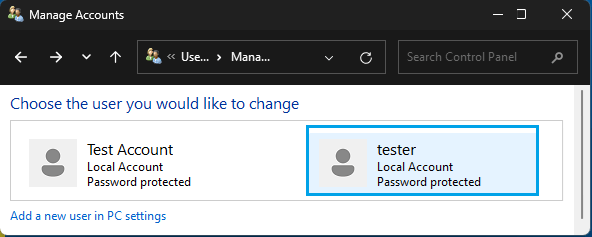
4. On the next screen, select the User Account that you want to delete >.
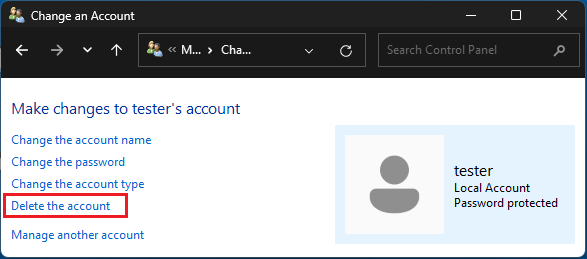
5. On Change Account screen, click on Delete the Account link.
6. On Delete Account page, click on Keep Files button.
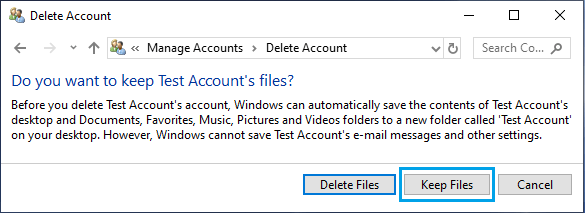
When you select “Keep Files” option, Windows automatically creates a New Folder on the Desktop with the User Account Name and moves all the Files located in deleted User Account to this New Folder.