If your using Google Chrome browser on your Windows PC or Mac, it provides the option to enable, disable cookies for all websites and also the option to enable cookies for specific or selected websites on your computer.
In general, cookies can be defined as small text files placed by websites on computers to store browsing preferences, login credentials, shopping card items and other data that can help improve user experience.
In addition to this, websites also store data that can measure traffic/clicks and help in serving personalized advertising by monitoring user behavior.
Enable/Disable Cookies in Google Chrome
You will find the need to enable cookies, if the website on which you are shopping prompts you to enable cookies or you are unable to add items to cart or complete payment information.
As mentioned above, Google Chrome browser provides the option to disable cookies on a site-by-site basis and also for all the websites that you visit on your computer.
1. Enable Cookies in Chrome Browser
If you had previously blocked cookies in Chrome, you can follow the steps below to enable cookies for all websites on your computer.
1. Open Google Chrome > click on 3 dots icon > scroll down and select Settings in the drop-down menu.
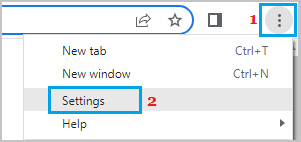
2. On the Settings screen, click on Privacy & Security tab (left-pane). In the right-pane, scroll down and click on Third-party cookies tab.
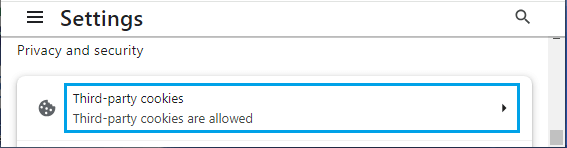
3. On the next screen, scroll down and select Allow third-party cookies option.
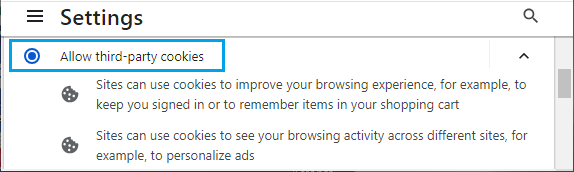
Note: The default option in Chrome allows all websites to store cookies on your computer and use cookies to serve relevant content.
2. Disable Cookies For All Website in Google Chrome
Follow the steps below to disable cookies for all websites in Google Chrome browser on your computer.
1. Open Google Chrome > click on 3-dots icon > select Settings in the drop-down menu.
2. On the next screen, click on Privacy & Security in the left-pane. In the right-pane, scroll down and click on Third-party cookies tab.
3. On the next screen, scroll down and select Block third-party cookies option.
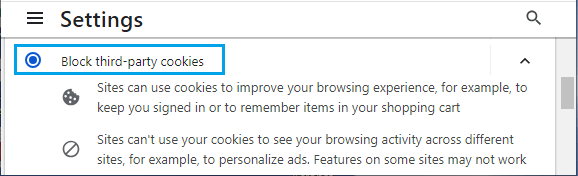
Note: Disabling cookies in Chrome browser may prevent you from using the full functionality of certain websites.
3. Enable Cookies for Specific Websites in Chrome
Another option is to enable cookies for specific websites, while disabling cookies for all other websites.
1. Open Google Chrome > click on 3-dots icon > select Settings in the drop-down menu.
2. On the next screen, click on Privacy & Security (left-pane) and click on Third-party cookies tab in the right-pane.
3. On the next screen, scroll down and click on the Add button, located under Sites Allowed to use third-party cookies section.
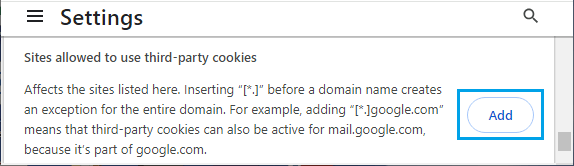
4. On the pop-up, enter the website address that you want to Allow and click on the Add button.

After this setting only the Allowed website will be able to store cookies on your computer.