In the earlier versions of iOS, the “Read Receipts” feature worked in a global way and there was no way to enable or disable Read Receipts for selected individual Contacts on iPhone.
Currently, iPhone provides the option to enable/disable Read Receipts for all Contacts and also the option to enable/disable Read Receipts for a single or selected individual Contacts.
Enable/Disable Read Receipts On iPhone
If you are thinking in terms of disabling Read Receipts for everyone, you need to be aware that disabling Read Receipts for everyone prevents you from viewing the Read Receipts of others on your iPhone.
Similarly, if you disable the “Read Receipts” for a particular person, you won’t be able to view the “Read Receipts” of this particular person on your iPhone.
Hence, the only way to receive Read Receipts from anyone on iPhone is to make sure that Read Receipts have been enabled for that particular person on your device.
1. Enable Read Receipts for All Contacts On iPhone
You can enable “Read Receipts” for All Contacts on iPhone by using the following the steps.
1. Open Settings > go to Apps > Messages.
2. On the Messages screen, scroll down and move the slider next to Send Read Receipts to ON position.
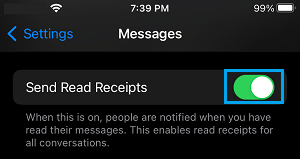
This will allow both you and all your Contacts to know whether or not you have been reading the messages of each other on your individual devices.
2. Enable Read Receipts for Individual Contacts On iPhone
In order to enable Read Receipts for individual Contacts, the first step is to disable “Read Receipts” for Contacts on your iPhone. After this, you can enable “Read Receipts” for selected Individual Contacts on your iPhone.
1. Go to Settings > Apps > Messages.
2. On the Messages screen, scroll down and disable Send Read Receipts option.
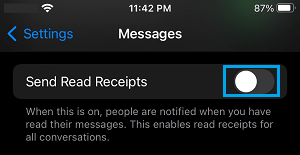
After disabling “Read Receipts” for all the Contacts on your iPhone the next step is to enable Read Receipts for individual Contacts.
3. Open the Messages App on your iPhone and select the Message thread of the person that you want to enable Read Receipts.
4. On the Contact’s Messages screen, tap on the Name or Profile Icon.
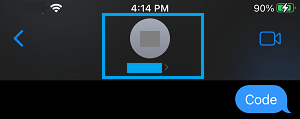
5. On the Contact’s detail screen, scroll down and enable Send Read Receipts option.
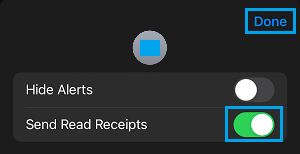
6. Tap on Done to save the Read Receipt setting for this particular Contact on your iPhone.
Repeat steps 3 to 6 above, in case there are other Individual Contacts that you want to enable Read Receipts.
3. Disable Read Receipts for All Contacts On iPhone
You call follow the steps below to disable “Read Receipts” for all the Contacts on your iPhone.
1. Go to Settings > Apps > Messages.
2. On the Messages screen, move the slider next to Send Read Receipts to OFF Position.
After this, none of your Contacts will be able to see whether or not you have been reading their messages.
4. Disable “Read Receipts” For Individual Contacts On iPhone
If the “Read Receipts” feature has been enabled for all Contacts on iPhone, you can follow the steps below to disable Receipts for selected individual Contacts on your iPhone.
1. Open the Messages App on your iPhone and select the Message thread of the person that you want to disable Read Receipts.
2. On the Contact’s Messages screen, tap on the Contact’s Name or Profile Icon.
3. On the next screen, move the slider next to Send Read Receipts to OFF position
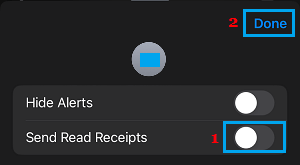
4. Tap on Done to save the revised Read Receipts setting for this particular Contact on your iPhone.
Just repeat steps 1 to 4 above, in case you want to disable Read Receipts for more Contacts.