Most connected devices, including Windows Desktop and Laptop computers make it really easy to enable Wi-Fi and connect to your preferred Wi-Fi Network and disable or switch-off the Wi-Fi Network.
While the most common reason for enabling Wi-Fi on a Windows computer is to access the internet using a wireless connection, disabling of the Wi-Fi network is usually done for troubleshooting connectivity issues, improving security and extending battery life.
Related: How to Hide/Block Wi-Fi Networks in Windows 11/10.
Enable/ Disable Wi-Fi on Windows 11/10 Computer
In general, the following can be listed as the reasons for disabling of the Wi-Fi network on a Windows laptop or Desktop computer.
Connectivity issues: Disabling and re-enabling the Wi-Fi network can help in fixing network connectivity issues by resetting the Wi-Fi network, refreshing IP Address and clearing glitches in drivers.
Security & Privacy: If you are in a public area, disabling Wi-Fi when it is not being used keeps your device hidden; which makes it difficult for hackers and malicious software to target your device.
Battery Life: When the Wi-Fi network is switched-on, the computer uses up more battery life due to its default tendency to constantly keep scanning for nearby Wi-Fi networks.’
Force Ethernet Use: You can ensure the availability of maximum internet speed while playing games and downloading large files by disabling the Wi-Fi network; which prevents the computer from prioritizing the slower Wi-Fi network over a faster wired connection.
1. Enable/Disable Wi-Fi Using Keyboard
An easy way to Enable or Disable Wi-Fi on a Windows computer is by pressing the Wi-Fi key which should be available on the built-in keyboard of a Laptop computer and also on the external keyboard attached to a Desktop computer.
Simply, press the Wi-Fi Key on the keyboard of your computer and this button works like a toggle, switching Wi-Fi ON when pressed and switching-off Wi-Fi; when it is pressed again.
2. Enable/Disable Wi-Fi Using Settings
Another way to enable or disable the Wi-Fi network on a Windows computer is by going to the Network & Internet Settings screen on your computer
1. Click on Start button and then click on the Settings Icon in the Start menu.
2. On the Settings screen, select Network & Internet in the left-pane. In the right-pane, enable Wi-Fi by moving the toggle to ON position.
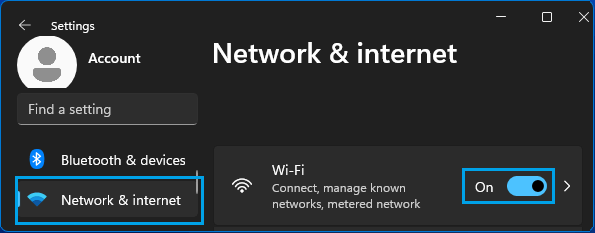
At any time, you can disable Wi-Fi by moving the toggle to OFF position.
3. Enable/Disable Wi-Fi From the Taskbar
Perhaps the easiest way to enable Wi-Fi on a Windows computer is by clicking on the Action Buttons in the taskbar.
1. Click on Action Buttons located at bottom-right corner in the taskbar and click on Wi-Fi.
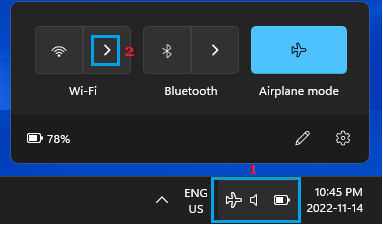
2. On the next screen, move the Wi-Fi toggle to ON position and select the Wi-Fi Network that you want to join.

3. If prompted, enter the Password for your Wi-Fi Network.
4. Enable Wi-Fi When There is No Wi-Fi Icon in the Taskbar
If you are unable to find the Wi-Fi icon on the taskbar, it is likely that you have an Ethernet cable plugged into the computer or the Wi-Fi Adapter has been switched off on your computer.
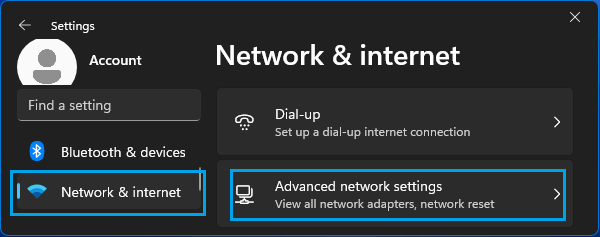
1. Open Settings > click on Network & Internet in the left-pane. In the right-pane, scroll down and click on Advanced Network Settings.
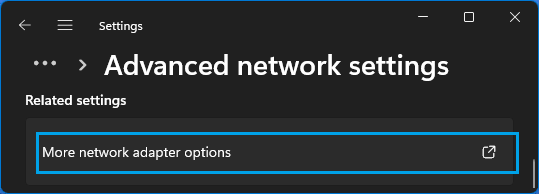
2. On the next screen, scroll down and click on More Network Adapter Options.
3. On Network Connections screen, right-click on Wi-Fi Icon and select the Enable option in the menu that appears.
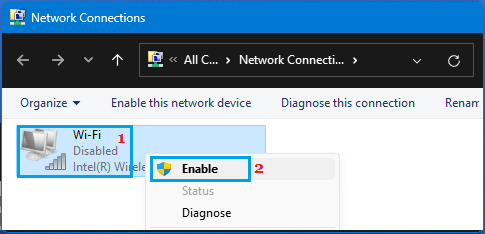
This should enable the Wi-Fi network on your computer.