If you are looking for the IP Address of your printer, it is likely that you want to manually add the Printer to your computer using its static IP Address.
The advantage of adding a Printer using its Static IP Address is that it provides a more stable connection, compared to a printer that is connected to the network using a Dynamic IP Address.
Find Printer IP Address in Windows 11/10
Perhaps the easiest way to find the IP Address of a Printer is by asking the printer to print a self-test page. The print out of the self-test contains information about the printer, including its IP Address.
If the Printer is unable to print a self-test page or if you want to re-confirm the IP Address, you can find below a number of other methods to find IP Address of the computer.
1. Find Printer IP Address by Printing Configuration Sheet
Most wireless printers list IP Address on the configuration page, which can be printed by pressing and holding the Power button for 10 seconds.
In case of some printers, the Configuration page can be printed by going to Control or Settings Panel located on the Printer (Usually by going to Menu > Information > Print Configuration).
If your printer is different, check the User Manual to see if the IP Address is listed or if it provides a method to print Configuration page.
2. Find Printer IP Address Using Command Prompt
1. Right-click on the Start button > click on Command Prompt (Admin).
2. On Command Prompt screen, type netstat -r and press the Enter key.
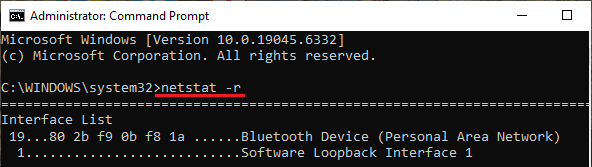
Once the command is executed, you will find the IP Address of all network connections listed on the Command Prompt screen, including the IP Address of the Wireless Printer.
Note: This method won’t work if the printer is going through network or connectivity problems.
3. Find Printer IP Address Using Settings
If you are like most users, you are likely to prefer using the Settings App to find the Printer IP Address.
1. Go to Settings > Bluetooth & Devices > Printers & Scanners (right-pane) and click on your Printer.

2. On the next screen, click on Printer Properties tab.
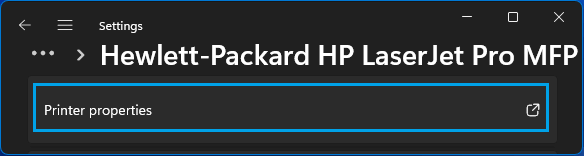
Windows 10: Go to Settings > Devices > Printers and Scanners > select your Printer > click on Manage > click on Printer Properties.
3. On Printer Properties screen, you should find the Printer IP Address in “Location” section of the General tab.
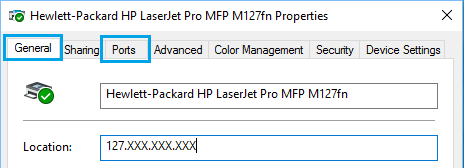
If you cannot find Printer IP Address in General tab, switch to Ports Tab and select the Port that has the check mark.
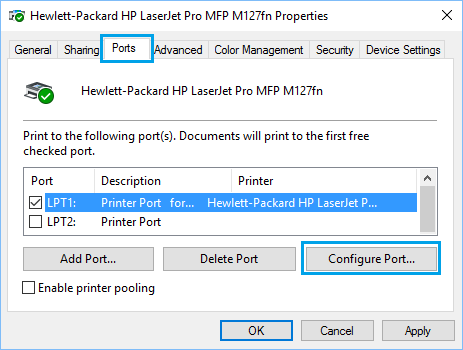
Widen the Port Column to see if the IP Address is listed. If not, click on Configure Port and you should be able to see the IP Address of the Printer on the next screen.
4. Find Printer IP Address Using Control Panel
If you are unable to print the configuration page, you can find the IP Address of your Printer by going to Printer Properties page.
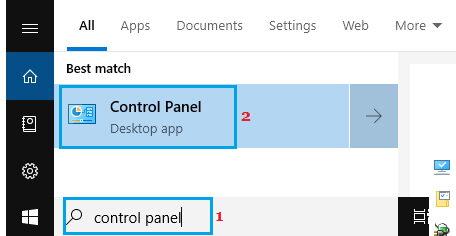
1. Open the Control Panel on your computer.
2. On Control Panel screen, click on View Devices and Printers link located under Hardware and Sound section.
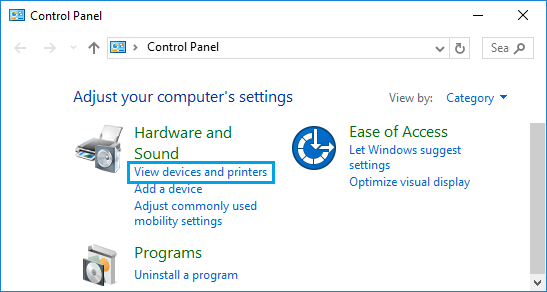
Note: If this does not open Devices & Printers screen, click on Hardware and Sound and then click on View Devices and Printers on the next screen.
3. On the next screen, right-click on the Printer and select Printer Properties.

4. On the next screen, you should be able to find Printer IP Address in Location section of General tab.
If you do not find Printer IP Address in the General tab, click on the Ports Tab > select the Port with the check mark and widen the Port column.
If IP Address is not listed in the Port column, click on Configure Port option and you should be able to see IP Address on the next screen.
5. Find Printer IP Address Using Router
If the Network Printer uses DHCP, you should be able to find its IP Address by logging into the Router.
1. Switch ON the printer, so that it can connect to the Router.
2. Open Chrome or any other Web browser on your computer > type Router iP Address into the Address bar and press the Enter Key.
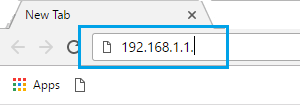
Note: Your Router may have a different IP Address, see this article for more information: How to Find Router IP Address.
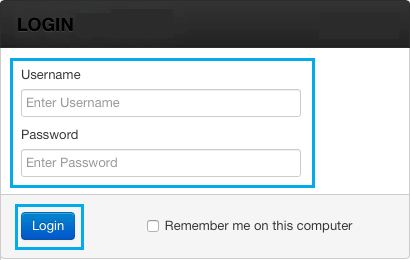
3. On the next screen, Login to the Router by entering your Router User Name and Password.
4. Once you are logged-in, you should be able to find the IP Address by going to Wireless Clients List (under DHCP or Advanced section).
Note: Above steps may not be applicable or vary, depending on the model of your Router. Refer to the Router Manual or visit the Manufacturers website for the exact details.