If the Auto Lock settings option on iPhone is stuck or greyed out, you won’t be able to change the time or duration after which the screen of your device gets automatically locked.
The most common reason for Auto-Lock setting being locked or greyed out on iPhone is due to Low Power mode being automatically or accidentally being enabled on iPhone.
When iPhone enters Low Power mode, the original Auto-Lock settings get over ruled by Low Power Mode settings, which automatically sets Auto-Lock to the lowest possible period (30 seconds). This happens, even if iPhone was set to ‘Never Auto Lock’ by going to Settings > Display & Brightness > Auto-Lock.
Auto-Lock Greyed Out or Not Working on iPhone
In most cases, the issue of Auto-Lock setting being locked or greyed out on iPhone can be fixed by manually disabling Low Power mode.
If iPhone is not in Low Power Mode and yet the Auto-Lock setting is greyed out or locked, the problem could be due to use of Downtime & Mobile Management Profile (MDM) on your device.
1. Disable Low Power Mode
If your iPhone is in Low Power mode, it confirms that the reason for Auto-Lock being locked or greyed out is due to your device being in Low Power mode.
The solution in this case is to charge your device up-to 80%, which will automatically disable Low Power mode and remove the lock on Auto-Lock setting.
However, if you had manually enabled Low Power mode to make the battery last longer, you can fix the problem by manually disabling Low Power Mode.
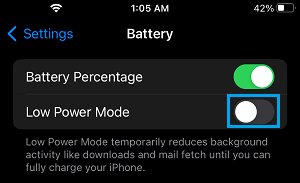
1. Go to Settings > Battery > disable Low Power Mode by moving the slider to OFF position.
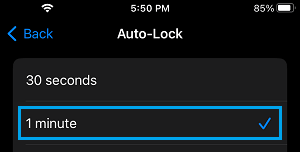
2. After this, go to Settings > Display & Brightness > Auto Lock and change the Auto-Lock period from 30 seconds to 1 minute.
Note: If Low Power mode was automatically enabled on iPhone, make sure that you connect your device for charging, which will fix the Auto-Lock problem, once your device reaches 80% charge.
2. Check Screen Time Settings
Another possible resason for Auto-Lock settings being locked or not working on iPhone could be due to use of the Downtime feature.
1. Go to Settings > Screen Time > Downtime.
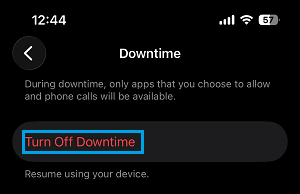
2. On the next screen, disable Downtime by tapping on Turn off Downtime.
Note: It is also a good idea to make sure that the problem is not being caused due to use of Content & Privacy Restrictions (Settings > Screen Time > Content & Privacy Restrictions)
3. Remove Mobile Management Profile
If you are using a company phone, the reason for Auto-Lock option being greyed out on iPhone could be due to Mobile Management Profile (MDM) being installed on your device.
Mobile Management Profile (MDM) on your device, which can restrict users from changing security, network access and even Auto-Lock settings.
1. Go to Settings > General > VPN & Device Management.
2. On the next screen, see if you can select the MDM Profile and remove it.
If you cannot remove the profile, you will have to contact the IT department of your company or organization and ask them to set the Auto-Lock period to your desired setting.