When you upload photos, videos, GIFs to your status update in WhatsApp, they can be seen by all your Contacts for a limited period of 24 hours; after which they are automatically deleted by WhatsApp. If this bothers you in any way, WhatsApp provides the option to hide your status updates from specific Contacts or allow only certain selected Contacts to see you status updates.
Hiding status updates from specific Contacts or showing them only to certain selected Contacts can be useful or become necessary, if you are uploading photos and videos of family events or of personal nature as your status updates and you do not want them to be seen by everyone else in WhatsApp.
Related: Where Are WhatsApp Photos Stored on iPhone & Android.
Status Update Settings in WhatsApp
While the default setting in WhatsApp is to show status updates to all Contacts; it can be easily configured to Hide Status Updates from specific Contacts or Show Status Updates only to certain selected Contacts by using the following built-in options; as available in WhatsApp.
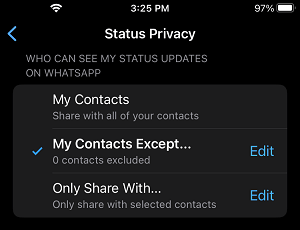
- My Contacts: Default option in WhatsApp; which shows status updates to all your Contacts
- My Contacts Except: This option allows you to hides status updates from specific Contacts; while allowing everyone else in your Contacts List to see your status updates.
- On Share With: This option allows you to show status updates only to certain selected Contacts; while hiding them from everyone else in your Contacts List.
1. Hide Status Updates from Specific Contacts
If it becomes necessary for personal or other reasons, you can find below the steps to hide your WhatsApp Status from Specific Contacts.
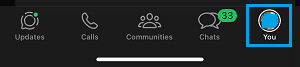
1. Open WhatsApp and tap on Profile Icon in the bottom menu.
2. From the Settings screen, go to Privacy > Status and select My Contacts Except…. option.
3. On the pop-up, select the Contacts that you want to prevent from seeing your Status Updates in WhatsApp..
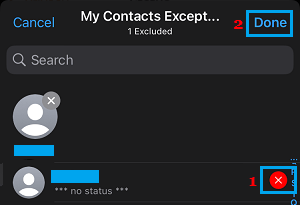
4. After Contacts are selected, tap on Done to save this setting in your WhatsApp Account.
After this setting, the Contacts that you selected in the above steps won’t be able to view your WhatsApp status updates.
2. Show Status Updates to Specific Contacts
As mentioned above, WhatsApp also provides the option to show status updates only to certain selected Contacts; while hiding them from everyone in your Contacts List.
1. Open WhatsApp and tap on Profile Icon in the bottom menu.
2. From the Settings screen, go to Privacy > Status and select Only Share With…. option.
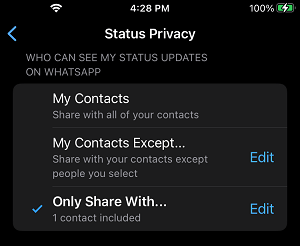
3. On the pop-up, select the Contacts that you want to see your status updates in WhatsApp.
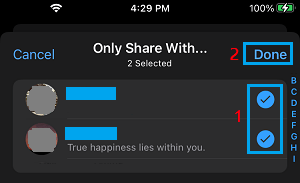
4. After the Contacts are selected, tap on Done to save this setting in your WhatsApp Account.
After this setting, only the Contacts that you selected in the above steps will be able to see your status updates.