In general, most users rarely come across the need to find the location of Drivers on their computers, as Windows automatically takes care of downloading and storing drivers at their specified locations on the computer; both during auto and manual updates of the drivers.
However, knowing the location where Drivers and driver-related files are stored on the computer can be useful while troubleshooting hardware issues, making a backup of drivers and taking a look at installed driver packages on the computer.
Related: How to Update & Reinstall Drivers In Windows 11/10
Location of Driver Files in Windows 11/10
Windows stores drivers and driver-related files at different protected locations on the computer, with C:\Windows\System32 being the main path where drivers for both built-in system devices and third-party devices are stored in dedicated folders named as Drivers, DriverStore.
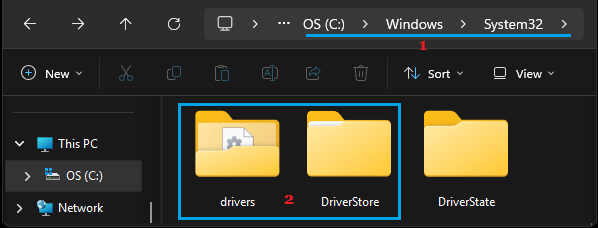
In addition to this, important driver-related information is stored by Windows in INF Folder located at path C:\Windows\inf.
1. Drivers: The “Drivers” Folder located at path C:\Windows\System32\drivers is used by Windows to load kernel-mode drivers (.sys files) for storage, audio, network, Bluetooth, graphics card, mouse, keyboard and other devices that are currently active and running on the computer.
Another folder named as Drivers is located at path C:\Windows\System32\spool\Drivers and this folder is used by Windows to store printer-related driver files.
2. DriverStore: Located at path C:\Windows\System32\DriverStore the DriverStore Folder contains a subfolder named as FileRepository where Windows keeps clean and trusted copies of all the installed driver packages on the computer in their own individual folders. This allows Windows to automatically detect, install and reinstall drivers, without requiring any user interaction or media from external sources.
The DriverStore Folder also includes a Folder named as Temp (C:\Windows\System32\DriverStore\Temp); which is used by Windows to store temporary driver files during updates and active installation of drivers on the computer.
3. DriverState: The DriverState Folder located at path C:\Windows\System32\DriverState contains system files, logs and metadata related to the current status and configuration of all the drivers installed on the computer.
4. INF Folder: Located at path C:\Windows\inf, the INF Folder is used by Windows to store files (with .inf extension) containing instructions for installation of drivers, driver versions, catalog files, configuration data for hardware devices, location of driver/device related files and registry information.
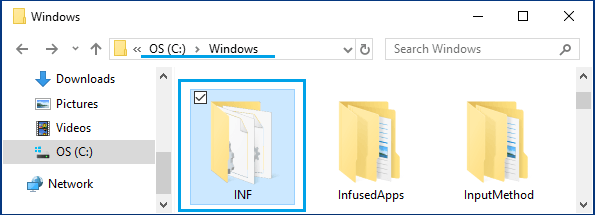
When a new device is connected to the computer, Windows goes to the DriverStore Folder to locate the matching driver. It copies the required files to the Drivers folder and installs the device by using installation instructions located in INF Folder.
1. Access DriverStore Folder Location in Windows
You can access or navigate to the Location of Drivers, DriverStore and DriverState folders on your computer by using File Explorer and also by using Run Command.
1. Right-click on Start button and click on Run.
2. On the Run Command screen, type C:\Windows\System32\DriverStore and click on OK.
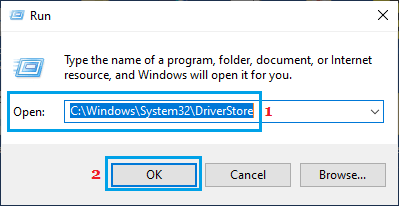
This should immediately take you to the DriverStore folder on your computer.
2. Can Files in “DriverStore” Folder Be Deleted?
Windows prevents files/folders located in the DriverStore folder from being accidentally deleted by locking down these files to the owner as TrustedInstaller. This results in “Access Denied” error, if anyone tries to manually delete files located in DriverStore Folder by using File Explorer or Command prompt (del or rmdir commands).
If you are able to bypass Windows security and delete files located in DriverStore folder, it can result in essential devices like mouse, keyboard and monitors not working on your computer and also lead to blue screen of death (BSOD).
3. Can Files in “Drivers” Folders Be Deleted?
As mentioned above, the “Drivers” folder contains critical system files; which interact directly with Windows kernel. Hence, you should never think in terms of removing files located in this folder.
Manually deleting files located in the Drivers folder can lead to system instability, hardware malfunctions and prevent the computer from booting and cause problems like Blue Screen of death.
Note: Temporary OEM installation files located at path C:\Drivers or C:\OEM are mostly created by computer manufacturers (Dell, HP, Lenovo). While these files can be deleted to free up storage, you will lose the ability to reinstall drivers from local files; if you reset your device.
4. What is Stored in DriverState Folder
As mentioned above, DriverState Folder (C:\Windows\System32\DriverState) contains system files, logs and metadata related to the current status and configuration of all the drivers installed on the computer.
The contents of this folder are designed to serve as a reference for the operating system to track which devices are active and how they are configured. Hence, deleting or modifying files located in the DriveState folder can make the operating system to malfunction and trigger BSOD (Blue Screen of Death).
5. DriverStore Directory Taking Up Storage Space
Over a period of time, the DriveStore Folder (C:\Windows\System32\DriverStore) can end up taking an excessive amount of storage space; due to accumulation of multiple legacy drivers.
In such cases, the recommended and safe way to delete redundant driver files from DriverStore Folder is by making use of the built-in Disk Cleanup tool as available in Windows.
1. Type Windows + R keys to open the Run Command on your computer.
2. Type Disk Cleanup in the Search bar > right-click on Disk Cleanup in the search results and select Run as Administrator option.
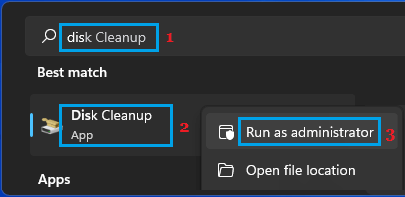
3. On the next screen, click on Clean up system files.
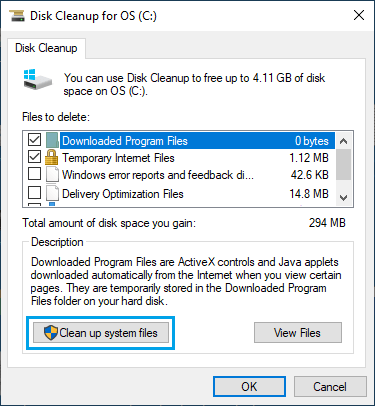
4. On the next screen, make sure Device Driver Packages is selected and click on OK.
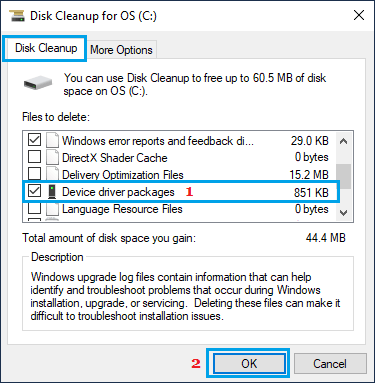
This will ensure that only the Device Driver Packages that can be safely removed from computer are removed from your device.