The “Registry Editor” on a Windows computer can be defined a built-in graphical tool; which can be used to to view, edit and manage Windows Registry; where Windows stores Settings and information about apps, programs and hardware components installed on the computer.
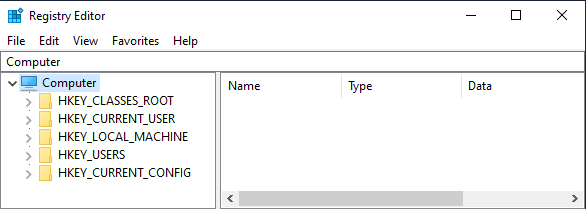
When you open “Registry Editor” on a Windows computer, it offers a Windows Explorer like user-interface; with a navigation pane on the left showing Registry keys (Folders) and a pane on the right displaying the Registry values (files).
Open Registry Editor In Windows 11/10
You may find the need to open Registry Editor, if a troubleshooting step or change that you want to make on the computer requires access to Registry Files and it cannot be implemented by using Settings, Control Panel and other regular tools/utilities that are available in Windows.
While it is easy to open Registry Editor, you need to be aware that any mistake made while editing Registry Files can have an adverse impact on the functioning of your computer and it can even make your device inaccessible.
Hence, it is recommended that you make a backup of Registry Files, before making any changes to Registry Files on your computer.
1. Open Registry Editor Using Run Command
An easy way to open Registry Editor on a Windows computer is by running the “regedit” command.
1. Right-click on the Start button and click on Run.
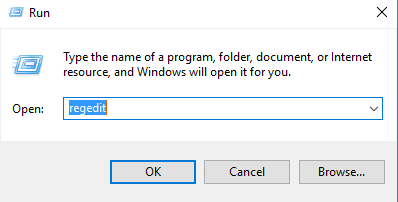
2. On the Run Command screen, type regedit and click on OK.
3. This will immediately take you to the “Registry Editor” screen, from where you can navigate to any location within Windows Registry.
Note: If you like using Keyboard Shortcuts, you can press Windows + R keys to launch the Run Command.
2. Open Registry Editor Using Windows Search
Another easy way to open the “Registry Editor” on a Windows computer is by using the “Windows Search” function.
Type Registry Editor in Windows Search Box and click on Registry Editor App in the search results.
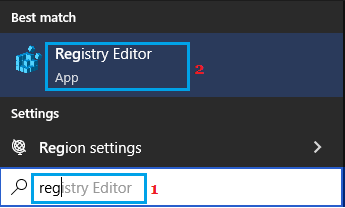
This will immediately launch the Registry Editing screen on your computer.
3. Open Registry Editor Using Command Prompt or PowerShell
You can open Registry Editor by using Command prompt or PowerShell utility as available on a Windows computer.
1. Right-click on the Start button and select PowerShell (Admin) option.
2. In PowerShell window, type regedit and press the enter key.
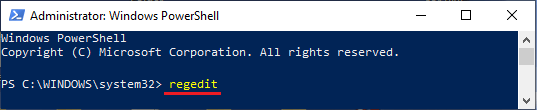
Note: The same command can be used in Command Prompt to open Registry Editor.