If your brand new Windows Laptop or Desktop computer is running slow, you should be able to improve its performance by removing bloatware programs from the computer.
The term “Bloatware” is used to describe additional and unwanted software programs and apps that come pre-installed on new Windows computers that come from a wide range of manufacturers.
According to Microsoft, a computer without bloatware starts 104% faster, shuts down 35% faster and has more battery life compared to a computer with bloatware.
Remove Bloatware from Windows Computer
The reason for bloatware on Windows computers is due to manufacturers taking up the opportunity to preload the computer with trial versions of various third-party apps and programs.
Apart from this, manufacturers tend to preload computers with programs/tools designed to create brand awareness, get user feedback and gain access to computer for diagnostic and troubleshooting purposes.
Hence, all that is required to remove Bloatware from a Windows computer is to remove the trial version of programs and unwanted tools from the computer.
Types of Bloatware Programs on Windows Computer
Windows computers generally come preloaded with the following types of bloatware programs.
1. Trail Ware Programs
As mentioned above, Windows computers come with trial versions of apps and programs from different vendors who generally partner with the manufacturer to market their software programs to users.
Antivirus software programs like McAfee and Norton are two good examples of third-party trial ware programs that comes with new Windows computer preloaded.
In order to get user attention, most trial ware programs are set to start up automatically with the computer and keep running in background, waiting for an opportunity to prompt users to sign-up, subscribe or upgrade to paid version.
2. Utility Programs from Manufacturers
In addition to trial ware, PC manufacturers preload computers with various types of utility software programs designed to update drivers, edit videos, recover data and other utility software programs.
In most cases, these utility programs/tools end up performing the same/similar functions that are already included in Windows operating system and other programs from Microsoft.
3. Customer Service Programs
Almost all computer manufacturers preload computers with their own software program designed to connect customers with the manufacturer.
HP Total Care, HP customer service enhancements and Toshiba service station are some examples of customer service programs installed by the manufacturer.
4. Adware Programs
While Adware programs are basically designed to push banner Ads from the manufacturers, partners and third-party venders, they can sometimes lead to security issues on the computer.
A good example of Adware program that created security issues on the computer is SuperFish program that came preinstalled on Lenovo laptops.
The program was described by top security specialists as being a malware, who advised users to uninstall the program and clear all its remnants from the computer.
5. Bloatware from Microsoft
As you must be already aware, new Windows computers always come preloaded with Skype, Xbox, OneDrive, OneNote and other Microsoft programs.
The default setting in these programs is to startup automatically with the computer and keep running in the background, using up resources on the computer.
1. Remove Bloatware Using Windows Recovery Tool
The easiest and the most effective way to remove bloatware from a Windows computer is by using Windows Recovery tool, which provides the option to reset the computer and start with fresh installation of Microsoft Windows.
While this method removes all the apps and programs on the computer, it also provides the option to keep all your personal files intact.
For more information and the steps to Reset the computer, you can refer to this guide: How to Factory Reset Windows Computer.
2. Remove Bloatware Using Control Panel
If you do not want to reset the computer, you can manually remove unwanted bloatware programs from the computer by using Control Panel.
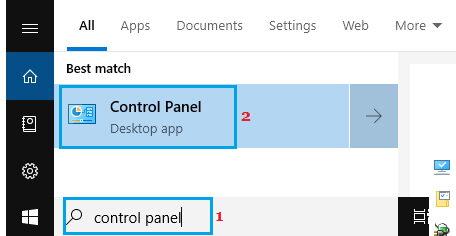
1. Type Control Panel in the Search bar and click on Control Panel in the search results.
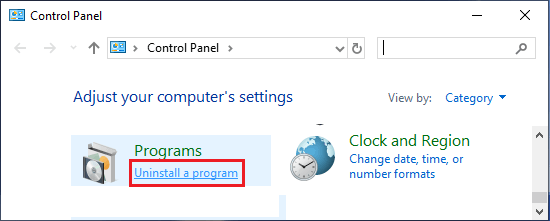
2. On Control Panel screen, switch to Category view and click on Uninstall a program option located under Programs.
3. On the next screen, right-click on the program that want to remove and click on Uninstall.
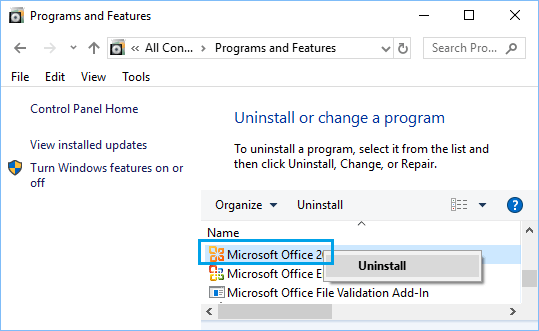
4. On the confirmation pop-up, click on Yes to confirm.
Similarly, you can repeat the above steps and remove trial version of apps and programs from the computer.
3. Remove Bloatware Using Decrap
Decrap My Computer is an easy to use program, which scans the computer for installed programs and allows you to select and uninstall programs from your computer.
1. Download Decrap My Computer program from www.decrap.org
2. Launch “Decrap My Computer” on your computer by clicking on the downloaded File.
3. On the welcome screen, you can select the option to Run Decrap on Automatic Mode or click on Next.
4. Allow Decrap to scan your computer for installed programs. Once the scan is completed, Decrap will come up with a list of programs installed on your computer (See image below).
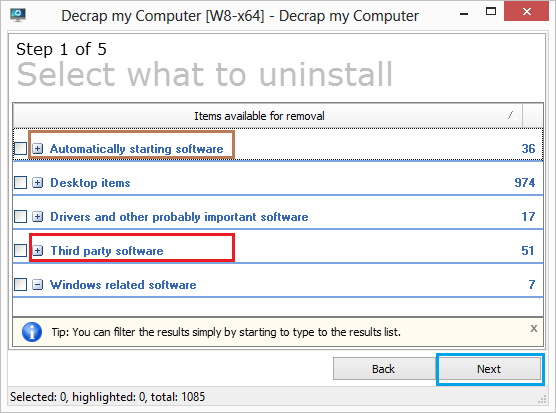
On this list bloatware is usually placed under “Third party software” and also under “Automatically starting software” (See above image).
Go through the list of programs under these sections, select the programs that you want to uninstall and click on the Next button.
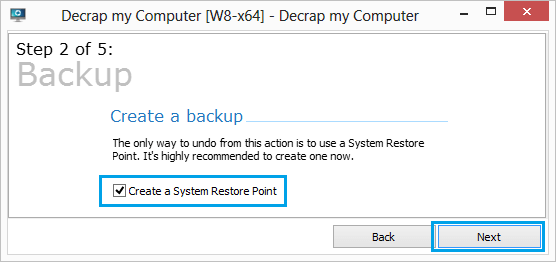
5. On the next screen, select Create a System Restore Point option and click on the Next button.
6. On the next screen, select either Manual or Automatic mode of uninstalling programs and click on the Next button.
Wait for Decrap to remove the selected bloatware programs from the computer.