WhatsApp automatically creates daily local backups, even if auto-backups to Google Drive have been disabled on Android phone.
This means, Android users are always in a position to Restore WhatsApp from a Local backup, if they end up deleting WhatsApp messages or photos by mistake.
In comparison, iPhone users are left with no WhatsApp backup, if automated backups to iCloud Drive are disabled or not enabled on iPhone.
Restore WhatsApp from Local Backup on Android Phone
When it comes to restoring WhatsApp, you need to be aware that the Restore process becomes available, only when you remove the current installation of WhatsApp and try to reinstall it back.
Another requirement is to make sure that a Local Backup File of WhatsApp that you want to use does not have date in its name field.
However, this step is not required if you want to use the latest backup file, which WhatsApp saves without date and it applies date only when the file becomes a day older.
Step 1. Remove Date from WhatsApp Local Backup File
If you are not using the latest backup, you can follow the steps below to remove date from the name of the backup file that you want to use.
If you want to use the most recent backup, you can use this step to confirm that a backup file without date is available for use.
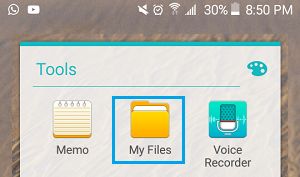
1. Open the My Files App on your Android phone.
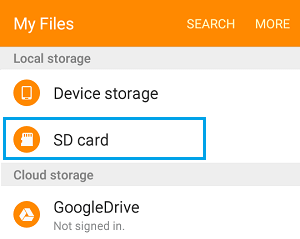
2. On the next screen, select Internal Storage or SD Card (If your phone has SD Card).
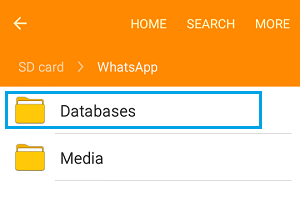
3. From the next screen, navigate to WhatsApp > Databases and open the Databases Folder.
4. In Databases Folder, select Backup File that you want to use and remove date from its name field.
For example, if the Backup File is named as msgstore-YYYY-MM-DD.1.db.crypt12 > Rename the File to “msgstore.db.crypt12“.
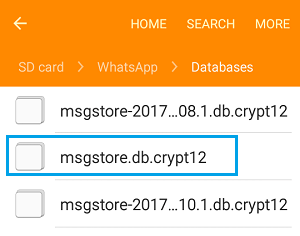
Note: Backup extension may vary (crypt 10, crypt 11 and so on). Just remove the date and do not change the number of the crypt extension.
Step 2. Restore WhatsApp From Local Backup
As mentioned above, the Restore process becomes available; only when you remove or uninstall the current installation of WhatsApp from your Android phone.
1. Go to Settings > Apps > WhatsApp > tap on Uninstall to remove the current installation WhatsApp.
2. After the Uninstall process is completed, open Google Play Store > Search and download WhatsApp on your Android phone.
3. Open the Downloaded File > Provide WhatsApp with access to Contacts and agree to its Terms of Service.
4. On the next screen, select Country, enter Phone Number and tap on Next to receive a 6-digit verification code from WhatsApp
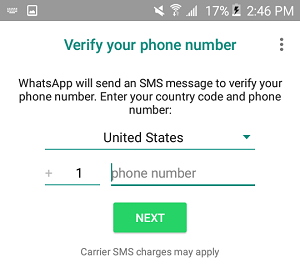
5. On the next screen, enter the 6-digit verification and tap on Next.
6. Once your phone number is verified, WhatsApp will look for available Local Backups and prompt you to Restore Messages and Media using the Backup File as available on your Android phone.
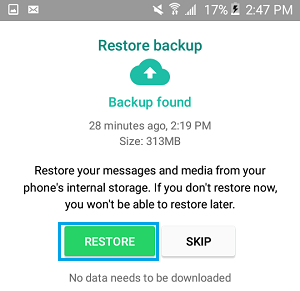
Make sure the right Backup File is selected and tap on the Restore Button > Wait for the Restore Process to be completed.