In general, Runtime Broker should only use a negligible amount of CPU (2%) while it is running in background and show temporary spikes in CPU usage (5 to 15%), while it is actively performing its activities.
However, users affected by High CPU Usage by Runtime Broker have reported noticing as much as 50% CPU by Runtime broker, which can have an adverse impact on proper functioning of the computer.
Fix High CPU Usage by Runtime Broker
The quickest way to disable High CPU usage by Runtime Broker is to stop or terminate the Runtime Broker activity by going to the Task Manager on your computer.
While this can quickly bring down the CPU usage, it is only a temporary solution and you will soon find Runtime Broker bothering you with the same problem.
Hence, this problem can only be fixed by addressing the underlying issues like Faulty Apps, Background running Apps and by disabling services that are known to cause high Runtime Broker activity.
1. Stop Runtime Broker Process Using Task Manager
If your computer has significantly slowed down, the first step would be to bring down the CPU usage by terminating Runtime Broker process using Task Manager.
1. Open the Task Manager on your computer (Press Ctrl-Shift-Esc).
2. On the Task Manager screen, right-click on Runtime Broker and click on End Task.
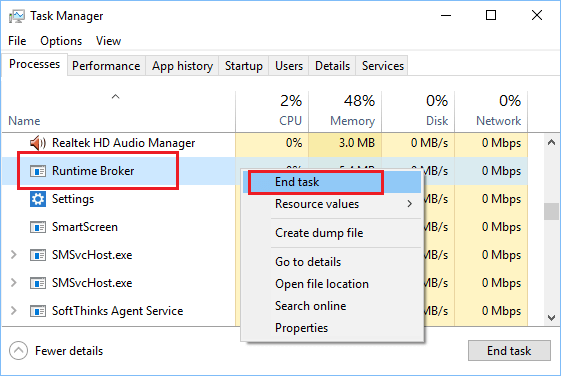
As mentioned above, terminating Runtime Broker using Task Manager is only a temporary solution. Runtime Broker will once again launch itself when you restart the computer and cause the same problem.
2. Uninstall Faulty Apps
A common reason for high CPU Usage by Runtime Broker is due to Apps making repeated and unwanted calls to Runtime broker, in order to gain access to hardware and services running on the computer.
This can happen due to the Apps not being properly installed and also due to installation of the Apps becoming damaged or corrupted during their operation on the computer.
Hence, if you are noticing High CPU Usage after installing a particular App, you can uninstall the App and this should help in bringing down the Runtime Broker activity on your computer.
3. Disable Get Tips & Suggestions
While, “Get Tips & Suggestions” feature in Windows is designed to help users with useful tips and suggestion, it is known to be associated with high Runtime Broker activity.
1. Go to Settings > System > Notifications > Additional Settings.
2. Scroll down in the right-pane, uncheck Get tips and suggestions when using Windows and Offer suggestions on how I can setup my device options.
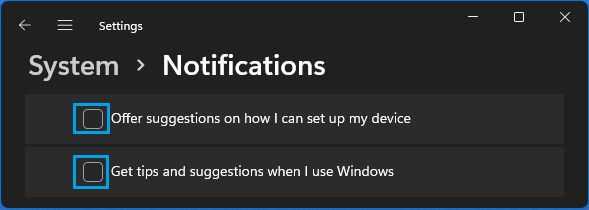
Windows 10: Go to Settings > System > Notifications & Actions > Disable Get tips, tricks, and suggestions as you use Windows option in the right-pane.
Users have reported significant reduction in Runtime Broker activity after making this single change on their computer.
5. Disable Background Apps
A common reason for High CPU Usage by Runtime Broker is due to apps running in background, even though they are not actively being used.
This happens due to the default tendency of Apps, including native Windows Apps to start up with the computer and continue running in the background.
You can prevent apps from running in the background on your computer by using steps as provided in this guide: How to Disable Background Apps in Windows 11/10.
5. Disable Runtime Broker Using Registry
If required, you can prevent Runtime Broker from automatically launching itself on the computer by editing its Registry key.
However, this option needs to be used with caution and used only if the performance of your device has significantly gone down due to Runtime Broker activity and nothing has helped you to fix the problem.
Runtime Broker is a part of Windows operating system and it plays an important role by being an intermediary between the Apps/Programs and Hardware/services running on the computer.
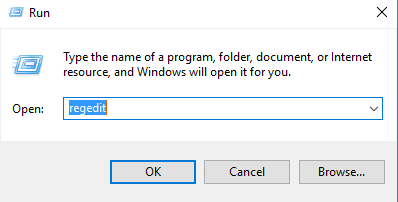
1. Press Windows + R keys > type regedit and press the enter key.
2. From Registry Editor screen, navigate to the following path.
Computer\HKEY_LOCAL_MACHINE\SYSTEM\CurrentControlSet\Services\TimeBrokerSvc
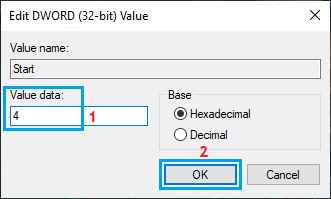
3. Select TimeBrokerSvc in the left-pane > Double-click on the Start entry in the right-pane.
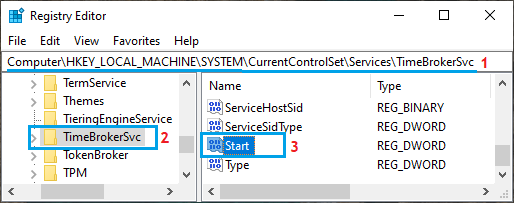
4. On the pop-up, change the Value Data field from 3 to 4 and this will prevent auto launch of the Runtime Broker service on your computer.
As mentioned above, Runtime Broker is an important part of Windows operating system and hindering its activity in any way is not recommended.