You can send a Group Email to multiple Contacts on iPhone by opening a New Message in the Gmail App and manually selecting the Contacts that you want to send the Email to.
However, manually adding Contacts to Email Messages is time consuming and is not suitable, if you are dealing with a large number of recepients and you are frequently required to send email messages to this particular Group of people.
In such cases, the most efficient way to send Group Email Messages is by creating a Contact Group containing all the recipients and addressing your Email Message to this Contact Group.
Send Group Email Using Gmail App on iPhone
As mentioned above, the first step is to create a Contact Group, containing people or recipients that you frequently send Group Email messages to.
While you can create the Contact Group by using the Contacts App on iPhone, this Group won’t be recognized by the Gmail App. Hence, the only available option in this case is to create the Contact Group by logging in to your Gmail Account on a computer.
Once the Contact Group is ready, you can sync Gmail Contacts to iPhone and this will make the Contact Group available for selection, while sending Email messages from iPhone using the Gmail App.
1. Create Contact Group Using Gmail Desktop
As mentioned above, the only way to create a Contact Group that can be recognized by the Gmail App on iPhone is by using the desktop version of Gmail on a Windows computer or MacBook.
The steps to create Contact Group using the Desktop version of Gmail can be found in this guide: How to Create Contact Groups in Gmail.
2. Sync Gmail Contacts to iPhone
After creating the Contact Group, the next step is to make sure that the Contact Group and all your Gmail Contacts can be accessed by the Gmail App on iPhone.
1. Go to Settings > Apps > Contacts > Contacts Accounts.
2. On Contacts Accounts screen, select your Gmail Account.
3. On the next screen, make sure the Contacts slider is set to ON position.
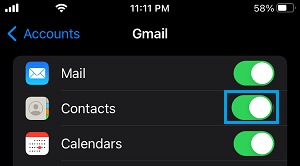
This ensures that all your Gmail Contacts, incuding the Group Contacts can be accessed while sending Group Emails using the Gmail App on your iPhone.
3. Send Group Email Using Gmail Contacts
Once the “Contact Group” that you created in above steps becomes available on iPhone, you can send a Group Email to this Group by using the following steps.
1. Open the Gmail App on your iPhone > tap on the Compose Icon.
2. On the next screen, start typing the Name of Contact Group and select the Contact Group as it appears in Suggestions.
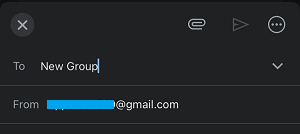
3. Compose or write your Message and tap on the Send button.
As you may agree, sending a Group Emails using the dedicated Gmail App on iPhone is really easy, once the Contact Groups are ready and available for selection on iPhone.