It can be quite frustrating to deal with the issue of a Keyboard on MacBook being slow, getting stuck, freezing up or lagging in performance, especially when there is pressure to get things done as quickly as possible.
In our case, we were dealing with the issue of an External keyboard connected to Mac Mini being painfully slow to operate due to interference from USB 3.0 device.
Apart from this, the problem of a slow keyboard on a MacBook could be due to change or corruption of Bluetooth settings, the Sticky keys feature being enabled and other reasons.
Slow or Laggy Keyboard Issue on Mac
In most cases, the problem of a keyboard that has become slow and lagging in performance can be fixed by using the following troubleshooting steps
1. Switch Keyboard ON/OFF
Users have reported fixing slow Magic keyboard issue on Mac by simply switching OFF the keyboard and turning it back ON again.
The same solution should work on Dell, Logitech and other brand keyboards.
2. Remove USB Connected Devices
As mentioned above, the problem in our case was due to interference from USB 3.0 device attached to one of the ports on the Mac Mini.
Hence, remove all the USB connected devices from your Mac (Except keyboard and Mouse Receiver) and Restart the computer.
After the computer restarts, try to use the keyboard and see if the problem is now fixed.
3. SMC Pre Reset
This method is known to fix the problem of Spacebar key and other specific keys not working properly on newer versions of MacBook (2018 and later).
1. Click on the Apple Logo in the top-menu bar and select Shut Down option in the drop-down menu.
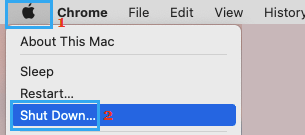
2. Patiently wait for the Mac to completely shut-down.
3. Next, Unplug all the accessories from Mac (except keyboard and mouse).
4. After 15 seconds, press and hold the Power button on your Mac, until Apple Logo appears on the screen and goes away.
Note: Continue holding the Power button as Apple Logo appears on the screen and release the Power button as soon as Apple Logo disappears from the screen.
5. Wait for 15 seconds and press the Power button to restart Mac.
If this does not help, you can go for a SMC Reset using steps provided in this guide: How to Reset SMC On MacBook, Mac Mini and iMac.
4. Disable Sticky Keys
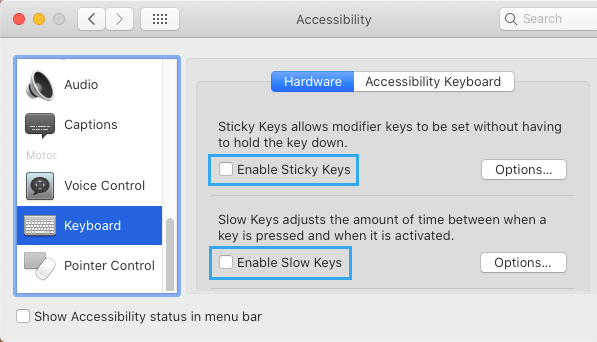
As mentioned above, the problem could be due to the Sticky keys feature being enabled on your Mac.
1. Click on Apple Logo in the top-menu bar and select System Settings in the drop-down menu.
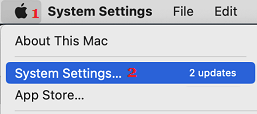
2. From System Settings screen, go to Accessibility > select Keyboard in the left-pane and uncheck Sticky Keys and Slow Keys boxes in the right-pane.
5. Reset Bluetooth Module
Another common reason for the keyboard problems is due to change or corruption of the Bluetooth settings on the computer.
1. Click on Apple Logo in the top-menu bar and select System Settings in the drop-down menu.
2. From System Settings screen, go to Bluetooth and select Show Bluetooth Icon in menu bar option.
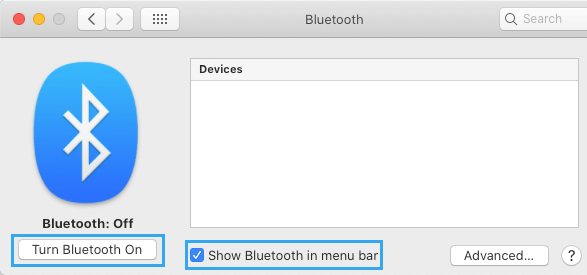
3. Next, press and hold Shift + Option keys > click on Bluetooth icon in top-menu bar > hover mouse over Debug and click on Reset the Bluetooth Module.
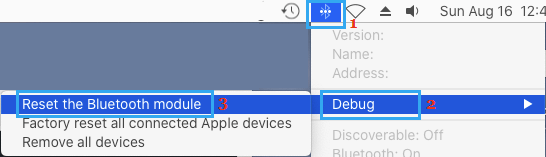
After this, see if the Keyboard is now working properly on your Mac.
6. Factory Reset Apple Keyboard
If Resetting the Bluetooth Module did not help, follow the steps below to Reset Bluetooth on Apple Keyboard to Factory Default settings and see if this helps in fixing the problem.
1. Hold Shift + Option keys > click on Bluetooth Icon located in top menu bar.
2. Hover mouse over Debug > and click on Factory Reset all connected Apple Devices.
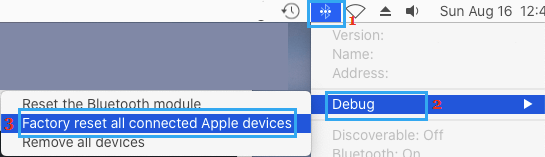
3. Restart Mac and try to pair the Bluetooth device with your Mac.
Note: This fix is only applicable for Apple Keyboard.
7. Disable Accent Pop-up Menu
As you must have noticed, an accent pop-up menu appears, whenever the keyboard on Mac is going through problems.
Some users have reported noticing improvement in keyboard typing speed, after disabling the Accent Pop-up menu on Mac.
1. Open the Terminal on your Mac.
2. On the Terminal screen type defaults write NSGlobalDomain ApplePressAndHoldEnabled -bool false and press the Enter key.
3. Close the Terminal screen and Restart Mac.
Note: If required, you can enable Accent Pop-up menu on your Mac at any time by running defaults write NSGlobalDomain ApplePressAndHoldEnabled -bool true command on the Terminal screen.