The ominous looking wordings of “Your Screen is Being Observed” message on Mac; along with its mysterious looking “overlapping squares” icons has the potential to make most users worried about the possibility of their computer being impacted by malware.
However, the actual reason for “Your Screen is being observed” message on your MacBook is most likely to be due to the following reasons.
- Screen Recording: Apps like Zoom, QuickTime or the native FaceTime app might be recording the screen of your Mac.
- AirPlay or Screen Mirroring: The screen of your MacBook is being projected to the screen of Home TV or an external display by Apple TV or another streaming device.
- Screen Sharing: This notification can be triggered when apps like Microsoft Teams and Zoom have been granted with “Screen Sharing” permission.
In addition to above, this notification is also known to be triggered by macOS falsely flagging a connection between a MacBook and an External Monitor or Docking station as “screen observation”.
Related: How to Preview Link Before Clicking on iPhone and Mac.
Fix “Your Screen is Being Observed” Notification on Mac
Now that we have identified the most likely reasons for “Your screen is being observed” notification, we can go ahead and take a look at the steps to fix this issue.
1. While Using Screen Recording
The “Overlapping squares” Icon is known to appear while the screen of your MacBook is actually being recorded using QuickTime Player, Screenshot Toolbar and other Screen Recording Apps.
In this case, the purpose of Overlapping Squares Icon and the warning message is to inform you that the process of screen recording is still in progress.
When you are done with screen recording, you can click on Stop Recording option use Command + Control + Esc keyboard shortcut to dismiss the notification.
2. While Using Screen Sharing
If you are sharing the screen of your MacBook with someone else on Local/External network, you may find your MacBook coming up with “Your Screen is Being Observed” message.
In this case, the purpose of the message is to inform you that the screen of your MacBook can be seen by the other person. The Message should go away, when you stop screen sharing.
1. Click on Apple Logo in the top-menu bar and select System Settings in the drop-down menu.
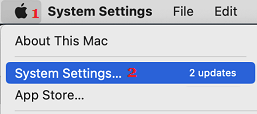
2. On “System Settings” screen, click on Sharing Icon > On the Sharing screen, uncheck the Screen Sharing option.
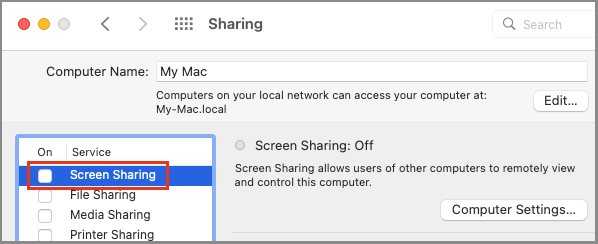
3. Scroll down and make sure Remote Management option is also unchecked.
3. While Using AirPlay
As mentioned above, the message reading “Your Screen is Being Observed” appears while using AirPlay and also while Mirroring the screen of MacBook to TV.
The warning message should disappear once you stop using AirPlay. If it does not, click on Apple Logo > System Preferences > Displays > AirPlay > select the OFF option.
4. Third-Party Apps
This warning message is also associated with certain third-party apps that may have obtained the permission to record the screen of your MacBook.
1. Click on Apple Logo in the top-menu bar and select System Settings in the drop-down menu.
2. On the next screen, click on Security & Privacy Icon.
3. On “Privacy & Security” screen, switch to Privacy tab, scroll down to Screen Recording entry and you will see the list of Apps that have the permission to record the screen on your Mac.
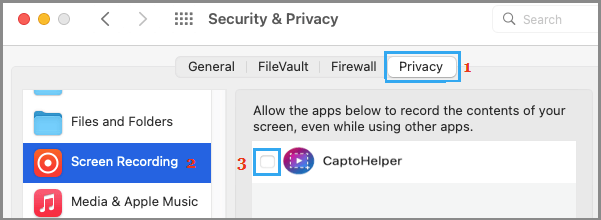
4. You can prevent any app from recording the screen of your MacBook by unchecking the little box, located next to the app that you want to block.
5. Unknown Apps Trying to Access Your Screen
In certain cases, the problem could be due to an unknown App trying to access the screen of your MacBook.
1. Click on Apple Logo in the top-menu bar and select System Settings in the drop-down menu.
2. On the next screen, click on Security & Privacy Icon.
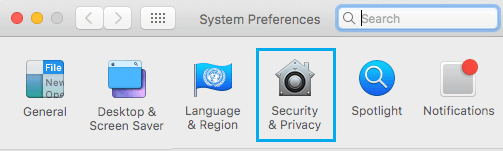
3. On the next screen, switch to Privacy tab > select Accessibility in the left-pane and uncheck Apps that you do not want to Access the screen of your MacBook in the right-pane.
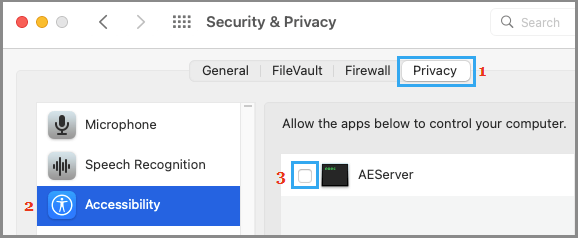
This will prevent the removed Apps from trying to access the screen of your MacBook.
6. Run Malware Scan
If you are concerned about the possibility of your MacBook being infected by malware, you can start by using Norton Antivirus or any other antivirus software program to scan the computer for malware.