If you are using Facebook on iPhone or Android phone, it is likely that Facebook has access to all your photos stored in the Photos App on iPhone and Storage on Android phone.
While providing Facebook with access to photos makes it easy to share photos on its hugely popular social media network, there are users who want to stop Facebook from accessing photos due to privacy reasons.
The good news! – It is possible to stop Facebook from accessing all your photos and still be able to share selected photos on its social media platform.
Stop Facebook from Accessing Photos
Depending on the case, Facebook may have gained access to photos, right during the installation process, where it prompts users to provide access to photos or later on via a pop-up notification.
In both cases, you can prevent Facebook from accessing all your photos and still be in a position to share selected photos on Facebook.
1. Prevent Facebook from Accessing Photos on iPhone
If you are using iPhone, you can follow the steps below to stop Facebook from accessing all your photos.
1. Open Settings > Scroll all the way down and tap on Apps.
2. From the Apps screen, go to Facebook > tap on Photos.
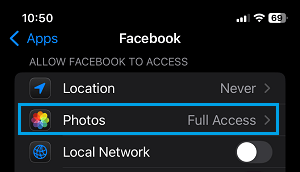
3. On the next screen, you can select Limited Access or the None option.
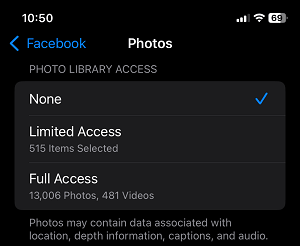
The “None” option totally prevents Facebook from accessing any of your photos on iPhone and Limited Access allows you to select photos that Facebook can access.
Providing Full Access, allows Facebook to see all your photos, videos and use metadata (dates, location) to offer personalized suggestions, while using Facebook.
Note: Selecting the None option, prevents Facebook from automatically saving to iPhone and requires manual intervention to download and save photos to your device.
2. Prevent Facebook from Accessing Photos on Android Phone
You can follow the steps below to stop Facebook from accessing your photos on Android phone.
Note: These steps may vary depending on the manufacturer of your Android device.
1. Go to Settings > Apps or (Applications & Permissions > App Manager).
2. On the Apps or (App Manager) screen, scroll down and tap on Facebook.
4. On the next screen, tap on Permissions.
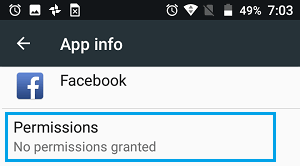
5. On the Permissions screen, disable the option for Storage by moving the slider to OFF position.
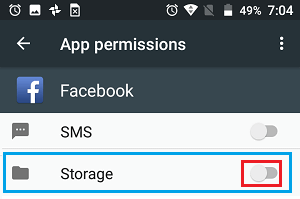
After this, Facebook won’t be able to access Photos stored on your Android phone.
3. Share Only Selected Photos on Facebook
As mentioned above, you can share selected Photos to the social media network on Facebook, even if the Facebook App has been denied access to photos stored on your iPhone or Android phone.
1. Open Photos App and select the Photo that you want to share on Facebook.
2. Once the Photo is selected, tap on the Share Icon located in the bottom menu.

3. On the Sharing options screen, select Facebook.
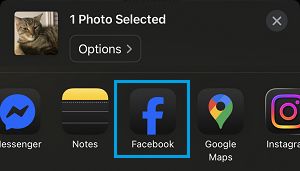
4. On “Share to” screen, you will find the options to share the selected photo to Feed, Story, Reels and Groups.

Unless you are a social media influencer or internet marketer or participate in Groups, you will be sharing the photos to Feed or Story.
If you select Feed, the photo will be posted to your timeline and if you select Story; your selected friends will be able to view the photo for a period of 24 hours.
If you participate in Facebook Groups and select the Groups option, the photo can be viewed by everyone in the Group or by selected people, depending on the Group settings