If the storage space on your iPhone is getting filled up with photos & videos, you can transfer them to your MacBook and free up the storage space on your mobile device by bulk deleting photos.
This can be easily accomplished by plugging iPhone to Mac and making use of the “Import” feature; as available in the macOS Photos App.
In addition to Photos App, you can also make use of “Preview App” and “Image Capture” utility to transfer all or selected photos from iPhone to Mac.
Transfer Photos from iPhone to Mac
You can find below the steps to transfer photos from iPhone to mac using Photos App, Preview App and the Image Capture utility.
After the photos are transferred to Mac, you can free up the storage space on your iPhone by bulk deleting photos from your mobile device.
1. Transfer Photos from iPhone to Mac Using Photos App
As mentioned above, the easiest way to transfer photos from iPhone to Mac is by using the Photos App.
1. Connect iPhone to Mac and open the Photos App on your MacBook.
2. In the Photos App, select your iPhone in the left-pane, click on the Down Arrow next to “Import to” entry in the right-pane and select New Album.
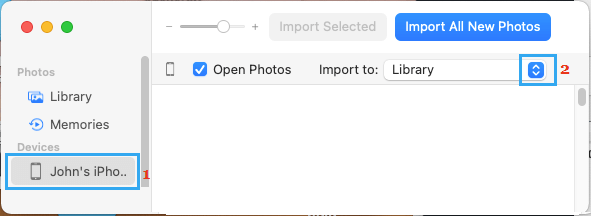
Note: The default setting on a MacBook is to import iPhone photos to the Photo Library.
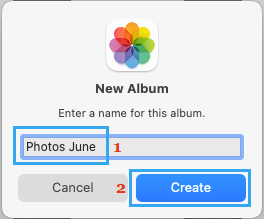
3. On the New Album pop-up, type a Name for the New Album and click on Create.
4. On the next screen, click on Import All New Photos button to import all photos from iPhone to Mac.
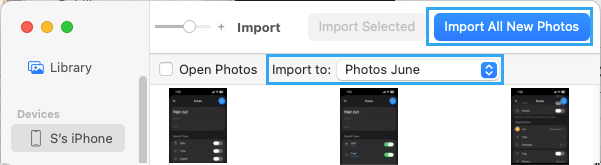
Note: You can also select only the required photos and and click on Import Selected option.
5. Wait for photos to be transferred from iPhone to the New Photo Album on your MacBook (Desktop).
2. Import Photos from iPhone to Mac Using Image Capture
Another way to transfer photos from iPhone to Mac is by using the Image Capture utility as available on your Mac.
1. Plug iPhone to the USB Port of your Mac.
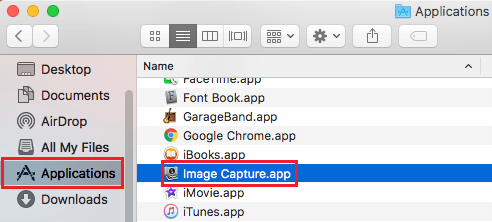
2. Open Finder > select Applications in the left pane and double-click on Image Capture App.
3. On the Image Capture screen, select your iPhone in the left-pane. In the right-pane, you can select your desired Location for the downloaded photos by clicking on Arrows next to the Import To entry.

Note: By default, Image Capture transfers photos to the Pictures folder on Mac.
4. After selecting the Location for downloaded photos, click on Download All button to Import all photos from iPhone to Mac.

If you selected Desktop, the transferred photos will be available on the Desktop in a Folder named after your iPhone.
3. Import Photos from iPhone to Mac Using Preview App
The native Preview App on Mac can also be used to import photos from iPhone to Mac.
1. Connect iPhone to USB port of the Mac.
2. Go to Finder > Applications > double-click on the Preview App in the right-pane.

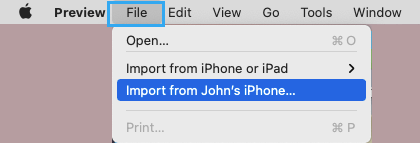
3. Next, select the File tab located in the top-menu bar and click on Import from your iPhone option.
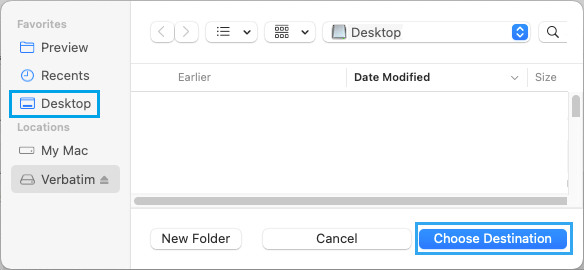
4. On the next screen, you can select Desktop or another Location for the imported photos on your Mac and click on Choose Destination.
5. Wait for photos to be transferred from iPhone to Mac.