If you are unable to change the Desktop background on your computer, the problem could due to changing of Desktop background being disabled on your device.
You can confirm this by going to “Personalization” Settings screen on the computer, where you may see “Some settings are managed by your organization” or similar message.
If you do not see any error message, the problem could be due to the current Desktop background on your computer being set to Slideshow mode or Installation Windows on your computer being inactive.
Unable to Change Desktop Background
If the option to change Desktop background has been disabled on your device, it can re-enabled by using Registry Editor in the Home Edition of Windows.
If you are using Windows Pro or the Professional Edition of Windows, the option to change Desktop Background needs to be enabled using Group Policy Editor.
In other cases, you should be able to fix the problem of not being able to change Desktop background by using other troubleshooting steps as provided below in this guide.
1. Disable Slideshow
You won’t be able to change the Desktop background on your computer, if the current Desktop background is set to Slideshow mode.
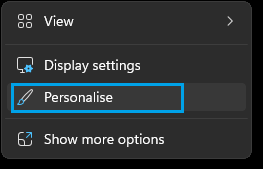
1. Right click in an Empty Space on the Desktop and click on Personalize.
2. From the Personalization screen, go to Background > click on the Down-Arrow in “Personalize your Background” section and select Picture as the type of Desktop background on your computer.
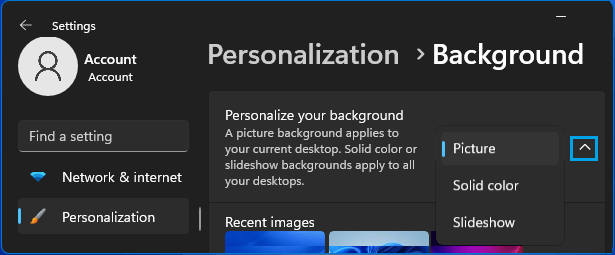
After this, you can select any of the available system wallpapers as the Desktop background or scroll down on the same screen > click on Browse and select from available photos on your computer.
2. Check Windows Activation Status
As mentioned above, the problem could also be due to Installation of Windows not being activated on your computer.
Windows 11: Go to Settings > System > Activation > on the next screen, you will be able to see the activation status of Windows installed on the computer.
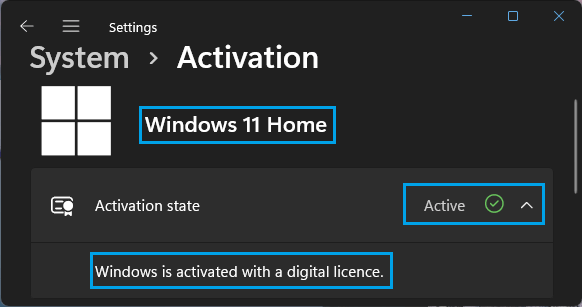
Windows 10: Go to Settings > Update & Security > Activation > In the right-pane, make sure Windows 10 status is shown as being activated.
3. Check Ease of Access Settings
If you are looking at a black or dark desktop background, the problem is most likely due to your computer being set to Remove Background Images in Accessibility Settings.
1. Type Control Panel in the Search Bar and click on Control Panel in the Seach Results.
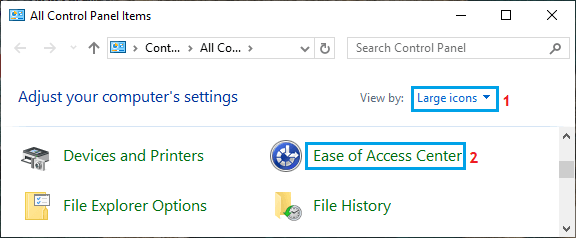
2. On the Control Panel screen, switch to “Large Icons” view and click on Ease of Access Center.
3. From Ease of Access Center, go to Make the Computer Easier to See and uncheck Remove Background images box.
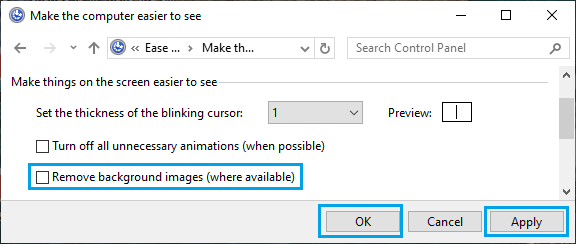
4. Click on Apply & OK to save this change on your computer.
4. Enable Changing Desktop Wallpaper in Group Policy
If you are using the Professional Edition of Windows, changing of desktop background may have been disabled by the Administrator.
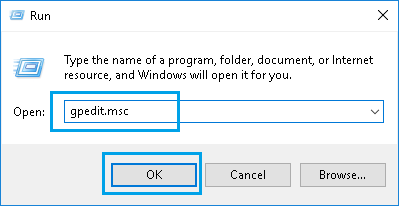
1. Press Windows + R keys > Type gpedit.msc and click on OK.
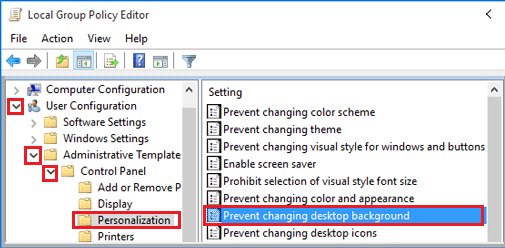
2. On Group Policy Editor screen, navigate to User Configuration > Administrative Templates > Control Panel > Personalization and Double click on Prevent Changing desktop background policy.
3. On the pop-up, make sure Not Configured or Disable option is selected.
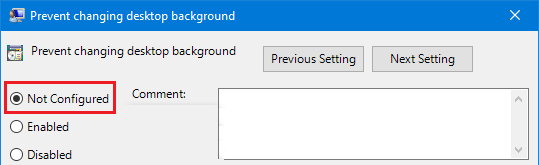
After this change, you should be able to change the Desktop background image on your computer.
5. Enable Changing Wallpaper in Registry
If you are using the Home Edition of Windows, changing of Desktop background can be enabled by using Registry Editor.
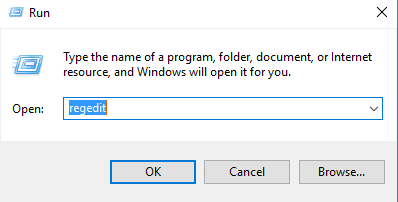
1. Open Run Command > Type regedit and click on OK.
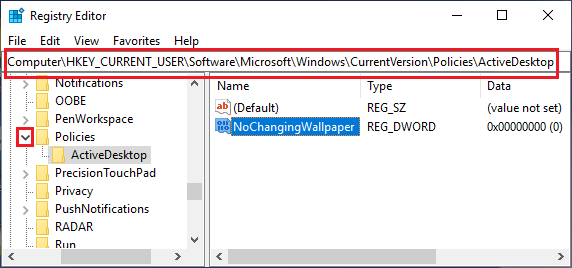
2. On the Registry Editor Screen, navigate to
HKEY_CURRENT_USER\SOFTWARE\Microsoft\Windows\ CurrentVersion\Policies\ActiveDesktop and double-click on NoChangingWallpaper.
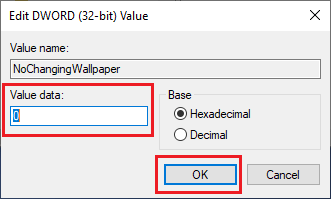
3. On the Edit DWORD pop-up, set the Value data to 0 and click on OK.
4. Restart the computer to apply this change and see if you are now able to change Desktop background.
6. Clear Themes Cache
If above steps did not help, clear the Themes cache in your User Profile and see if this helps in fixing the problem.
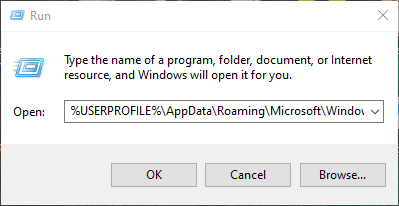
1. Open the Run Command on your computer.
2. Type %USERPROFILE%\AppData\Roaming\Microsoft\Windows\Themes and click OK.
3. Open CachedFiles Folder and Delete all the cached images located in the Folder.
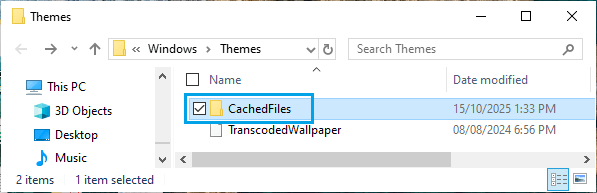
After this, restart the computer and you should now be able to change the Desktop background on your computer.