If you are unable to delete “TCP/IP Printer Port” from the computer, the problem is usually due to the Printer still being in use, which is confirmed if you see “The requested resource is in use” error message.
However, Windows is also known to come up with “The requested resource is in use” error due to various other reasons and when there is actually no Printer attached to the port.
In such cases, the problem could be due to a reference to a previously used Printer still being available in the registry, which is making Windows behave as if the Printer is actually attached to the computer.
Unable to Delete TCP/IP Printer Port
As mentioned above, your computer is preventing you from deleting the Printer Port due to information about a previously connected printer still being active in the Registry.
Hence, Restart the Print Spooler Service and then try to remove or delete the unused Printer Port that you wanted to remove from the computer.
If this does not help, the only way to fix this issue is to remove the Printer Information from Registry.
1. Restart Print Spooler
In a majority of cases, restarting the Print Spooler service should fix the error message and allow you to delete the TCP/IP Printer Port on your computer.
1. Press Windows + R keys to open Run Command.
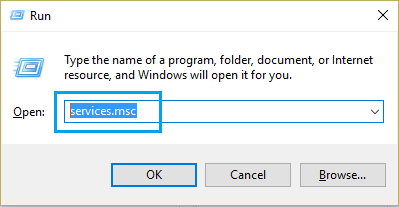
2. In the Run Command window, type services.msc and click on OK.
3. On the next screen, right-click on Print Spooler service and select the Stop option.
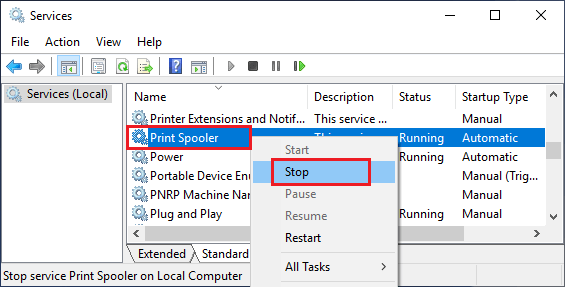
4. After 10 seconds, right-click on Print Spooler again and this time select the Restart option.
After this, you should be able to remove the unused Printer Port from your computer.
2. Remove Printer Port from Registry
If restarting the Print Spooler Service did not help, you will have to delete the printer in registry.
1. Open the Run command on your computer.
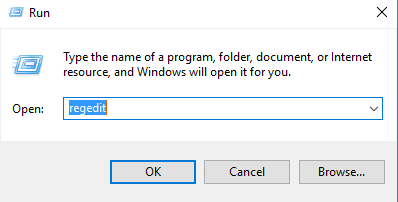
2. Type regedit in the Run Command window and click on OK.
3. Navigate to HKEY_LOCAL_MACHINE\SYSTEM\CurrentControlSet\Control\Print\Printers\PrinterName > Right-click on the Printer Name and click on Delete.
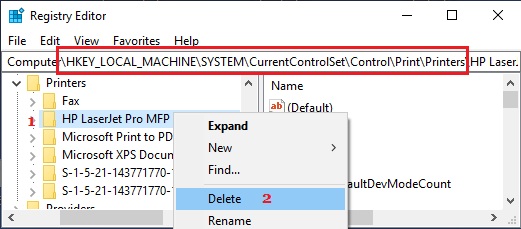
After deleting the Printer from registry, make sure that you Restart the computer.
Now that the information of the unused Printer has been removed from the Registry, you should be able to deleted the Printer Port from your computer.