You may find the need to uninstall the Google Chrome browser on your Mac, if you no longer want to use it or if it is going through problems which could not be fixed by regular troubleshooting steps.
In the latter case, the overall purpose is to uninstall and remove the broken or corrupted installation of the Chrome browser from Mac and reinstall the latest version of Google Chrome on Mac.
Uninstall Google Chrome on Mac
If you are permanently uninstalling Google Chrome from Mac, you need to start by clearing your browsing history and cached data stored in the Chrome browser cache on your MacBook.
For the steps to clear your browsing history and cached data stored in the browser cache, you can refer to this guide: How to Clear Browsing History in Chrome Browser .
After clearing browsing history and cache, you can go ahead and follow the steps to uninstall the Google Chrome from Mac and remove your Profile Information, Bookmarks and other information from the Library Folder on your Mac.
1. Uninstall Google Chrome on Mac
You follow the steps below to uninstall the Google Chrome browser from your MacBook.
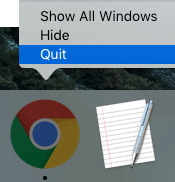
1. Right-click on Chrome Icon in the taskbar and select the Quit option.
2. After this, open the Finder on your MacBook by clicking on the Finder Icon in the taskbar.
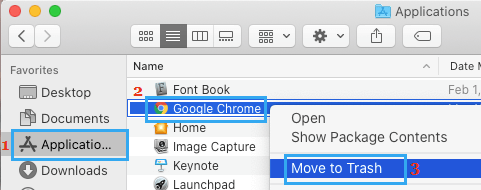
3. On the Finder screen, select Applications in the left-pane. In the right-pane, right-click on Google Chrome and select Move to Trash option.
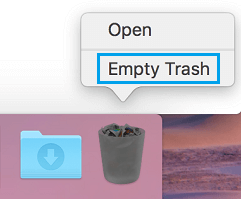
4. After this, right-click on the Trash icon in the taskbar and select Empty Trash option.
2. Remove Google Chrome Profile Info and other Data from Mac
Even after the Chrome browser is uninstalled from Mac, it leaves behind bookmarks, profile information and other data in the Library Folder.
1. Open the Finder on your MacBook.
2. Select the Go tab in top-menu bar and click on Go to Folder.
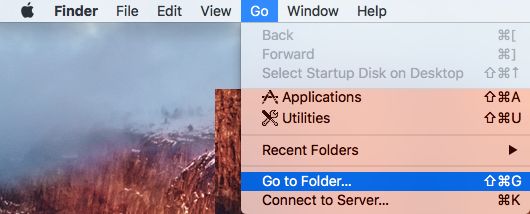
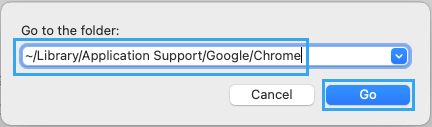
3. In the Go to pop-up, type ~/Library/Application Support/Google/Chrome and click on the Go button.
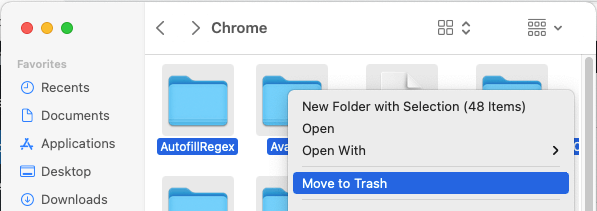
4. Select All Folders located in Chrome Folder > right-click on the selected Folders and click on Move to Trash option.
5. Next, right-click on the Trash Icon in the Taskbar and click on Empty Trash.
This will remove all the bookmarks, profile info and other browsing data from your Mac.