You may find the need to Factory Reset iPhone, if it is going through problems, has become locked/disabled and also if you are selling or giving it away.
Once the Factory Reset process is completed, you will find your device restarting and prompting you to complete the setup process (just like a New Device).
3 Ways to Factory Reset iPhone
You can find below 3 different methods to Factory Reset iPhone and you can select any method that suits the circumstances in which you are being forced to Reset your device.
After the Factory Reset process is completed, you will be provided with the option to Restore iPhone using an iCloud Backup or Set up your iPhone as a New device.
1. Factory Reset iPhone Using Settings
If you are able to login to your device, the easiest way to Factory Reset iPhone is by using the Settings App. If you are unable to login, you can try any of the next 2 methods as provided below.
1. Go to Settings > General > Transfer or Reset iPhone.
2. On the next screen, select Erase All Content and Settings option.
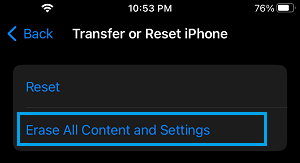
3. Tap on Continue > Enter your Lock Screen Passcode.
4. On the Confirmation pop-up, select Erase iPhone option to start the Factory Reset process.
5. Once the Reset process is completed, you will see iPhone starting with “Hello” screen, promoting you to start the Setup process (Slide to set up).

6. Follow the onscreen instructions, until you reach “Apps & Data Screen”.
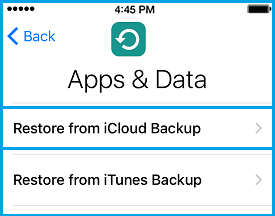
On this screen, you can select Set Up as New iPhone or Restore iPhone from iCloud Backup option, depending on the problem that you are trying to fix on your device.
2. Factory Reset iPhone Using iCloud
This method works only if Apple’s “Find My iPhone” service is enabled on your device. If it is not setup, you can use other methods as provided in this guide.
1. Using Mac, PC or phone, visit iCloud.com and Sign-in to your iCloud Account.
2. Once you are in iCloud, click on Apps Icon and select Find My in the Apps menu.
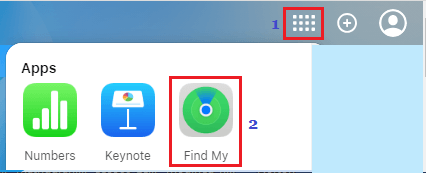
3. When prompted, enter your Apple ID Password to Sign-in to “Find My iPhone” service. On the next screen, click on All Devices and select your iPhone in the drop-down.
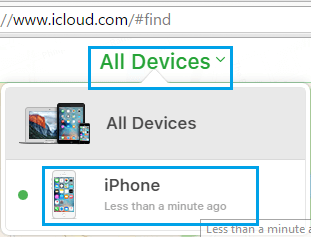
4. On the next screen, select Erase iPhone option to Erase all the data from your device.
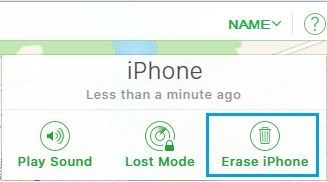
5. When prompted, enter your Apple ID password and wait for the Factory Reset Process to be completed.
6. Once the Factory Reset Process is completed, you will find iPhone restarting with “Hello” screen, prompting you to Slide to Setup your device.
7. Follow the setup instructions, until you reach Apps & Data Screen, providing you with different options to Restore iPhone. device.
You can select Restore from iCloud Backup or Setup as New iPhone option, depending on the problem that you are trying to fix on your device.
3. Factory Reset iPhone Using Recovery Mode
This method requires you to connect iPhone to Mac or Windows PC and it can be used even if iPhone has become Locked or disabled.
The steps to Factory Reset iPhone using Recovery Mode can be found in this guide: How to Put iPhone in Recovery Mode.
When to Use DFU Mode?
The Factory Reset Process erases all the data from your device, without having any impact on the firmware or the iOS operating system installed on your device.
While the Factory Reset process can be used to fix multiple problems on iPhone, it cannot be used if your device has become totally unresponsive, is stuck on black screen or going through other major problems.
The solution in such cases is to DFU Restore iPhone, which practically wipe out everything from your device, including the Operating System and also the Firmware.