The problem of a Windows computer coming up with “An Error Has Occurred in the Script of this page” pop-up is known to occur while using Microsoft Excel, Microsoft Teams and other programs that use IE scripts.
The reason for this error message could be due-to background running apps, JavaScript being disabled in the web browser, Unregistered urlmon.dll file and other reasons.
An Error Has Occurred in the Script on This Page
Now that we know the most common reasons for a computer coming up with “An Error Has Occurred in the Script of this page” error message, let us go ahead and take a look at the steps to fix this error on a Windows 11/10 computer.
1. Register urlmon.dll File
urlmon.dll File is used by Dynamic Link Library (DLL) files required for proper functioning of many windows programs installed on a Windows computer.
1. Right-click on the Start button and click on Run.
2. In Run Command window, type Regsvr32 urlmon.dll and click on OK.
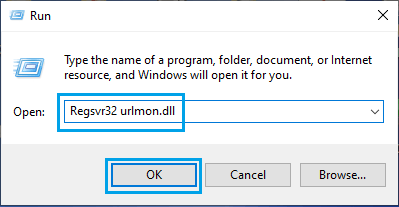
3. If the procedure is successful, you will see a confirmation reading “DllRegisterServer urmon.dll succeeded”.
2. Disable Startup Items
There are many apps that have a default tendency to launch up with the computer and remain active, even if they are not being used.
1. Right-click on the Start button and select Task Manager in the WinX menu.
2. On Task Manager screen, select the Startup tab > right-click on the Items (one-by-one) and click on Disable.
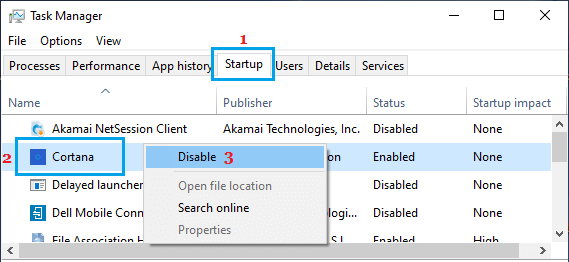
3. After this, Restart the computer > open Microsoft Teams and login.
3. Close Background Running Apps
The problem could be due to resource draining apps like OneDrive and others being active and running in the background.
1. Right-click on the Start button and select Task Manager.
2. On the Task Manager screen, switch to Processes tab > right-click on the Program or Process that you want to close and click on End task.
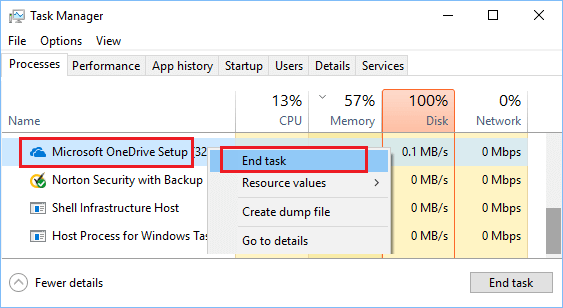
3. After this, try to open the program that was giving the scripting error notification on your computer.
4. Enable JavaScript
JavaScript is a popular scripting language that is widely and required for proper functioning of websites on the internet and many programs installed on your computer.
Hence, make sure that the option to use JavaScript is enabled in the default web browser on your computer.
If you are using Google Chrome, you can refer to this guide: How to Enable JavaScript in Chrome Browser.
5. Disable Third Party Browser Extensions
1. Type Internet Options in the search bar and click on Internet Options (Control Panel).
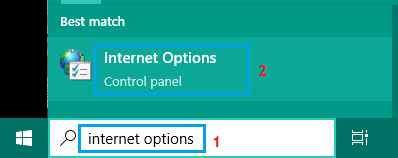
2. On the Internet Options screen, select the Advanced tab > scroll down to Browsing section and uncheck Enable third party browser extensions option.
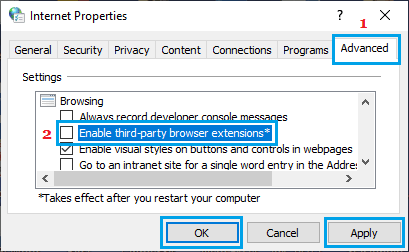
3. After this, Restart the computer to implement this change.
6. Reset Internet Explorer
If the above solutions did not work, it is likely that some of the Internet settings are conflicting with proper functioning of web browser installed on your computer.
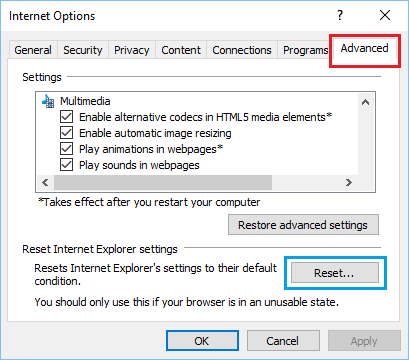
1. Type Internet Options in the search bar and click on Internet Options (Control Panel).
2. On the Internet Options screen, click on the Advanced tab and click on the Reset… button located under Reset Internet Explorer Settings section.
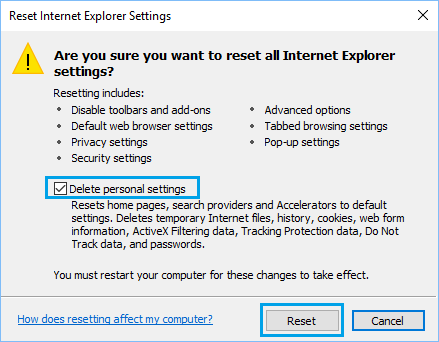
3. On the next screen, select Delete Personal Settings option and click on the Reset button.
7. Disable or Hide Script Errors
1. Type Internet Options in the search bar and click on Internet Options (Control Panel).
2. On Internet Properties screen, switch to Advanced tab > scroll down to “Browsing” section and Uncheck Display a notification about every script error option.
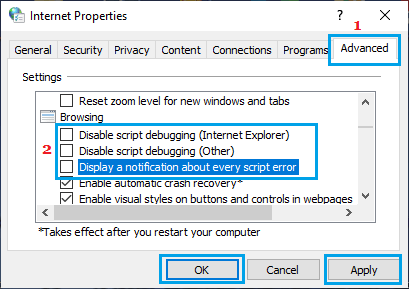
Also, uncheck Disable script debugging (Internet Explorer), Disable script debugging(other) option.
3. Click on OK and Apply to save this change on your computer.