If the built-in Laptop keyboard or External keyboard attached to a Desktop computer is not typing numbers, the problem could simply be due to the “Num Lock” key being disabled.
If this is not the case, the reason for keyboard not typing numbers on a Windows computer is usually due to the Mouse Keys being activated or Sticky/Filter Keys function being enabled and other reasons.
Keyboard Not typing Numbers in Windows 11/10
Before going ahead with the troubleshooting steps, make sure that the keyboard is clean and there is no build-up of debris under the number keys.
The troubleshooting steps as provided below are applicable for fixing the problem of keyboard not typing numbers while using Number Keys located in the main keyboard area and also while using Number Keys located in a dedicated Number Pad area.
1. Enable “Num Lock” Key
As mentioned above, the most common reason for keyboard not typing numbers is due to the Number Lock (Num Lock) key being accidentally disabled; which can be easily fixed by pressing the Num Lock key once.
If this does not fix the problem, press and hold the “Num Lock” key for a few seconds, until you see LED light glowing, indicating that the Number Pad is now working.
If there is no LED Light on the keyboard, you may see a passing message on the screen or hear a beep sound, confirming that the Number Pad has been activated.
2. Turn OFF Mouse Keys
As mentioned above, the reason for keyboard not typing numbers could be due to the Mouse keys function being enabled on the computer; which results in numeric keys controlling the mouse cursor instead of typing.
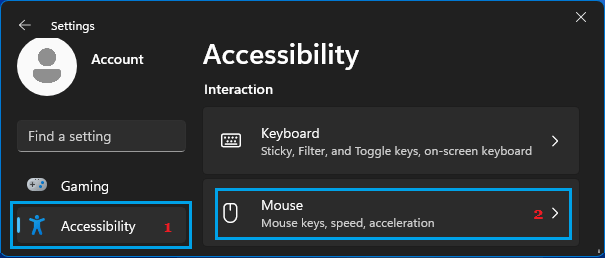
1. Open Settings > click on Accessibility in the left-pane. In the right-pane, scroll down to “Interaction” section and click on the Mouse tab.
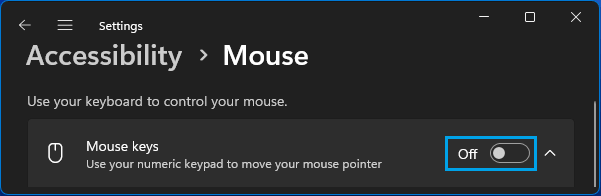
2. On the next screen, disable Mouse keys by moving the slider to OFF position.
After this, try to type numbers and see if the keyboard is now typing numbers.
3. Update Keyboard Drivers
Another reason for keyboard not typing numbers (especially on external keyboards) is due to the keyboard drivers becoming outdated or corrupted.
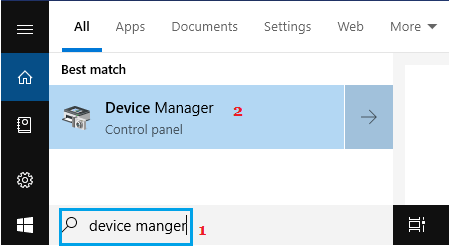
1. Type Device manager in the Search bar and click on Device Manager in the search results.
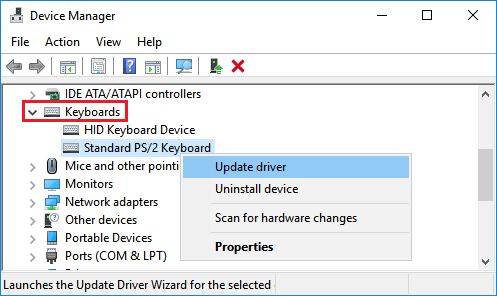
2. On the “Device Manager” screen, expand Keyboards entry > right-click on the Keyboard and select Update driver option in the menu that appears.
3. On the next screen, select Search Automatically for updated driver software option and follow the instructions to install the updated driver on your computer.
4. After this, restart the computer and see if the keyboard is now typing numbers.
4. Disable Filter Keys
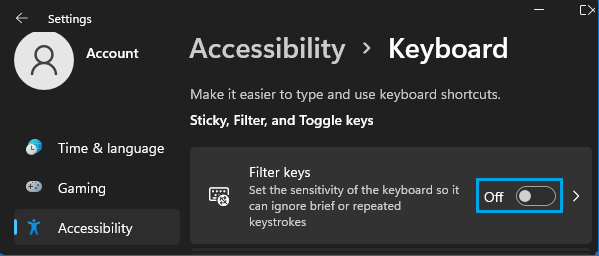
When “Filter Keys” function is enabled on a Windows computer, it results in short or repeated keystrokes being ignored; which can lead to problems, including the issue of keyboard not typing numbers.
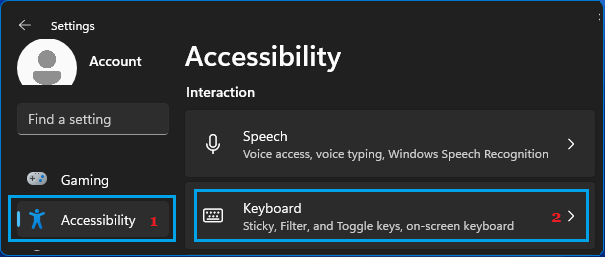
1. Open Settings > click on Accessibility in the left-pane. In the right-pane, scroll down to “Interaction” section and click on the Keyboard tab.
2. On the Keyboard screen, disable Filter keys by moving the Slider to OFF position.
After this, see if the keyboard is now typing numbers.
5. Use Different User Account
If the none of the above methods worked, sign-in using another User Account and see if the keyboard can type numbers.
If the keyboard works normally from another user account, the problem is most likely due to your user account being corrupted.
In this case, you can either create a New User Account or try to repair your corrupted User account.
6. Use On-screen Keyboard
If you are still unable to type numbers, the problem might be hardware related and you should consider getting the keyboard examined by a technician.
Meanwhile, you can continue working by enabling the On-screen keyboard on your computer by using steps as provided in this guide: How to Enable On-Screen Keyboard in Windows 11/10.