High CPU usage by Antimalware Service Executable (MsMpEng.exe) is usually noticed while Microsoft Defender (previously known as Windows Defender) is running scheduled scans, updating virus definitions, performing background activities and is known to spike up; whenever the real-time monitoring feature of Microsoft Defender gets activated.
While all these activities are designed to protect the computer from viruses and malware, aggressive Antimalware activity can lead to high CPU & RAM usage; making the system to slow down for an extended period of time.
Fix High CPU Usage By Antimalware Service Executable
If your computer is being protected by Windows Security, you should get used to the idea of your device consuming higher amounts of CPU/RAM when Microsoft Defender is performing its real-time monitoring and scanning activities.
However, the resource usage by Antimalware Service (MsMpEng.exe) should be within reasonable limits and not cause the computer to get stuck or slow down for an extended period of time.
If the Antimalware Service (MsMpEng.exe) is consistently indicating high CPU usage (over 50%), you should be able to fix the problem by using the following methods.
1. Disable Real Time Protection
A quick way to fix high CPU usage by Antimalware Service (MsMpEng.exe) is by disabling the Real-Time Protection feature in Windows Security.
You should see an immediate improvement in functioning of the computer after disabling “Real Time Protection” feature in Windows Security.
1. Type Windows Security in the Search bar > click on Windows Security App in the search results.

2. From the next screen, go to Virus & Threat Protection > Manage Settings > Disable Real-Time Protection.
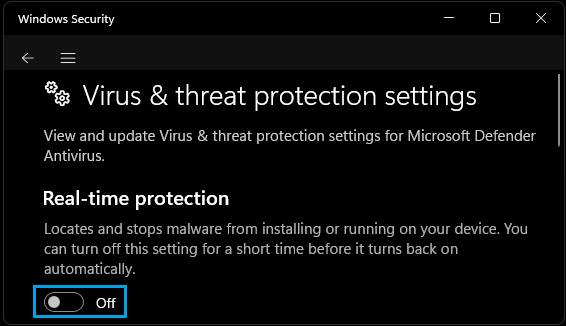
3. On the confirmation pop-up, click on Yes to confirm.
You will not see Manage Settings option if a third-part antivirus software is installed on the computer and also if the “Periodic Scanning” feature in Windows Security has been switched-off.
Note: This method disables Real-time protection for a temporary period. Windows will automatically enable Real-Time Protection; the next time you Login to the computer.
2. Disable Automatic Sample Submission
Disabling “Automatic Sample Submission” in Windows Security is another way to reduce the CPU usage by MsMpEng.exe.
1. Type Windows Security in the Search bar > click on Windows Security App in the search results.
2. From the next screen, go to Virus & Threat Protection > Manage Settings > scroll down to Automatic sample submission and disable it by moving the toggle to OFF position.
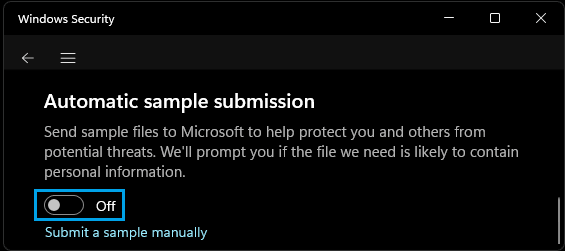
Note: You can manually submit files to Microsoft by clicking on Submit a sample manually link.
3. Prevent Antimalware from Scanning its Own Folder
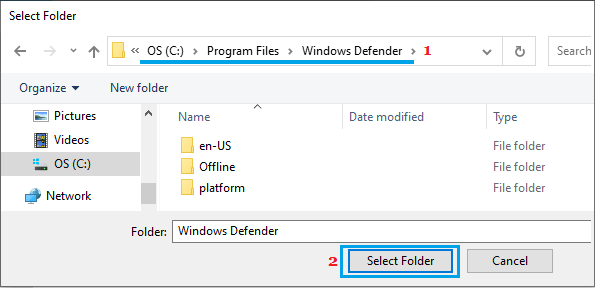
Antimalware Service Executable is known to use high CPU & RAM due to its tendency to scan its own folder; which is located at path C:\Program Files\Windows Defender.
1. Type Windows Security in the Search bar and click on Windows Security App in the search results.
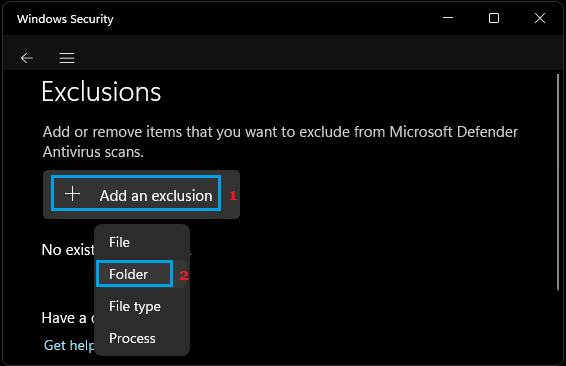
2. From the next screen, go to Virus & Threat Protection > Manage Settings > scroll down to “Exclusions” section and click on Add or remove exclusions link.

3. On the next screen, click on Add an Exclusion and select Folder in the drop-down menu.
4. On next screen, navigate to C: Program Files > Windows Defender and click on Select Folder button.
5. Restart the computer.
4. Disable Scheduled Tasks
Disabling Microsoft Defender scheduled tasks is another way to reduce high CPU usage by Antimalware Service Executable.
1. Type Task Scheduler in the Search bar > click on Task Scheduler in the search results.
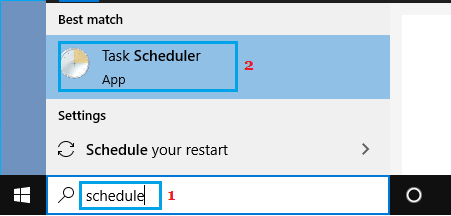
2. On “Task Scheduler” screen, navigate to Task Scheduler Library > Microsoft > Windows > Windows Defender and disable all the 4 Windows Defender Tasks in the right-pane.
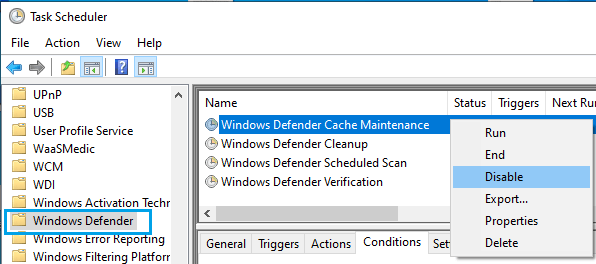
After this, you should find a significant reduction in CPU & RAM usage by Antimalware Service Executable.
5. Disable AntiSpyware Function in Microsoft Defender
If your computer is still suffering from high CPU Usage, you can think in terms of disabling the “AntiSpyware” feature in Windows Security.
In order to disable the AntiSpyware Function in Microsoft Defender, the first step is to turn-off “Tamper Protection”; as Windows will block registry changes if Tamper Protection is active.
Step 1. Disable Tamper Protection
1. Type Windows Security in the Search bar and click on Windows Security App in the search results.
2. From the next screen, go to Virus & Threat Protection > Manage Settings > scroll down to Tamper Protection and switch it off.
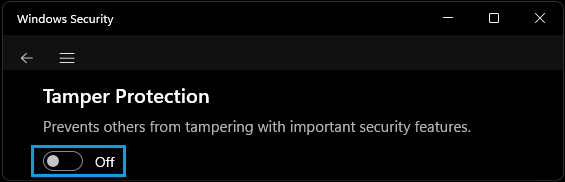
3. On the confirmation pop-up, click on Yes to confirm.
Step 2. Disable AntiSpyware Using Registry Editor
Once “Tamper Protection” is switched-off; you will be able to disable AntiSpyware by using Registry Editor.
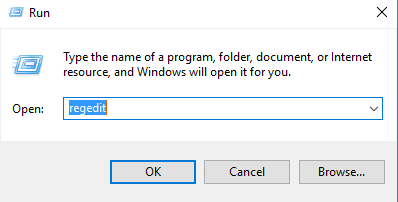
1. Right-click on the Start button and click on Run.
2. Type Regedit and click on OK to open Registry Editor.
3. On the Registry Editor screen, navigate to HKEY_LOCAL_MACHINE\SOFTWARE\Policies\Microsoft\Windows Defender and Double-click on DisableAntiSpyware entry in the right-pane.
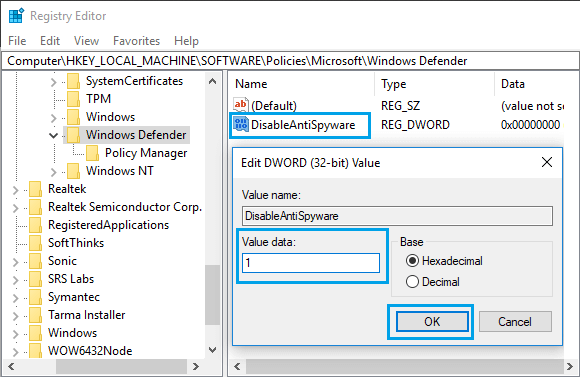
4. On the Edit DWORD pop-up, change Value Data from 0 to 1.
This will disable the AntiSpyware feature in Windows Defender, which prevents it from constantly being active and using up resources on your computer.
Note: If you cannot find DWORD named “DisableAntiSpyware”, you will have to create a New DWORD and name the DWORD as “DisableAntiSpyware” and set its Value Data to 1.