Changing the Router DNS server to Google, Cloudflare or Open DNS can help, if you are experiencing network connectivity issues due to the DNS Server of your Internet service provider being constantly busy or going through problems.
This can be achieved by logging into Router Settings, for which you need to know the User Name and Password that are required to login to Router and also its current IP Address.
Find Router IP Address, User Name and Password
In the case of most Routers, the User Name of the Router is likely to be Admin, admin, cusadmin or not required to login to Router (User Name field can be left blank).
The Login Password for the Router is likely to be password, 12345 or it can just be left blank and the IP Address of Router is likely to be 192.168.0.1, 192.168.1.1 or 192.168.2.1.
Note: The Router IP Address, User Name and Password should be available in the User Manual that came with the Router and also available on the Manufacturers website.
If the Router IP Address was changed by the Service Provider or someone with access to your device, you can find its current IP Address by using steps as provided in this guide: How to Find Router IP Address.
Steps to Change Router DNS Server
Once you have all the information that is required to login to Router, you can change the DNS Server of the Router by using the following steps.
1. Open Google Chrome or any other web browser on your computer
2. Type the Router IP Address in the address bar of the browser and press the Enter key.
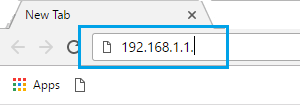
Note: There is no http:// before the IP address.
3. On the Router Login screen, enter the Username and Password to login to your Router.
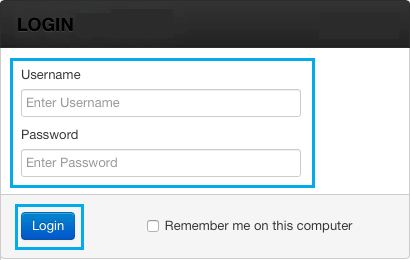
4. Once you are logged-in to the Router, the exact location of DNS Settings page will depend on the manufacturer of your Router.
- Cisco: Setup > Lan Setup
- D-Link: Internet > Setup
- Linksys: Setup > Basic Setup
- Netgear: Basic > Internet
- TP-LINK: DHCP > DHCP Settings
- Belkin: WAN > DNS
5. Once you find the DNS settings option, you may have to switch to Manual Setup
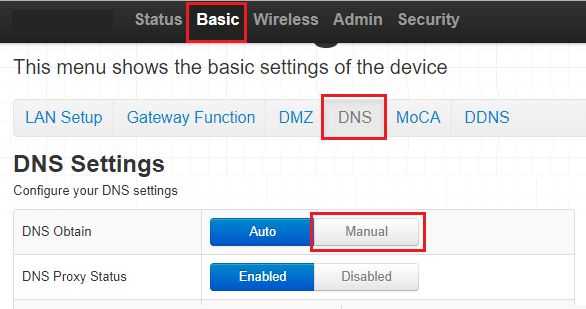
6. After switching to Manual, you will be able to enter the New DNS entries. In our case, we switched to Google DNS by entering 8.8.8.8 in DNS1 and 8.8.4.4 in DNS2.
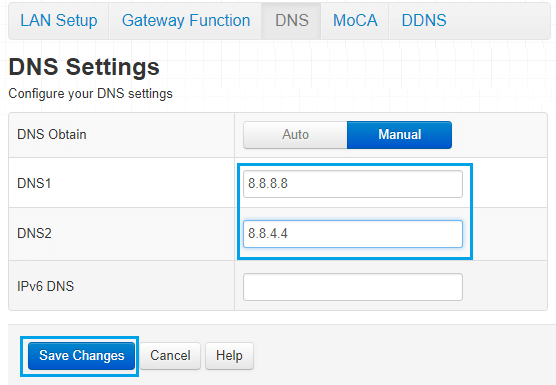
To switch to Cloudflare, enter 1.1.1.1 and 1.0.0.1 as your primary and secondary DNS severs. For Open DNS, type 208.67.222.222 and 208.67.220.220.
7. Click on Save Changes and wait for the changes to take effect.
After changing Router DNS Server, internet connectivity on your devices might be interrupted for about 5 minutes.
Also, make sure that you clear the browser cache on your computer, before trying to connect to the internet.
If You Are Unable to Login to Router
If you are unable to login to Router using default passwords (admin, cusadmin or blank), try to login using your current Wi-Fi Password.
If this does not work, you can Reset the Router to its Factory Default settings by pressing the Reset Button or Rest Hole located at Back of the Router.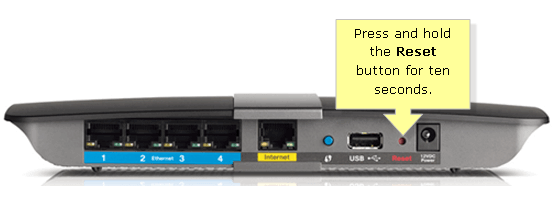
Once the Router is Reset to its factory default settings, you will be able to login to Router using its default User Name and Password.