Similar to any other connected device, Google’s Chromecast device can get interrupted, slow down, pause or get completely disconnected from the network and stop working.
The reason for Chromecast Device not working properly or not at all working could be due to corrupted network settings, Chrome browser not being updated or a problem with the Chromecast Device itself.
Fix Google Chromecast Not Working Issue
If the network connectivity on your phone and computer is good and yet Chromecast is not working, this issue in most cases can be fixed by Rebooting and Power Flushing the Chromecast device.
Even if Chromecast has totally stopped working, the problem can be fixed by performing a Factory Reset on your Chromecast device.
1. Check HDMI Port
A common reason for Chromecast not working is due to the right HDMI port not being selected on the TV.
1. Check the HDMI port (HDMI 1, HDMI 2…) on the TV to which the Chromecast device is connected.
2. Press the Input button on TV Remote and make sure the same HDMI Port to which Chromecast device is selected.
2. Reboot Chromecast Using Google Home
If you have the Google Home App installed on your iPhone or Android phone, you can reboot Chromecast device remotely using the following steps.
1. Open Google Home App > tap on Devices and select your Chromecast Device.
2. On the next screen, tap on the Gear Icon (Settings)
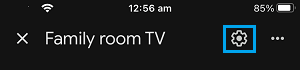
3. On the Settings screen, tap on 3-dots Icon and select the Reboot option.
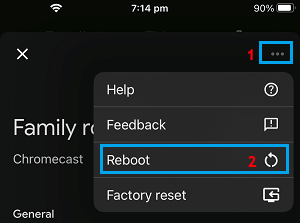
4. Wait for the Reset process to be completed (few seconds).
3. Manually Reboot Chromecast
While there is no physical Reboot button on Chromecast, disconnecting Chromecast from its power source and connecting it back again has the same effect.
1. Switch OFF power supply to Chromecast by pulling it out from the Wall Outlet. If you are using an older model of Chromecast, disconnect the USB end of Chromecast from the TV.
2. Wait for 60 seconds > Connect Chromecast back to Wall Outlet or the TV (older devices)
This should reboot the Chromecast device and you may find it working properly.
4. Power Flush Modem/Router
The problem might be due to IP Address of the Chromecast device not being recognized or allocated by the Router.
1. Unplug the Router/Modem unit from its Power Supply Source.
2. After 60 seconds, restore the power supply back to Router/Modem unit.
After this, you should find the Chromecast device working properly.
5. Update Chrome Browser
If you are unable to Cast Chrome browser from computer to TV, make sure that you are using the latest version of Google Chrome.
1. Open Chrome browser > click on 3-dots menu icon and click on Help > About Google Chrome.
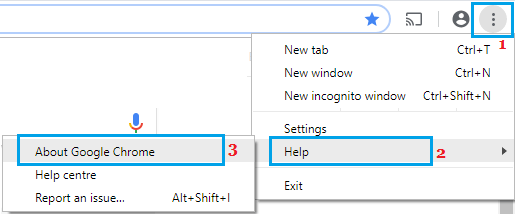
2. Chrome should begin to check for updates and install them on your computer.
If you are still unable to Cast from Windows Laptop to TV, refer to this guide: Fix: Cast to Device Not Working in Windows 11/10.
6. Factory Reset Chromecast Device
If above solutions did not help, the problem could be due to network related information and other settings being damaged or corrupted.
This issue can be fixed by Resetting Chromecast to its original or factory default settings using easy-to-follow steps as provided in this guide: How to Factory Reset Chromecast Remotely & Manually.
After the Reset process is completed, you will be required to Setup Chromecast again and this should fix the problem with your Chromecast device.