When you Backup iPhone to Windows computer using iTunes, the backup file of iPhone is stored at a specific location on the local storage drive of your computer by iTunes.
Similarly, when you Restore iPhone from Backup; iTunes automatically goes to where the Backup Files of iPhone are located and provides you with the option to select the Backup File that you want to restore iPhone from.
While most users are happy with this mysterious setup, some users want to know the exact location where iTunes saves the backup of iPhone on a Windows computer.
Find iTunes Backup Location in Windows 11/10
The Location of iTunes Backup on a Windows computer varies, depending on whether iTunes was downloaded and installed from Microsoft Store or from Apple’s App Store.
If iTunes was installed from Microsoft Store, the backup of iPhone will be saved by iTunes in “MobileSync” Folder located at: C:\Users\UserName\Apple\MobileSync.
If iTunes was installed from the App Store, the backup of iPhone will be saved by iTunes in “MobileSync” Folder located at: C:\Users\(username)\AppData\Roaming\Apple Computer\MobileSync.
Find iTunes Backup Location in Windows 11/10
All that is required to access the iTunes backup location on a Window computer is to open File Explorer and navigate to the location of MobileSync Folder on your computer.
1. Open the File Explorer on your computer.
2. From the File Explorer screen, navigate to C:\Users\UserName\Apple\MobileSync.
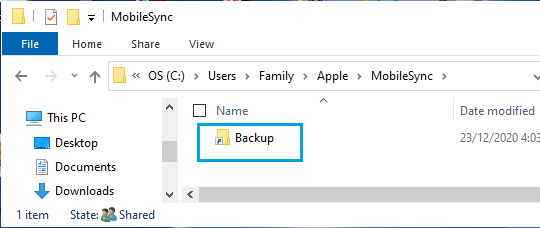
3. If you do not find MobileSync Folder at above location, go to C:\Users\(username)\AppData\Roaming\Apple Computer\MobileSync.
Note: There is no need to Show Hidden Files to locate MobileSync Folder.
Does Changing iTunes Backup Location Cause Problems?
iTunes backup/restore process works almost flawlessly on a Windows computer. Hence, changing the Location of iTunes backup folder is not recommended, unless you want to have easy access to Backup Files.
Based on our testing, changing iTunes backup location to Desktop and to a Folder on the desktop has worked well, while changing it to USB Drive and also to an External Storage Drive has lead to problems during the Restore process.
If you are interested in changing the location of iTunes backup, you can refer to this guide: How to Change iTunes Backup Location in Windows 11/10.