As it must obvious from the terms, your “Public IP Address” can be seen by others on the internet, while “Private IP Address” can only be seen by other devices connected to your Local Home/Office network.
Your “Public IP Address” is assigned by the ISP (Internet Service Provider) to the Modem/Router unit, which in-turn assigns Internal or Private IP Address to computers, phones and other connected devices.
How to Find Your Public & Private IP Address
All that is required to find your Public IP Address is to open the web browser on a computer or phone, type “What is my IP Address” in the Search bar and press the enter key.
The resulting top Search results should indicate your Public IP Address in both IPv6 & IPv4 Formats. If not, you can get your IPv4 Address by going to ip4.me.
As far as Private IP Address is concerned, it is the IP Address of the device (Computer or Phone), with which you are accessing the Internet and it can be found by using any of the following methods.
1. Find Your Private IP Address on Windows Computer
If you are using a Windows computer, you can follow the steps below to find your Private IP Address.
1. Go to Settings > Network and Internet (left-pane). In the right-pane, double-click on the Properties tab for Wi-Fi Network or Ethernet (whichever is active).
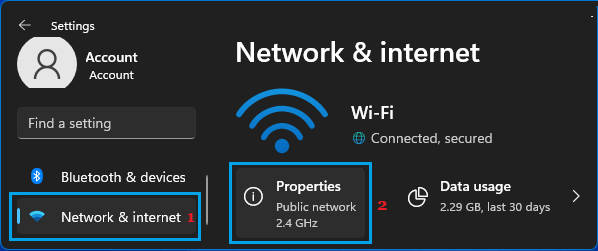
Windows 10: Go to Settings > Network and Internet > Status > click on Properties button for the active network.
2. On the next screen, your Private IP Address will be listed next to the IPV4 Address entry.
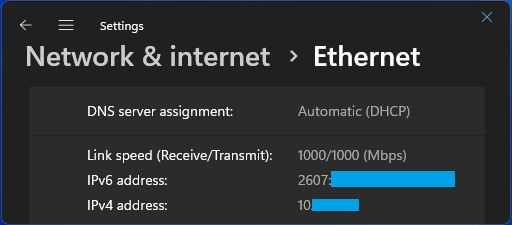
In Addition to the usual 4 string IPV4 address, you will also see your IPV6 IP Address, which will be in the form of a complex combination of letters and numbers.
Windows 10: Go to Settings > Network and Internet > Status (left-pane). In the right-pane, click on Properties button for your Active network (Wi-Fi or Ethernet).
2. Find Your Private IP Address on MacBook
If you are using a MacBook, Mac Mini or iMac, you can follow the steps below to find your Private IP Address.
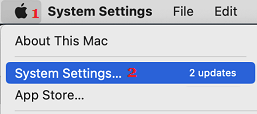
1. Click on Apple Logo in top-menu bar and select System Settings in the drop-down menu.
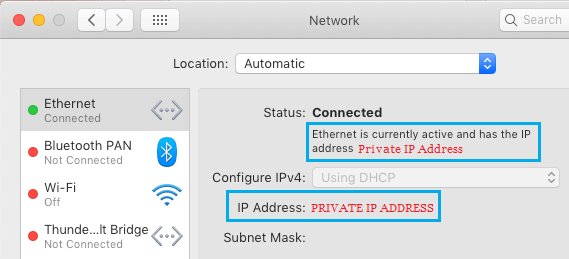
2. From System Settings screen, go to Network > select your Network (Ethernet or Wi-Fi) in left-pane. In the right-pane, your Private IP Address will be listed next to IPV4 Address entry.
3. Find Your Private IP Address on iPhone
On an iPhone, you can find your Private IP Address by following the below steps.
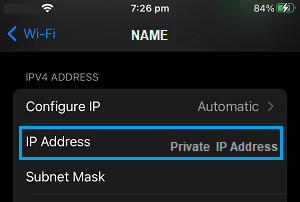
1. Go to Settings > Wi-Fi > tap on your Wi-Fi Network Name.
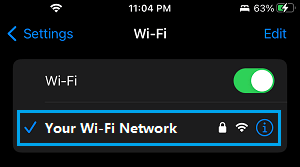
2. On the next screen, you can find your Private IP Address listed next to IP Address Entry under “IPV4 ADDRESS” section.
4. Find Your Private IP Address on Android Phone
Similarly, it is also easy to find your Private IP Address on an Android Phone.
1. Go to Settings > Wi-Fi > tap on gear shaped Settings Icon.
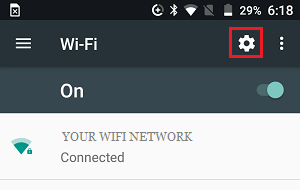
2. On the next screen, you will be able to see your Private IP Address.
Note: Most users have a Dynamic IP Address that keeps changing unlike a Static IP Address which remains the same and does not change.