If you are looking for the Serial Number of the Hard Drive installed on your computer, it is likely that you are trying to contact the manufacturer for warranty or replacement part.
Similar to Serial Number of the computer, the Serial Number of Hard Drive exists in the form of a unique set of numbers, which makes it ideal for use in tracking the units during manufacturing, selling, storage and warranty purposes.
Find Serial Number of Computer Hard Drive
If required, you can find Serial Number of the Hard Drive installed on your Windows computer by using any of the following methods.
1. Find Serial Number Using WMIC Command
You can follow the steps below to find Serial Number of the Hard Drive installed on your Windows Laptop or Desktop computer by using the WMIC command.
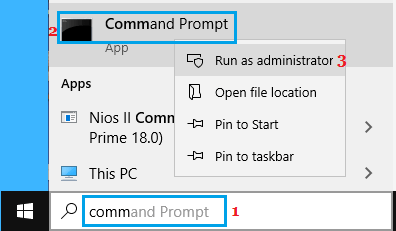
1. Type CMD in the Search bar > Right-click on Command Prompt in the Search results and click on Run as Administrator option.
2. On the Command Prompt screen, type wmic diskdrive get serialnumber and press the Enter key on the keyboard of your computer.
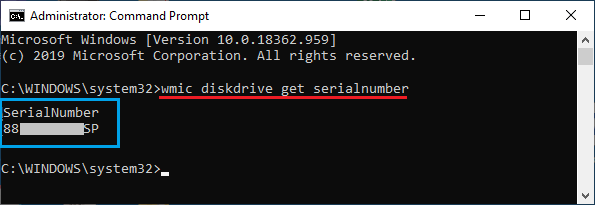
In addition to Serial Number, you can get the Model Number and Manufacturers Name of the Hard Drive by typing wmic diskdrive get model, name, serialnumber and pressing the enter key.
3. Once the Command is executed, you will find Serial Numbers of the Hard Drive attached to your computer.
If running the WMIC command does not display the Serial Number, it is likely that the manufacturer of your computer has not saved the Serial Number to BIOS/UEFI Firmware.
2. Find Serial Number Using PowerShell
If you can access the PowerShell on your computer by right-clicking on the Start button, you can follow the steps below to find Serial Number of the Hard Disk installed on your computer.
1. Right-click on Start button and click on PowerShell (Admin).
2. On the PowerShell screen, type Get-WMIObject win32_physicalmedia | Format-List Tag, SerialNumber and press the Enter Key.
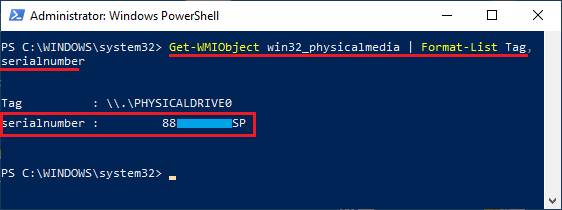
3. Once the Command is executed, you will see both the Tag (Name) and Serial Number listed for the Internal Hard Drive on your computer.
Note: Tag Number is also visible on the Disk Management screen and it identifies the physical drive number.
3. Find Serial Number on Label Attached to Hard Drive
This option requires you to open the computer case of the Desktop or back panel of the Laptop and take a look at the Label attached to the physical Hard Drive.
The Serial Number should be right below the QR Code written as S/N: XXXXXXXX-XXXXXXX.
4. Scan QR Code
If Serial Number on the label attached to the Hard Drive is not readable, you can scan the QR code printed on the label.
The QR Code usually contains all the information required to check the warranty of the Hard Drive, including its Serial Number.