If there are few Empty Rows to delete in an Excel worksheet, you can manually delete them by right-clicking on the row and selecting the Delete option in the right-click menu.
However, this method of deleting empty rows can be laborious and time consuming, especially; if you are dealing with a large number of scattered empty rows in a large worksheet containing thousands of rows.
Hide or Delete Empty Rows in Excel
If you are working on a large worksheet, you can find below the steps to quickly delete empty rows and hide blank rows in an Excel worksheet.
- Delete Empty Rows: Actually deletes the empty rows present in a worksheet.
- Hide Empty Rows: Gets rid of empty rows in a worksheet, without actually deleting the empty rows.
Related: Fix: Empty Cells and Error Values in Pivot Table.
1. Quickly Delete Empty Rows in Excel
You can follow the steps below to Delete Blank or Empty Rows in a Excel Worksheet.
1. Select the Entire data or specific section of the data from which you want to remove empty rows.
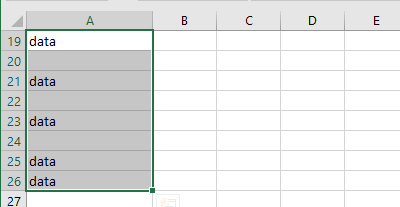
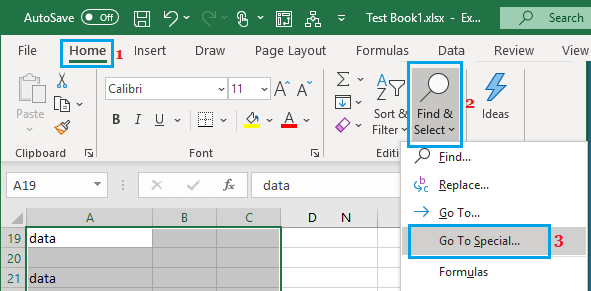
2. Make sure that you are on the Home tab > click on Find & Select option in the ‘Editing’ section and select Go to Special option in the drop-down menu.
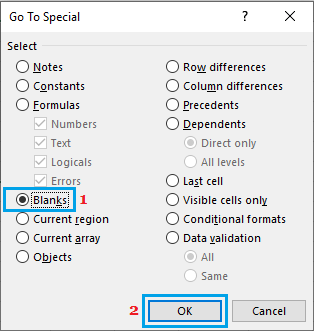
3. In the “Go To Special” window, select the Blanks option and click on OK to highlight all the blank rows in the data.
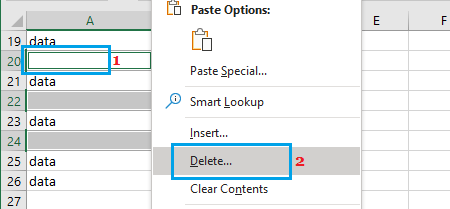
4. Right-click on any highlighted blank row and click on the Delete option.
5. In the Delete menu that appears, select Entire Row option and click on OK.
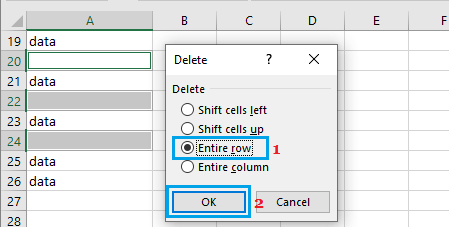
This will remove all the blank rows from the data, leaving you with a worksheet that can be sorted and filtered.
2. Hide Blank Rows in Excel
You can follow the steps below to get rid of empty rows in data sheet, without actually deleting them.
1. Select the Data Columns containing blank or empty rows.
2. Make sure, you are on the Home tab > click on Sort & Filter option in the ‘Editing’ section and select the Filter option in the drop-down menu.
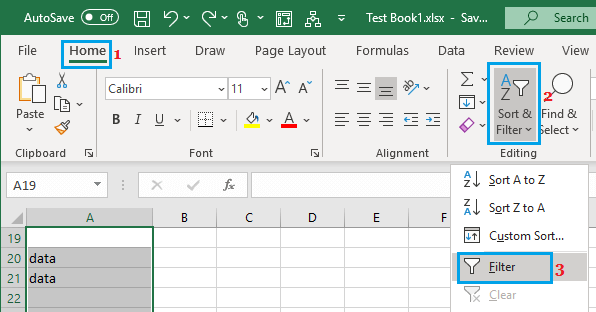
3. Once you click on Filter, all the data columns will have drop-down buttons. Click on the drop-down button for any data column > deselect Blanks in the Filter menu and click on OK.
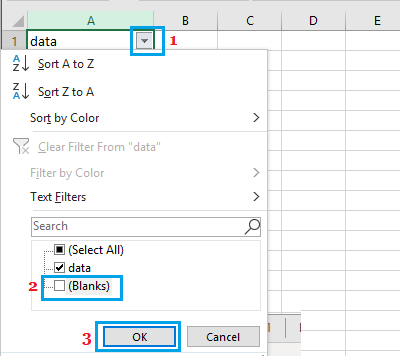
This will hide all the blank rows in the data, without actually deleting them.
At any time, you can get back blanks rows in your data by clicking the Filter drop-down button > checking the blanks option and clicking on the OK button.