The issue of iPhone disconnecting from Wi-Fi (when locked) has been widely discussed on Apple support forums, with long-time support contributors attributing this behavior as being an intentional part of the design to save battery life. While Apple has never mentioned about this battery saving design feature in any of its presentations or documentations, this pattern is being consistently reported.
Hence, a good way to check whether your model of iPhone has been designed to automatically disconnect from Wi-Fi when its screen is locked would be to check if iMessage notifications are being delayed on your iPhone, when it is not plugged-in for charging and connected only to your Home Wi-Fi network (Cellular network being switched off).
If you can clearly notice that notifications are not being delivered in the above test, it confirms that your model of iPhone or the iOS version installed on it must have been designed to save battery life by disconnecting from Wi-Fi after a certain period of inactivity.
iPhone Disconnects from Wi-Fi When Locked
In addition to the implied Battery saving design, the problem of an iPhone disconnecting from Wi-Fi when locked can also be caused due to certain settings/features being enabled on your device and the type of Wi-Fi Network that your iPhone was connected to.
With this understanding, let us go ahead and disable the features and settings which can make iPhone to disconnect from Wi-Fi.
1. Wi-Fi Network Type
If your iPhone disconnecting from Wi-Fi when it is connected to a Hotel, Airport and other such public Wi-Fi networks, the problem is usually due to such networks being intentionally designed to disconnect idle devices, in order to conserve bandwidth and re-enforce login for security reasons.
The home work in this case would be to check if this issue is occurring when iPhone is connected to your Home Wi-Fi network.
2. Turn OFF Wi-Fi Assist
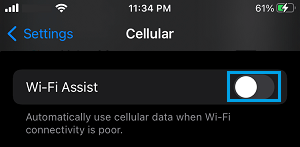
You can disable the Wi-Fi Assist feature on your iPhone to rule out the possibility of your device disconnecting from Wi-Fi, in order to connected to a stronger network (cellular) at that point of time (feature of Wi-Fi Assist).
Go to Settings > Cellular > scroll down and disable Wi-Fi Assist by moving the Slider to OFF position.
3. Set iPhone to Automatically Join Wi-Fi Network
The chances of iPhone disconnecting from Wi-Fi are greater, if your device is not set to automatically join or connect to Wi-Fi network.
1. Go to Settings > Wi-Fi > select your Wi-Fi Network.
2. On the next screen, make sure the Auto-Join option is enabled.
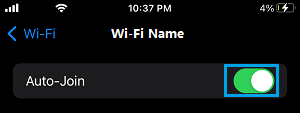
This will allow iPhone to automatically join your Wi-Fi network.
4. Disable Wi-Fi Networking Service
Some users have reported fixing this issue by disabling Wi-Fi Networking service.
1. Go to Settings > Privacy & Security > Location Services.
2. Scroll down to bottom of the screen and tap on System Services.
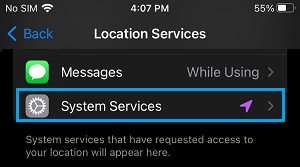
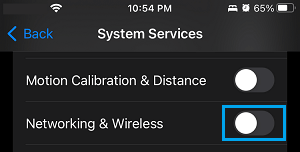
3. On “System Services” screen, switch-off Networking & Wireless service.
5. Low Power Mode
While Low Power Mode by itself should not necessarily disable Wi-Fi, it aggressively cuts down power supply to wireless radios; which can result in Wi-Fi being paused or disconnected (if the signal is weak).
It is most likely that your iPhone has automatically switched to Low Power Mode due its battery level going below 20%. Hence, the recommendation in this case is to connect your device for charging and not think in terms of disabling Low Power mode; unless it was manually enabled to extend battery life.
6. Change Background App Refresh Settings
If the model of your iPhone or the iOS version installed on it has been designed to conserve battery life by disconnecting from Wi-Fi after a certain period of inactivity, it can lead to delayed Messages, Notifications and prevent apps from refreshing their data in background.
You can prevent this from happening by allowing the Messages App and other essential apps to make use of both Wi-Fi and Cellular network for background app refresh.
1. Go to Settings > General > Background App Refresh.
2. On the next screen, open Background App Refresh tab > select Wi-Fi & Cellular Data option.
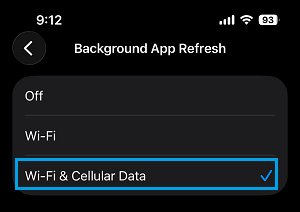
After this, go back to Background App Refresh screen and switch-on the Apps that you want to Refresh in Background by using Cellular Data, even if Wi-Fi is switched off.
This should ensure that messages and notifications are not being delayed, even if your iPhone is intentionally disabling Wi-Fi or switching to minimal Wi-Fi activity mode, when the screen is switched-off.