If the Network Icon is missing or not appearing on the Taskbar, you won’t be able to see the status (Active or Inactive) of the Wi-Fi or Ethernet network connection on your computer.
When the computer gets connected to Internet, the Network Icon refreshes itself and changes its display to indicate an open or active status of internet connection on your computer.
When the computer gets disconnected from Wi-Fi or Ethernet, the Network icon appears with a crossed-out Icon to indicate that the network connection on your computer is broken or disconnected.
Network Icon Missing from Taskbar in Windows 11/10
If the Network Icon (or Wireless icon) is missing from the Taskbar, you should always start by checking the System Tray to make sure that it is not hiding there.
Click on the System Tray (1) icon > if the Network icon is available, drag the Network icon (2) to the Taskbar and drop it there.
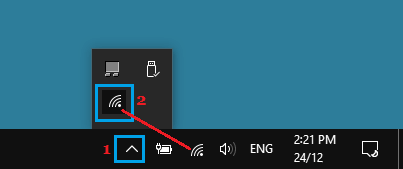
If you do not find the Network icon in System Tray, follow the next troubleshooting steps.
1. Enable Network Icon Display on Taskbar
The reason for Network Icon missing or not appearing on the Taskbar could be due to display of Network Icon on the Taskbar being disabled or not being enabled on your computer.
1. Right-click on the Taskbar and click on Taskbar Settings.
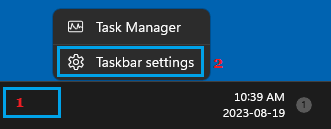
2. On the Taskbar Settings screen, scroll down in the right-pane and click on Other System Tray Icons.
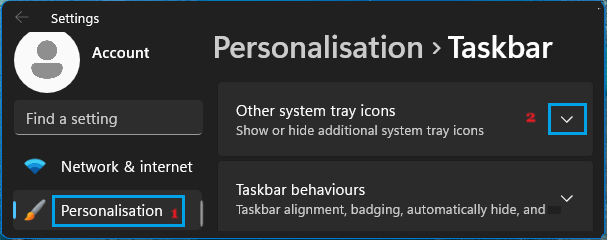
3. In the expanded “Other System Tray Icons” menu, make sure your desired Network (Wi-Fi/Ethernet) is switched ON,
Windows 10: Go to Settings > Personalization > Taskbar > click on Select which icons appear on the taskbar link > On the next screen, make sure the Network slider is turned ON.
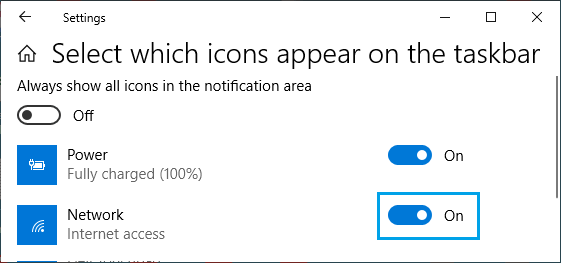
The above two troubleshooting steps should help fix the problem on your computer.
2. Enable Network Adapter
It is possible that Wi-Fi Network Adapter has been disabled or become switched OFF on your computer. This is especially true, if you can use Ethernet and not Wi-Fi.
1. Go to Settings > Network & Internet > scroll down and click on Advanced Network Settings tab.
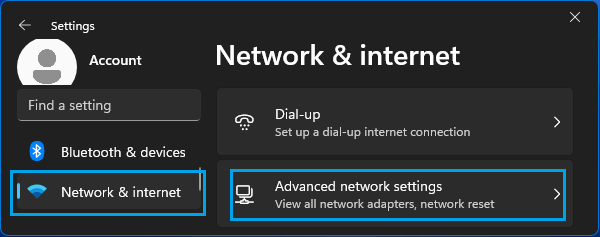
2. On the next screen, enable the Wireless Adapter (Wi-Fi Adapter in this case).
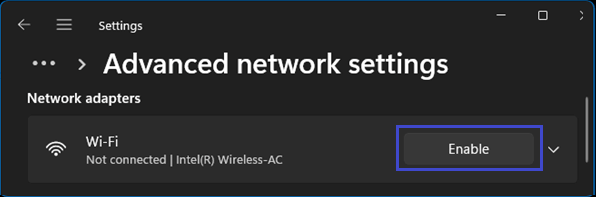
Note: You may be required to enter Admin password, if you are not logged-in to your Admin Account.
3. Run Network Troubleshooter
You can try the built-in “Network & Internet” Troubleshooter and see if it can help in fixing the problem.
1. Go to Settings > System > Troubleshoot > Other Toubleshooters.
2. On the next screen, click on the Run button to start the Network and Internet Troubleshooter.
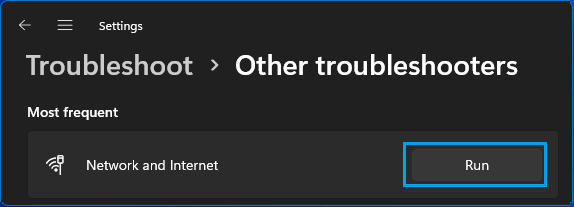
3. Wait for the Troubleshooter to find and fix problems > Follow the instructions, if they are provided.
4. Update Network Adapter Software
The problem could be due drivers for the Network Adapter not being updated to their latest available version.
1. Right-click on the Start button and click on Device Manager.
2. On Device Manager screen, open Network Adapters entry > right-click on the Network Adapter and select Update Driver Sofware option.
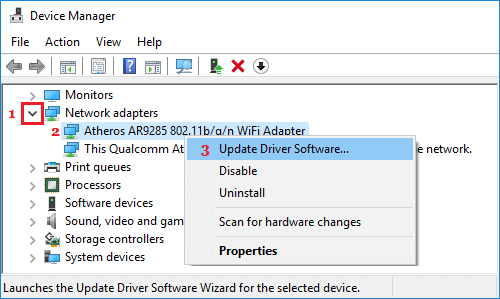
3. Once the Driver is updated, you may find the Network Icon appearing in the Taskbar or the System Tray.
5. Resume Network List Service
Follow the steps below to switch ON the Network List Service on your computer.
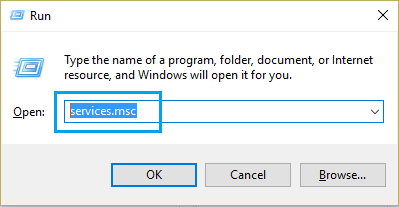
1. Press Windows + R keys > type services.msc and click on OK.
2. On the services screen, right-click on Network List Service and click on the Restart option.
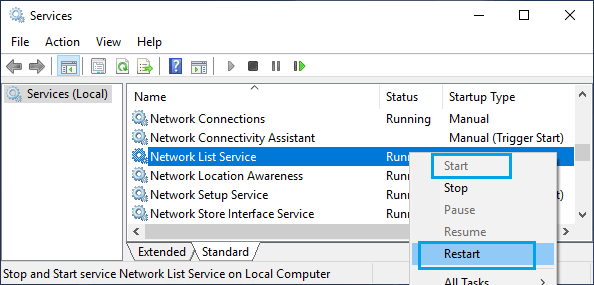
After resuming Network List Service, the Wireless Icon should appear on the Taskbar of your computer.
6. Restart Windows Explorer
Restarting the Windows Explorer service can help, if the Wireless Icon is visible in the taskbar, but it is not updating itself to show the status of Network connection on your computer.
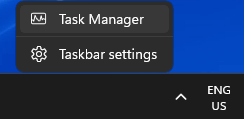
1. Right-click on the Taskbar and click on Task Manager.
2. On the Task Manager screen, switch to Processes tab > Locate/select Windows Explorer entry and click on the Restart button.
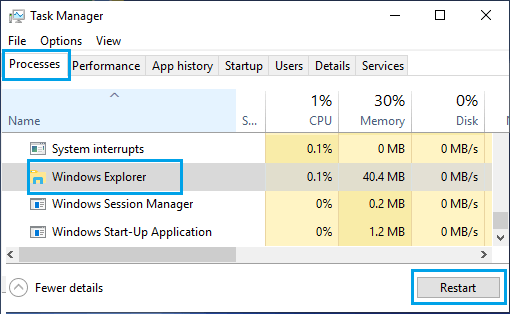
Note: If you do not see Windows Explorer Service, open any File/Folder on your computer and this should bring up the Windows Explorer Service on the Task Manager screen.
Once Windows Explorer service Restarts, you should find the Network icon updating itself to show the status of network connection on your computer.