While social media apps like WhatsApp make it easy to share photos, you may sometimes find the need to send photos using text or email message from your Android phone.
For example, if you receive a text message or email from someone requesting photos, you can reply back by attaching the requested photos to your text or email message. Similarly, you may find the need to send photos by using email or text message to someone who is not using any social media apps.
In general, the following can be listed as the main advantages of sending photos by using Email.
- Superior Image Quality: Unlike WhatsApp and other apps, email clients like Gmail & Outlook do not reduce the images quality by compressing images to save data.
- No Apps Required: Photos can be sent to anyone that has an email account. There is no requirement for the recipient to install a particular app to receive images.
- Better Documentation: Email Accounts have better search, archiving and retrieving features, compared to social media apps.
- Preferred Method: Email is the preferred method for sending images and other attachments in an official correspondence.
Note: Unlike WhatsApp, email/text messages are not end-to-end encrypted, unless you are using services like ProtonMail.
Send Photos on Android Phone Using Text & Email
The easiest way to send photos on an Android phone by using either Email or Text Message is by using the Photos App, which provides the option to share photos using both Email and Messaging App.
If you have received a request for photos via email or text message, you can send photos as attachments to your reply; right from within your Gmail Account or the Messaging app on your Android phone.
1. Send Photos Using Photos App
You can follow the steps below to send photos using Text or Email Message using the native Photos App on your Android phone or Tablet.
1. Open the Photos app on your Android Phone or Tablet.
2. Select the Photo or Photos that you want to send and tap on the Share icon in the top-menu bar.
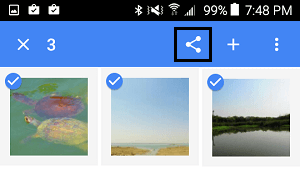
Note: Share icon maybe labelled as “Share” on certain Android Phones.
3. On the next screen, select Gmail to send photos via Email and select the Messenger App to send photos using a Text Message.
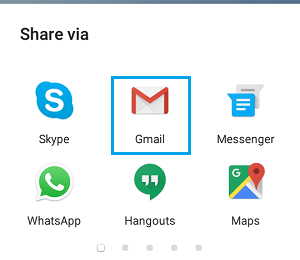
4. On the next screen. select your Recipients, write your Text or Email Message and tap on the send option.
2. Send Photos Using Messages App
You can send photos directly from within the Messages App on your Android phone by using the following steps.
1. Open the Messages App on your Android Phone.
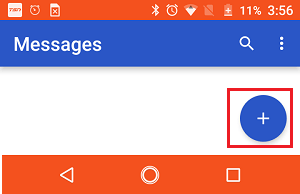
2. Tap on the + icon to open a new message or open an existing message thread by tapping on it.
3. Next, tap on the + icon and this will open attachment options.
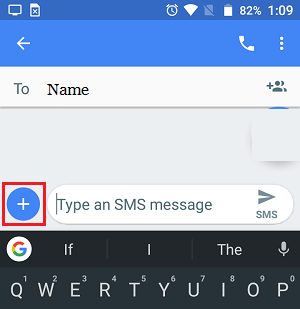
4. From the attachment options, tap on the Photos icon to browse photos from the Photos App or you can tap on the Camera Icon to take new photos.
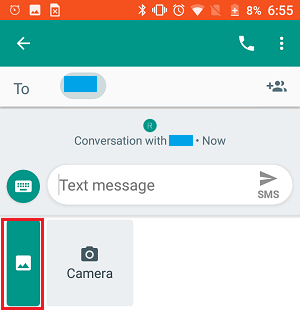
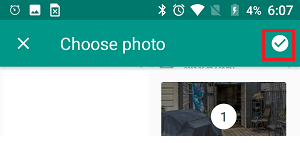
5. Select Photos that you want to send by tapping on them. Once the Photos are selected, tap on the check mark located at top-right corner.
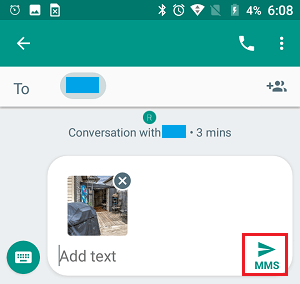
6. Finally, type a Message as required and tap on the Send MMS button to send Message and attached Photos to your recipient.
3. Send Photos On Android Phone Using Gmail
You can follow the steps below to send photos using your Gmail Account on an Android phone or Tablet.
1. Open the Gmail App on your Android Phone.
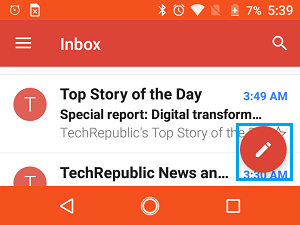
2. Open an existing message or tap on the Pencil icon to start a new message.
3. On the next screen, tap on the Paperclip icon and then tap on Attach File option in the menu that appears.
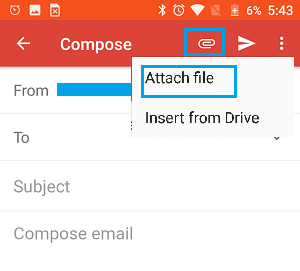
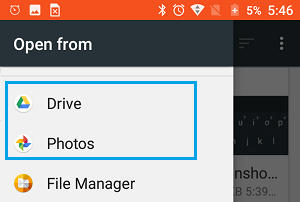
4. On the next screen, tap on 3-line icon and then tap on Photos option in the menu that appears
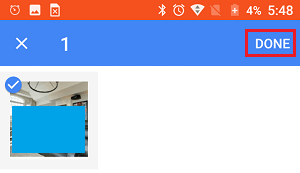
5. Select Photos that you would like to attach to your email message by tapping on them. Once the Photos are selected, tap on Done.
6. After this, type Recipients Email Address in the “To” Filed, write a subject line, compile your email and tap on the Send button to send the selected Photos.