In order to use Google’s Chromecast device on a mobile device or computer, you need to go through a setup process that results in your Chromecast device being identified and connected to the same Wi-Fi network that is being used by all your devices, including the Home Television.
Once the setup process is completed, you will be able to use Chromecast to project videos, movies and TV programs from your iPhone, Android phone, tablet or computer to the large screen of your Home Television.
Setup Google Chromecast Device
The setup process of Google Chromecast device can be divided into two steps, which are equally important and need to be properly followed.
As you must have guessed it, the first step requires you to plug the actual Chromecast device to HDMI port of the Home Television and the second step makes use of Google Home App to connect the Chromecast device to your Home Wi-Fi Network.
Step 1. Connect Google Chromecast to TV
As mentioned above, the first step is to connect the Chromecast device to HDMI Port of the Television.
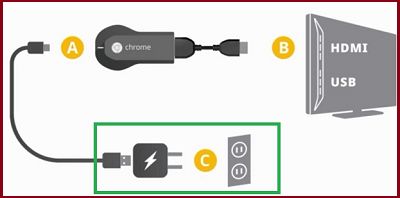
1. Plug the HDMI End of Chromecast Device into HDMI Port of Home TV and plug the USB End into any USB Port on the TV.
2. Using TV Remote, change the Input Source to match the HDMI Port (HDMI 1, HDMI2….) into which Chromecast device is plugged-in.
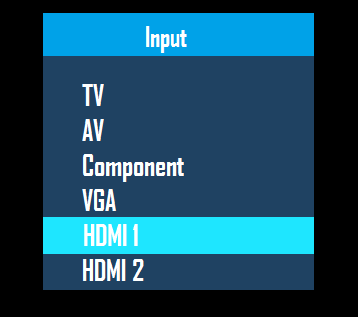
Note: On most Remote Controls you can change the Input Source by pressing the Input or Source button.
3. Make sure that Television display changes to the right HDMI Port (to which Chromecast is attached).
Step 2. Setup Chromecast Using Google Home App
The second step is to download the Google Home App to your iPhone or Android phone and complete the setup process.
1. Download the Google Home App on your Android phone from Google Play Store and from the App Store (If you are using an iPhone).
2. After the download process is completed, tap on Install or Open and follow the instructions to complete the Installation process.
3. Open Google Home App > tap on Get Started button > on the next screen, select your Google Account and Agree to terms and conditions by tapping on I Agree.
4. On the next two screen, select the Allow option to provide Google Home with access to devices on your Wi-Fi Network and use Bluetooth.
5. On the next screen, select an existing Home or select +Create another Home and tap on Next.
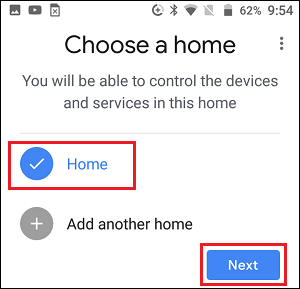
Note: If you selected + Create another home, you will be prompted to type Name for your Home and tap on Next.
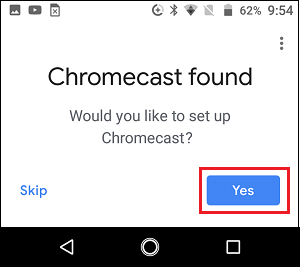
6. Wait for Home App to locate your Chromecast device. Once that is done, tap on the Yes button.
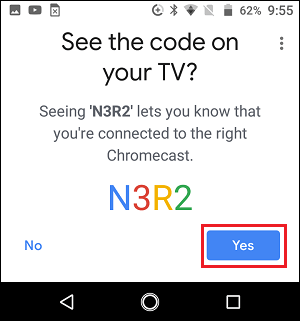
7. You should now see a Code, both on Phone & TV screen. If the Code on Phone matches with that on TV, tap on the Yes button.
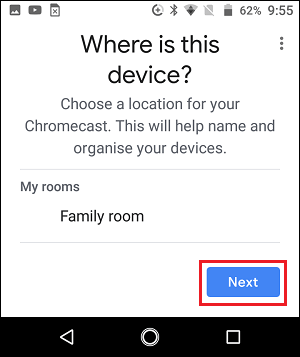
8. On the next screen, select a Location for your Chromecast Device and tap on Next.
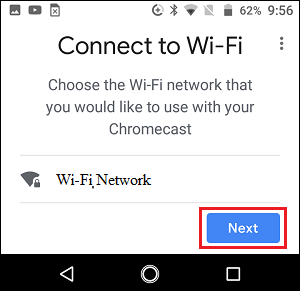
9. On Connect to Wi-Fi screen, select your Wi-Fi Network and tap on Next.
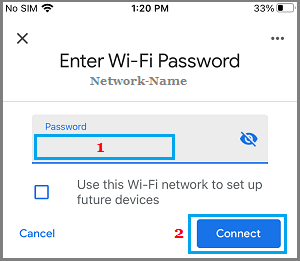
10. Enter the Password for your Wi-Fi Network, tap on Connect and follow the next instructions to complete the setup process
After completing above steps, you are ready to project YouTube videos, Movies and other media from your iPhone, Android Phone, Tablet or computer on to the larger screen of your Home Television.