Since, OneDrive is deeply integrated with Windows operating system, it has a natural tendency to automatically startup with the computer, which is designed to make it easy for users to sign-in to OneDrive and start using it.
While this default setting is ideal for signing-in to OneDrive and allowing it to perform its cloud related services, it is of no use to those who are not actively using OneDrive or not at all interested in using OneDrive.
Hence, we are providing below three different methods to stop the OneDrive App from starting up automatically on your computer.
Stop OneDrive Starting Automatically in Windows 11/10
While OneDrive won’t be able to sync files and perform its cloud related operations without being signed-in, it still remains active in background; as indicated by the appearance of OneDrive related processes in the Task Manager.
Hence, it is reasonable for users to think in terms of preventing the OneDrive app from starting up automatically and unnecessarily maintaining its sign-in & system integration related background processes on the computer.
1. Stop OneDrive Auto Start Using Settings
You can make use of the Settings App to stop OneDrive from automatically starting up with your computer.
1. Press Win + I keys to open Settings.
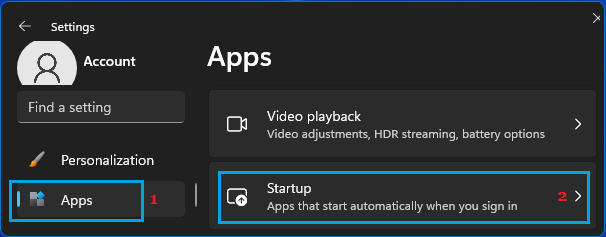
2. On the Settings screen, select Apps in the left-pane and click on the Startup tab in the right-pane.
3. On the Startup screen, switch off Microsoft OneDrive by moving the slider to OFF position.
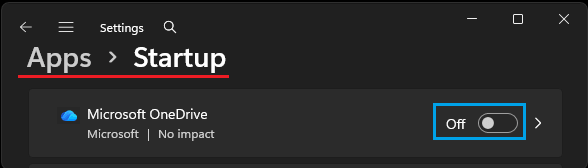
After this, you should no longer find OneDrive starting up automatically on your computer.
2. Disable OneDrive Auto-Start Using Task Manager
Another easy way to prevent OneDrive from automatically launching itself on a Windows computer is by using Task Manager.
1. Right-click on the Taskbar and click on Task Manager.
2. On the Task Manager screen, go to Startup Apps tab, right-click on Microsoft OneDrive & select the Disable option.
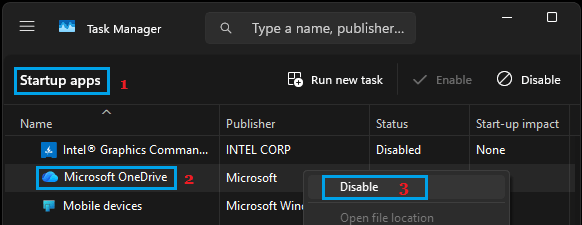
Note: You can bring up OneDrive by typing Microsoft OneDrive in the Search bar.
3. Stop OneDrive Auto-Start Using OneDrive Settings
The Settings menu of the OneDrive App also provides the option to prevent OneDrive from starting up automatically on your computer.
1. Click on OneDrive Icon on the Taskbar > select the Gear-shaped Icon and click on Settings.
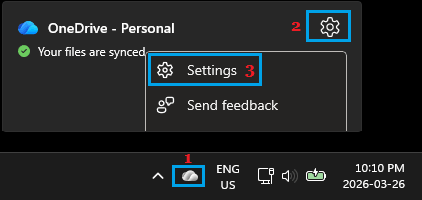
2. On the next screen, uncheck Start OneDrive automatically when I Sign in to Windows option and click on OK.
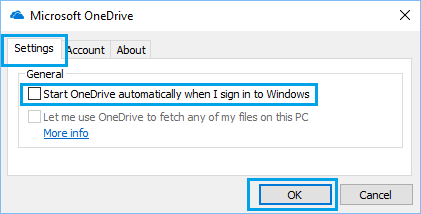
3. Next, right-click on the OneDrive Icon and select the Exit option in the menu that appears.
After this, you should no longer find the OneDrive App starting automatically on your computer.
4. Uninstall OneDrive from the Computer
If you are not at all interested in using OneDrive, you can consider the option of unlinking the PC from OneDrive, uninstall the OneDrive App or totally disable the OnDrive App by using Group Policy and Registry Editor.
For the steps to unlink the PC from OneDrive, uninstall & disable OneDrive, you can refer to this guide: How to Disable or Uninstall OneDrive in Windows 11/10.