While Photos stored on Apple’s iCloud servers can be considered as being safe, it is still a good practice to regularly transfer photos from iCloud to an external hard drive as an additional backup.
Having an additional backup of photos on an External Drive ensures that you do not lose your precious memories, if you get locked out of iCloud Account or end up losing iCloud photos due to a technical glitch.
Another reason for transferring iCloud photos to an External Drive is to free up iCloud storage space by downloading the photos to an external drive and removing them from iCloud.
Transfer Photos from iCloud to External Hard Drive
If you are interested in creating a selected or curated backup of photos on an external drive, you can make use of the first method, as provided below in this guide.
The second method is suitable if you are looking to Free up iCloud storage by bulk transferring all your iCloud Photos to External storage drive and removing them from your iCloud Account.
1. Transfer Selected Photos from iCloud to External Hard Drive
If you are trying to create a backup of selected photos, you can follow the steps below to transfer selected photos from iCloud to an External storage drive.
1. Using your Mac or PC, go to icloud.com.
2. Login to your iCloud Account by entering your Apple ID and Password.
3. After you are signed-in, click on the Apps Icon (top-right) and then click on the Photos Icon.
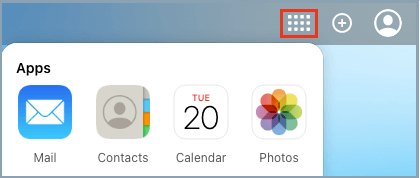
4. In iCloud Photos, switch to the Library Tab (left-pane) > select Photos that you want to Transfer and click on the Download Icon.
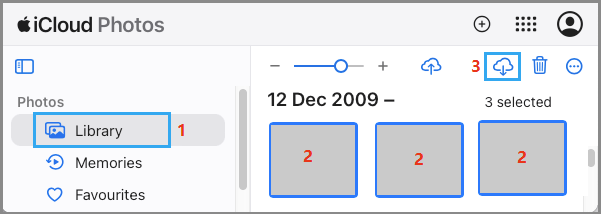
Note: If you are on Mac, use the Command key to select multiple photos. On Windows PC, you can use the Ctrl key to select multiple photos.
5. On the next window, select your External Storage Drive in the left-pane and click on the Save button.
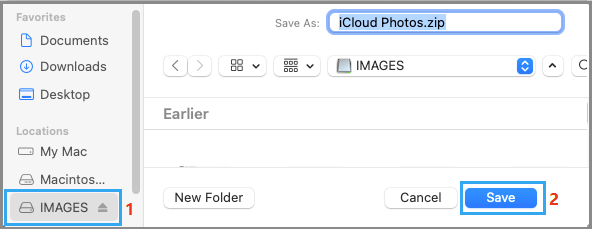
All the selected photos will be downloaded to the External Storage Drive attached to your computer in a compressed Zip Format.
2. Transfer All Photos from iCloud to External Hard Drive
Currently, the download limit for iCloud Photos is 999 photos. Hence, if you have more than 1000 photos, you will have to download them in batches of about 500 photos at a time.
Tip: To select 500 photos on iCloud, click on the First Photo > Scroll down 50 rows > Hold the Shift key and click on the Last Photo in 50th row.
1. Using Mac or PC go to icloud.com and login to your iCloud Account.
2. After you are Signed-in, click on the Apps Icon (top-right) and then click on the Photos Icon.
3. In iCloud Photos, switch to Library Tab > select the first photo and then press Command+A to select all Photos. Once, all the Photos are selected, click on the Download Icon.
4. On the next window, select your External Hard Drive in the left-pane and click on the Download button in the right-pane.
All the selected Photos will be downloaded to the External Storage Drive in a compressed Zip file format.
Note: At the time of this revision, iCloud download limit stands at 999 photos at a time.