Most users do not find the need to manually update the “BIOS/UEFI” firmware installed on their computers, as they are often handled via Windows updates; which lists them separately as “firmware updates”.
However, you may find the need to manually update BIOS/UEFI; if the computer is going through problems or not functioning properly, you are installing new hardware that requires updated firmware and also if there is security patch available; which can improve the security of your device.
Note: It is important that you check the version of BIOS/UEFI installed on the computer; before installing or replacing anything on the motherboard.
Update BIOS/UEFI In Windows 11/10
Before going ahead with the steps to update the “BIOS/UEFI” firmware on the computer, you need to be aware that a failed BIOS/UEFI update can make the computer unbootable. This can happen; if the update process gets interrupted due to a power failure.
Hence, it is highly recommended that you make a Backup of all the files on your computer and stick to the following guidelines.
1. Never update BIOS/UEFI if the computer is running properly. Unlike regular OS updates, BIOS/UEFI updates are not routine and they should only be performed to fix specific problems on the computer.
2. Do not update BIOS/UEFI by downloading the same version of BIOS as it is already available on the computer.
3. Make sure the computer is connected to Direct power source (AC adapter) and not running on Battery power.
Do not turn off the computer or interrupt the BIOS/UEFI update process in any way – BIOS can get corrupted if the computer turns OFF during the BIOS update.
Steps to Update BIOS/UEFI on a Windows Computer
The steps to update BIOS/UEFI firmware as provided below may vary, depending on the manufacturer of the computer. However, the basic idea is to download the latest version of BIOS from the website of the manufacturer and install it on the computer.
1. Open the web browser on your computer and visit the Support Page for the manufacturer of your computer.
For example, if your computer is manufactured by DELL, you will be visiting https://www.dell.com/support and if manufactured by HP you will be visiting support.hp.com.
2. Depending on the manufacturer, you may be required to enter the Model Number or the Serial Number of the computer.
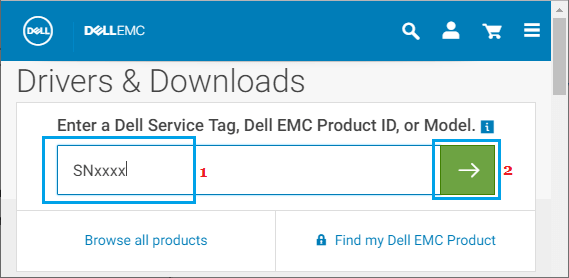
In our case, it was possible to use the Model Number on the manufacturers download page to access the latest version of BIOS available for download.
3. Click on the Download button next to the latest version of BIOS as available for the model of your computer.
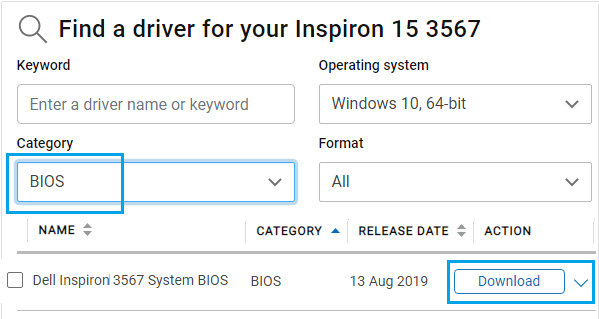
Important: If there is no update available, do not download and install the same version of BIOS.
4. After the File is downloaded, save the BIOS update file to desktop.
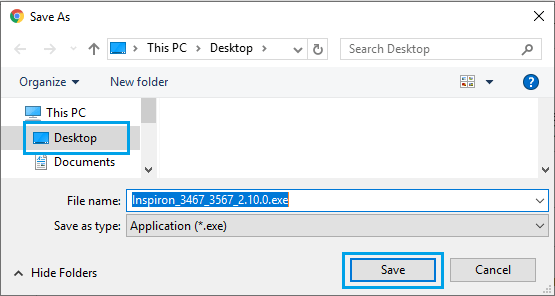
5. Double-click on the downloaded BIOS executable File on your computer.

Important: Make sure the computer is connected to direct power source (AC Power), remove all attached devices (except keyboard/mouse) and do not close the computer during the update process.
6. On the pop-up, click on OK (Or Next) to begin the process of BIOS Update on your computer.
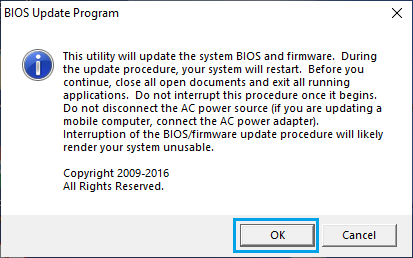
7. Follow the next set of onscreen instructions to complete the process.
Once all the steps are completed, restart the computer and it will be upgraded to the latest version of BIOS.