While it is possible to call someone who is using ‘Do Not Disturb’ on iPhone, you should try this only in case it becomes necessary to call the person due to an emergency or a valid reason. The reason for this precaution is to prevent the possibility of this person being disturbed or distracted while driving, attending an important meeting or not being in a mood to take your call.
Hence, it is not a good idea to call anyone who has placed his/her device in ‘Do Not Disturb’ mode, unless the matter is urgent and it has become absolutely necessary to get in touch with this person.
Call Someone on ‘Do Not Disturb’ Mode
The default “Do Not Disturb” feature on iPhone comes with loopholes which appear to have been left in place to make people accessible, even when their devices have been placed in ‘Do Not Disturb’ mode.
Since, most iPhone users are likely to use ‘Do Not Disturb’ with default settings, you should be able to bypass ‘Do Not Disturb’ mode by using one of the following methods.
1. Call Once and Call Again Within 3 minutes
The default ‘Do Not Disturb’ setting allows Calls to go through if someone Calls Again from the same Phone Number within three minutes of the first Call.
The idea behind this setting appears to be based on the reasoning that most people are less likely to call immediately for the second time, unless there is an emergency or an urgent need.
Using this knowledge, you should be able to bypass “Do Not Disturb” mode on most iPhones by calling once and calling back a second time within 3 minutes of the first Call.
2. Call From a Different Phone Number
The ‘Do Not Disturb’ feature on iPhone provides the option to Allow Calls from Favorite Contacts, while disabling all other Calls.
In case the person that you are trying to reach is a close friend or relative, it is quite possible that this person has designated only your Home Phone Number as a favorite Contact and not your Work Phone Number.
Hence, if you are calling from a work phone number, ask someone at your Home to try calling this person from your Home Phone Number.
How to Find if Someone is Using Do Not Disturb?
In general, you can suspect that a person that you are trying to call has placed his/her device on ‘Do Not Disturb’ mode, if you observe the following.
1. You hear a single ring and your Call is abruptly diverted to Voicemail.
This observation is based on our own testing, where we tried to call an iPhone placed in ‘Do Not Disturb’ mode. When we called the iPhone placed on DND Mode, we heard a Single Ring and the Call was abruptly diverted to Voicemail.
The testing iPhone which was placed in DND Mode, did not Ring, Flash or display any signs of receiving an incoming Call.
2. Text Messages Appear as Delivered
Next, we sent a Text Message to an iPhone placed in “Do Not Disturb” mode. The Message went as normal, displaying the usual blue bubble with the status ’Delivered’ clearly appearing at the bottom of the text bubble.
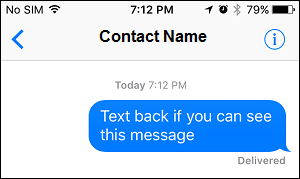
Again as expected, the iPhone that was placed in “Do Not Disturb” mode did not Ring, Vibrate, Flash or provide any indication of a new Message being received.
What if Someone Has blocked Your Number on iPhone?
It is also possible that the person that you are trying to Call has accidentally or intentionally blocked your phone number.
If this appears to be the case, you can refer to: Find If Someone Has Blocked Your Number on iPhone.
Once you are convinced that your phone number has been blocked, you may want to make use of tips mentioned in this article: How to Call Someone Who Has Blocked Your Number On iPhone.
Note: Please be aware that calling anyone who does not want to receive calls from you is not legal in certain Countries and this can land you in trouble.