Similar to Google Chrome and other web browsers, the default option in Firefox is to save downloaded files to the “Downloads” Folder on your computer. However, it also provides the option to change Download Location to Desktop or to any other Location on your computer.
Change Firefox Download Location
The most common reason for users looking for a way to change Firefox Download Location to Desktop is to keep an eye on the Files being downloaded to the computer and deal with them immediately.
You can find below the steps to change Firefox Download Location to Desktop and also the steps to make Firefox prompt you to select the Download Location, every time you try to download any file on your computer.
1. Change Firefox Download Location to Desktop
You can follow the steps below to change the Firefox Download location on your computer to Desktop.
1. Open the Firefox Web Browser on your computer.
2. Click on 3-bar Icon and select Settings in the drop-down menu.
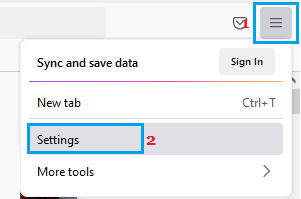
3. On the next screen, scroll down in the right-pane to “Downloads” section and click on the Browse button, located next to Save Files to entry.
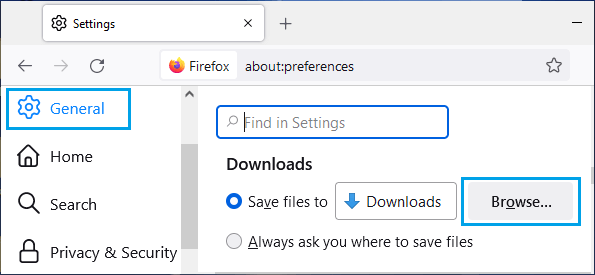
4. On the next screen, select Desktop or any other Location where you want Firefox to download files on your computer.
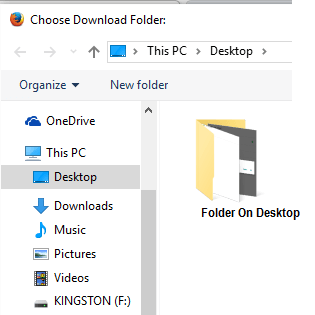
Note: You can even make Firefox to download files to USB Drive or an External Hard Drive attached to the computer.
2. Make Firefox Ask Where to Save Downloaded Files
While downloading files to desktop makes them more accessible, the downside with this setting is that it can also end up cluttering the desktop.
The solution for this issue is to make Firefox Ask where to save the Downloaded file, every time you try to download files from the internet on your computer
1. Open Firefox > click on 3-bar Icon and select Settings in the drop-down menu.
2. On the next screen, scroll down in the right-pane to “Downloads” section and select Always ask you where to save files option.
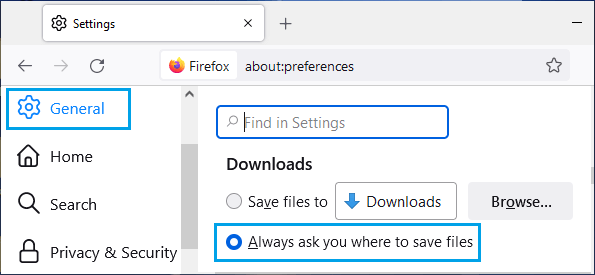
After this, Firefox will be prompting you to indicate a location for the downloaded file, every time you try to download anything from the internet.