When you copy anything on a Windows computer by using Mouse or (Ctrl + C) Shortcut, the copied information is stored on the Clipboard and it remains accessible, even after the Paste command is executed. As you can imagine, this can end up being a privacy and security risk; especially while using shared and public computers.
Hence, it is really important that you remember to clear the Clipboard; if you had copied passwords, user names and other personal or confidential information during your browsing session on a shared or public computer.
Even in the case of personal, home and work computers; clearing the Clipboard can help in maintaining a more organized/secure Clipboard; which is beneficial for privacy/efficiency and preventing the possibility of sensitive data being accidentally pasted into native or third-party applications and websites.
Clear the Clipboard on a Windows computer
As you might be already aware, the simplest way to clear the Clipboard on a Windows computer is by restarting the device, which clears the Random Access Memory (RAM) of the computer; where the Clipboard data is actually stored.
However, restarting the computer is not always possible, it is inconvenient and totally unnecessary; when you can make use of a simple keyboard shortcut and multiple other ways to clear the Clipboard on a Windows computer.
1. Clear Clipboard Using Shortcut
If Clipboard history is enabled on your computer, you can make use of “Win + V” shortcut to view the Clipboard History on your computer and click on “Clear All” button to clear the Clipboard.
1. Press Windows + V keys to open Clipboard History.
2. Click on the Clear all button to clear the entire Clipboard history from your computer.
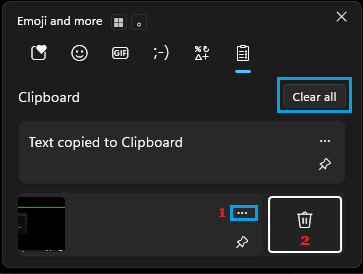
3. If you want to clear individual items, click on 3-dots icon; located next to the item that you want to clear and click on the Trash icon.
Note: This method works; only if Clipboard History is enabled on your computer.
2. Clear Clipboard History Using Settings
If you are not good at remembering Keyboard Shortcuts, you can make use of the Settings App to clear the Clipboard History on your computer.
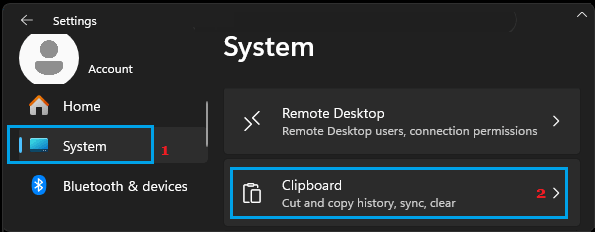
1. Press Windows + I keys to open Settings.
2. On the Settings screen, select System in the left-pane and click on Clipboard in the right-pane.
3. On the next screen, you can clear the entire Clipboard History from your device by clicking on the Clear button.
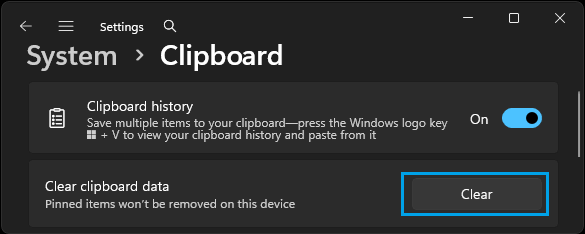
If you want to, you can prevent Windows from storing Clipboard History by moving the Clipboard History slider to OFF position; in which case only a single item (Last copied) will be saved to the Clipboard.
3. Clear Clipboard Using Command Prompt
While you can find websites, forums and AI suggesting “echo. | clip” command to clear Clipboard, this command does not clear Clipboard History, it only replaces a recently saved Clipboard item with a blank screenshot.
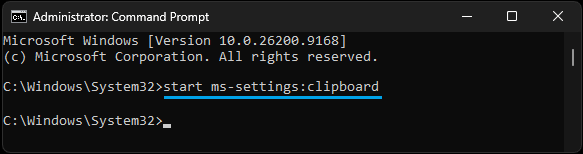
Currently, the only way to clear the entire Clipboard history using Windows Command Prompt is by executing “start ms-settings:clipboard” command.
1. Open Command Prompt As Admin.
2. On the Command Prompt screen, type start ms-settings:clipboard and press the Enter key.
3. On the next screen, you can clear the entire Clipboard History from your device by clicking on the Clear button.
If required; you can prevent the computer from collecting Clipboard history by using the Clipboard history slider.
4. Copy Other Content
If the option to save Clipboard history is not enabled on the computer, it will only be saving the last copied item to the Clipboard and this can be cleared by copying any other content; which is not of personal or sensitive nature.
For example, if you are working on a sensitive Microsoft Word Document; you can rule out the possibility of any sensitive data remaining on the Clipboard by simply copying a random word or sentence; which is not confidential or sensitive.
This way, you will be replacing any sensitive information on the Clipboard with a random word or sentence which can never be misused by anyone.
5. Use Print Screen
Similarly, you can replace the last copied data on the Clipboard by pressing the Print Screen key as available on the keyboard of a Windows computer.
When you press the Print Screen key, the sensitive data on the Clipboard (if any) will be replaced by Screenshot of the Desktop.
6. Create Shortcut to Clear Clipboard History
If you are regularly working with data of sensitive or confidential nature, you can make it easy for you to clear the Clipboard by creating a Clear Clipboard Desktop Shortcut on your computer.
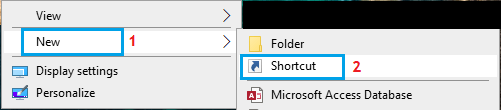
1. Right-click in any Empty Space on the Desktop of your computer > click on New (1) and then click on Shortcut (2) in the side-menu that appears.
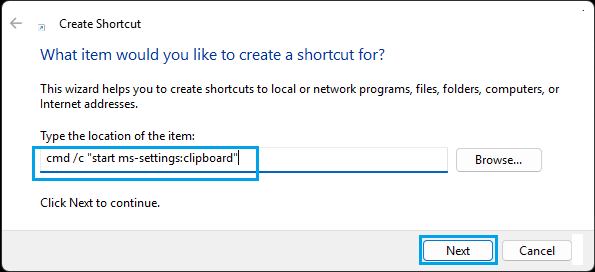
2. Next, type cmd /c “start ms-settings:clipboard” as the location for the shortcut and click on Next.
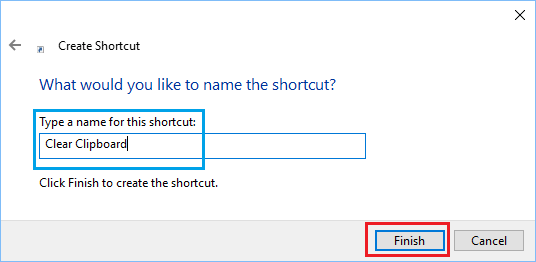
3. On the next screen, type Clear Clipboard or any other Name for the shortcut and click on Finish.
4. You should now be able to see Clear Clipboard shortcut icon placed on the Desktop of your Computer.
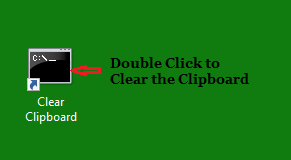
As you can see in above image, the shortcut looks like a Command Prompt window. If you want to, you can change the look of this shortcut by modifying its properties – Right-click on the Shortcut > select Properties > On the next screen, go to Shortcut tab and select an appropriate icon for the Shortcut.
How to Use Clear Clipboard History Using Shortcut
Once the “Clear Clipboard Shortcut” is ready, you can clear the entire Clipboard history on your computer at any time by double-clicking on the Shortcut Icon.
1. Double-click on Clear Clipboard shortcut.
2. On the next screen, you can clear Clipboard history by clicking on the Clear button.
Note: Unlike other methods provided on the internet, this method can be used to clear the entire Clipboard History on a Windows computer; which is desirable for those working on projects of sensitive and confidential nature.